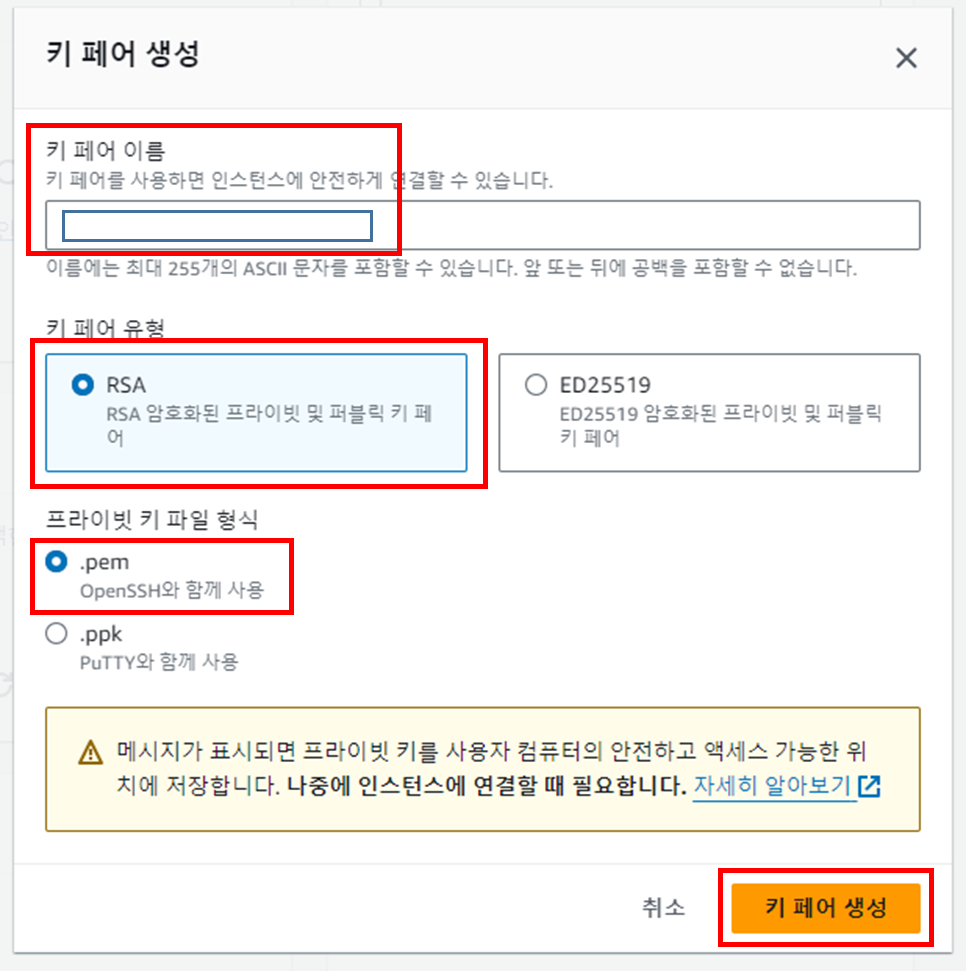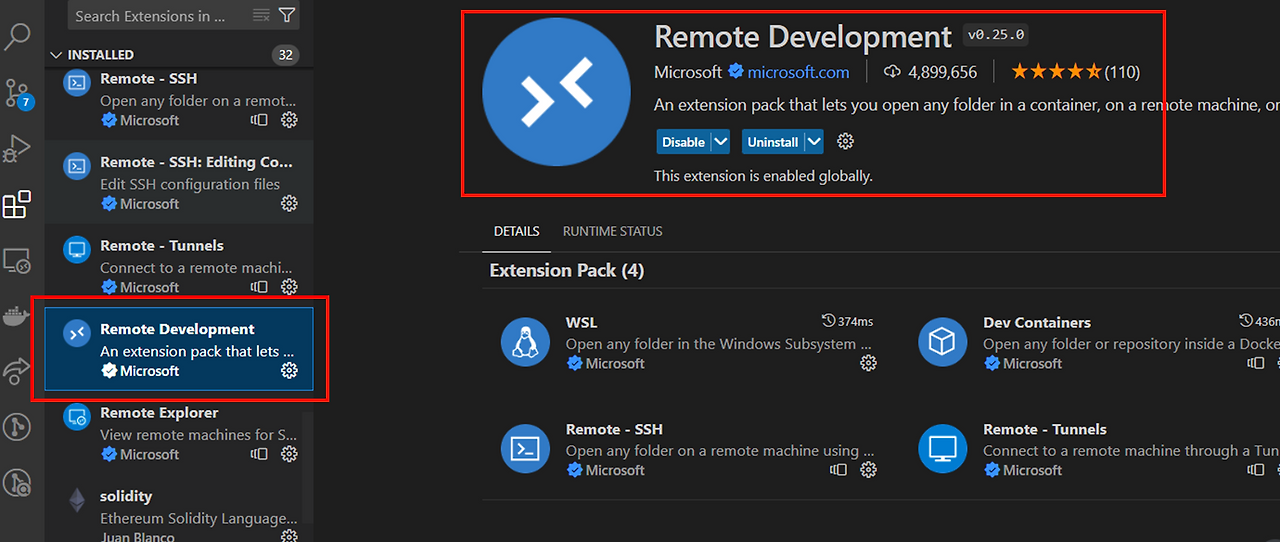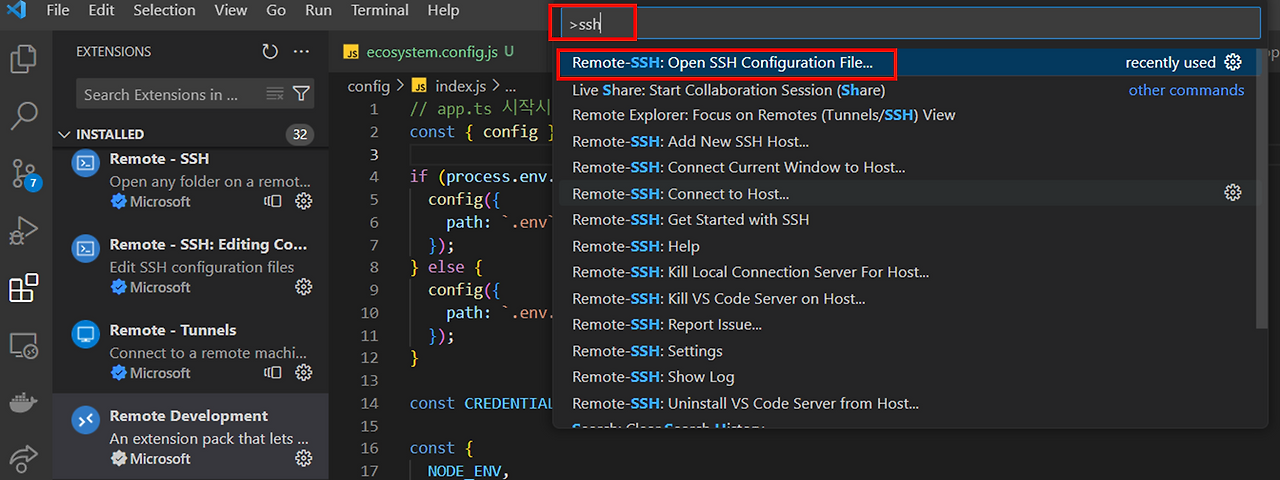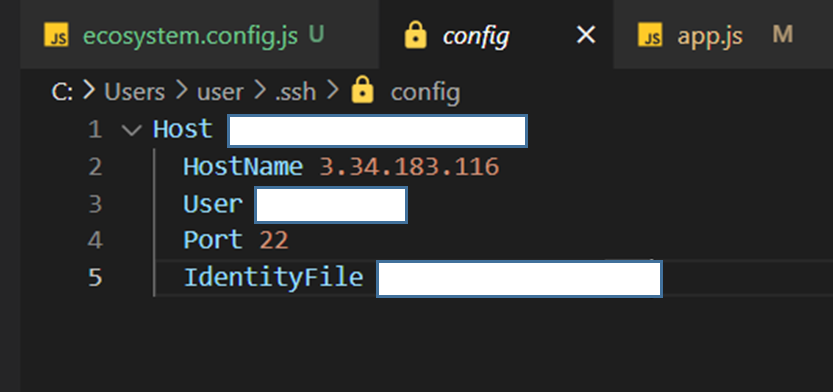
<?xml version="1.0" encoding="utf-8"?><feed xmlns="http://www.w3.org/2005/Atom" ><generator uri="https://jekyllrb.com/" version="3.10.0">Jekyll</generator><link href="/feed.xml" rel="self" type="application/atom+xml" /><link href="/" rel="alternate" type="text/html" /><updated>2025-01-19T14:49:53+00:00</updated><id>/feed.xml</id><title type="html">전투코딩</title><subtitle>야옹</subtitle><author><name>전투코딩</name></author><entry><title type="html">[React-Native] Expo 프로젝트에 Tailwind CSS 적용하기 🎫</title><link href="/react-native/2024/02/06/RN-Tailwind.html" rel="alternate" type="text/html" title="[React-Native] Expo 프로젝트에 Tailwind CSS 적용하기 🎫" /><published>2024-02-06T00:00:00+00:00</published><updated>2024-02-06T00:00:00+00:00</updated><id>/react-native/2024/02/06/RN-Tailwind</id><content type="html" xml:base="/react-native/2024/02/06/RN-Tailwind.html"><![CDATA[<h2 id="개요-">개요 👂</h2>

<p><img src="https://img1.daumcdn.net/thumb/R1280x0/?scode=mtistory2&amp;fname=https%3A%2F%2Fblog.kakaocdn.net%2Fdn%2Fm01YE%2FbtsEy1SylqE%2FgyzobxRONhaZSouC56dOC1%2Fimg.png" alt="" /></p>

<p>해당 포스팅에서는,<br />
요즘 유의깊게 살펴보고 있는 <strong><code class="language-plaintext highlighter-rouge">Vercel</code></strong> 팀에서 채택한 <strong><code class="language-plaintext highlighter-rouge">Tailwind CSS</code></strong> 를<br />
<strong><code class="language-plaintext highlighter-rouge">React-Native</code></strong> 환경에서 어떻게 적용하고, 그 이유에 대해 정리 해 보고자 한다.</p>

<hr />

<h3 id="why-tailwind-">Why Tailwind ❓</h3>

<p>사실 이전 프로젝트에서는 거의 모든 스타일을 <code class="language-plaintext highlighter-rouge">Tailwind CSS</code> 를 적용하여 작성 했는데,<br />
요즘들어 <strong><code class="language-plaintext highlighter-rouge">Styled-Components</code></strong> 나 <strong><code class="language-plaintext highlighter-rouge">Panda CSS</code></strong> 등을 사용했던 것 같다.</p>

<p><strong><code class="language-plaintext highlighter-rouge">Tailwind CSS</code></strong> 를 주로 사용하는 이유는 아래와 같다.</p>

<blockquote>
  <p><a href="https://www.nativewind.dev/core-concepts/tailwindcss">https://www.nativewind.dev/core-concepts/tailwindcss</a></p>
</blockquote>

<p>공식 문서에도 있듯,<br />
1️⃣ <strong>유틸리티 클래스를 사용하여 <code class="language-plaintext highlighter-rouge">HTML</code> 에 직접 요소의 스타일을 지정할 수 있다.</strong></p>

<ul>
  <li>이를 통해 클래스 <strong>이름을 추상화 하기 위해 시멘틱하게 정할 때 소요되는 리소스</strong>가 줄어든다.</li>
</ul>

<p><br />
2️⃣ <strong>스타일 재사용을 통해 중복을 관리하고, 재사용 가능한 추상화를 생성한다.</strong></p>

<ul>
  <li><strong>사전에 정의된 모듈을 불러와 사용</strong>함으로 인해 빌드 시 발생하는 리소스 낭비를 줄일 수 있다.<br />
중복되어 작성된 비 효율적인 속성을 <strong>루프하여 관리</strong>할 수 있다.
    <blockquote>
      <p><a href="https://tailwindcss.com/docs/reusing-styles">https://tailwindcss.com/docs/reusing-styles</a></p>
    </blockquote>
  </li>
</ul>

<p><br />
3️⃣ <strong>커스텀 스타일 적용 가능.</strong></p>

<ul>
  <li>사전에 정의되어있는 스타일을 불러와 사용하지만, 종종 예외의 상황이 발생할 경우가 존재한다.<br />
이를 해결하기 위해 <strong><code class="language-plaintext highlighter-rouge">theme</code></strong> 섹션에 <strong>커스텀된 속성을 부여하여 사용</strong>할 수 있다.</li>
</ul>

<hr />

<h2 id="init-">init 💫</h2>

<blockquote>
  <p><a href="https://www.nativewind.dev/quick-starts/expo">https://www.nativewind.dev/quick-starts/expo</a></p>
</blockquote>

<p>먼저,<br />
<strong><code class="language-plaintext highlighter-rouge">React-Native</code></strong> 환경에서 <strong><code class="language-plaintext highlighter-rouge">Tailwind CSS</code></strong> 를 사용하려면,<br />
<strong><code class="language-plaintext highlighter-rouge">NativeWind</code></strong> 라는 라이브러리가 필요하다.</p>

<p>이는 <strong><code class="language-plaintext highlighter-rouge">React-Native</code></strong> 커뮤니티에 불어온 혁명같은 바람이었으며,<br />
기존에 존재했던 <strong><code class="language-plaintext highlighter-rouge">Tailwind CSS</code></strong> 의 강력한 기능을 앱 개발에 도입함으로 인해<br />
유의미한 영향이 끼쳤다고 본다.</p>

<p>설치 방법은 공식 문서에도 있지만, 매우 간단하다.</p>

<div class="language-plaintext highlighter-rouge"><div class="highlight"><pre class="highlight"><code>yarn add nativewind
yarn add --dev tailwindcss
</code></pre></div></div>

<blockquote>
  <p>패키지 매니저로 <strong><code class="language-plaintext highlighter-rouge">yarn</code></strong> 을 사용했지만 <strong><code class="language-plaintext highlighter-rouge">npm</code></strong> 도 무관하다.<br />단, <strong><code class="language-plaintext highlighter-rouge">pnpm</code></strong> 은 <strong><code class="language-plaintext highlighter-rouge">ios</code></strong> 빌드 시 에러가 발생하므로 권장하지 않는다.<br />👉 <strong><code class="language-plaintext highlighter-rouge">React-Native</code></strong> 와 <strong><code class="language-plaintext highlighter-rouge">pnpm</code></strong> 은 아직 호환이 되지 않는 것 같음.</p>
</blockquote>

<h3 id="error-">Error 💥</h3>

<p><strong><code class="language-plaintext highlighter-rouge">yarn add --dev tailwindcss</code></strong> 명령으로 프로젝트에 <strong><code class="language-plaintext highlighter-rouge">tailwind</code></strong> 를 설치 할 경우,<br />
의존성 에러가 발생했다.</p>

<p>이를 해결하기 위해 <strong><code class="language-plaintext highlighter-rouge">yarn add --dev tailwindcss@3.3.2</code></strong> 버전을 명시하여 설치 해 주었고,<br />
발생한 에러를 해결할 수 있었다.</p>

<hr />

<h2 id="1️⃣-setup---tailwindconfig">1️⃣ Setup - tailwind.config</h2>

<div class="language-plaintext highlighter-rouge"><div class="highlight"><pre class="highlight"><code>npx tailwindcss init
</code></pre></div></div>

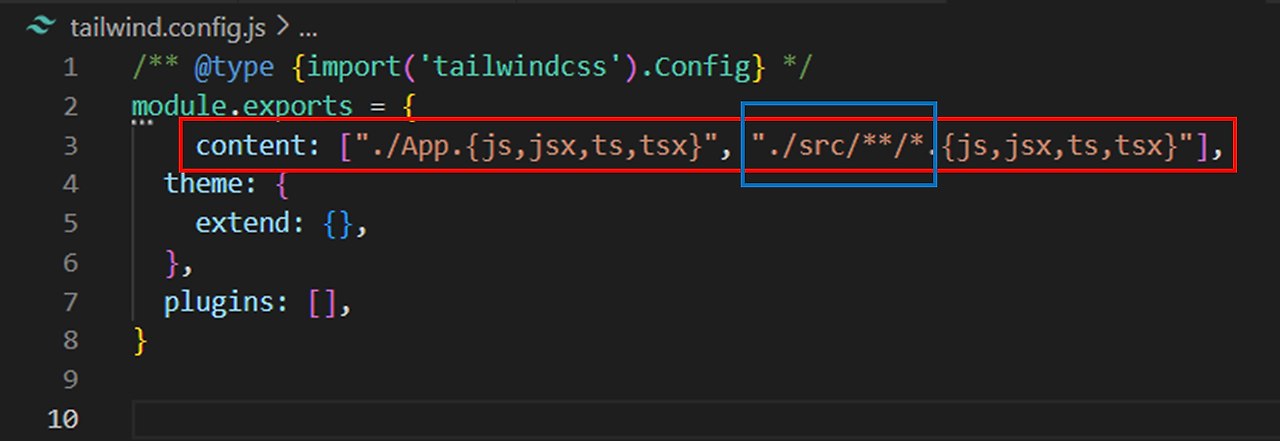
<p>해당 명령으로 프로젝트 루트경로에 <strong><code class="language-plaintext highlighter-rouge">tailwind.config.ts</code></strong> 파일이 생성 될 것이다.<br />
<strong><code class="language-plaintext highlighter-rouge">CSS</code></strong> 파일에 대한 구성파일을 설정 해 주어야 한다.</p>

<div class="language-plaintext highlighter-rouge"><div class="highlight"><pre class="highlight"><code>/** @type {import('tailwindcss').Config} */
module.exports = {
    content: ["./App.{js,jsx,ts,tsx}", "./&lt;custom directory&gt;/**/*.{js,jsx,ts,tsx}"],
  theme: {
    extend: {},
  },
  plugins: [],
}
</code></pre></div></div>

<p><img src="https://img1.daumcdn.net/thumb/R1280x0/?scode=mtistory2&amp;fname=https%3A%2F%2Fblog.kakaocdn.net%2Fdn%2FbittIQ%2FbtsEvxkUZGg%2F2OYwkxN3kRx5LPpOE5nlg1%2Fimg.png" alt="" /></p>

<blockquote>
  <p><strong><code class="language-plaintext highlighter-rouge">&lt;custom directory&gt;</code></strong> 부분에는 <strong><code class="language-plaintext highlighter-rouge">tailwind CSS</code></strong> 가 적용되기를 원하는 경로를 지정 해 주면 된다.<br />나의 경우 <strong><code class="language-plaintext highlighter-rouge">./App</code></strong> 과 <strong><code class="language-plaintext highlighter-rouge">./src</code></strong> 하위 모든 요소들을 지정 해 주었다.</p>
</blockquote>

<hr />

<h2 id="2️⃣-setup---babelconfig">2️⃣ Setup - babel.config</h2>

<p><strong><code class="language-plaintext highlighter-rouge">babel.config</code></strong> 를 수정함으로 인해,<br />
소스코드를 컴파일 할 때 <strong><code class="language-plaintext highlighter-rouge">NativeWind</code></strong> 를 사용하여 컴파일 할 수 있다.</p>

<blockquote>
  <p><strong><code class="language-plaintext highlighter-rouge">NativeWind</code></strong> 는,<br /><strong><code class="language-plaintext highlighter-rouge">CSS-in-JS</code></strong> 방식의 스타일로 관리하기에<br />이를 컴파일 하여 <strong><code class="language-plaintext highlighter-rouge">JavaScript</code></strong> 로 변환해야 한다.</p>
</blockquote>

<div class="language-plaintext highlighter-rouge"><div class="highlight"><pre class="highlight"><code>module.exports = function(api) {
  api.cache(true);
  return {
    presets: ['babel-preset-expo'],
    plugins: ['nativewind/babel'],
  };
};
</code></pre></div></div>

<p><img src="https://img1.daumcdn.net/thumb/R1280x0/?scode=mtistory2&amp;fname=https%3A%2F%2Fblog.kakaocdn.net%2Fdn%2FbxY4T3%2FbtsEquWLUe8%2F8Qjn1jXJWKUfurklj7CUq0%2Fimg.png" alt="" /></p>

<blockquote>
  <p><strong><code class="language-plaintext highlighter-rouge">babel.config</code></strong> 를 수정하면 서버를 재시작 해 주어야 적용이 된다.</p>
</blockquote>

<hr />

<h2 id="3️⃣-setup---appdts">3️⃣ Setup - app.d.ts</h2>

<p>간단했지만 모든 설정이 끝났다.<br />
이제 기본 <strong><code class="language-plaintext highlighter-rouge">React-Native</code></strong> 문법에 맞춰 작성하고,<br />
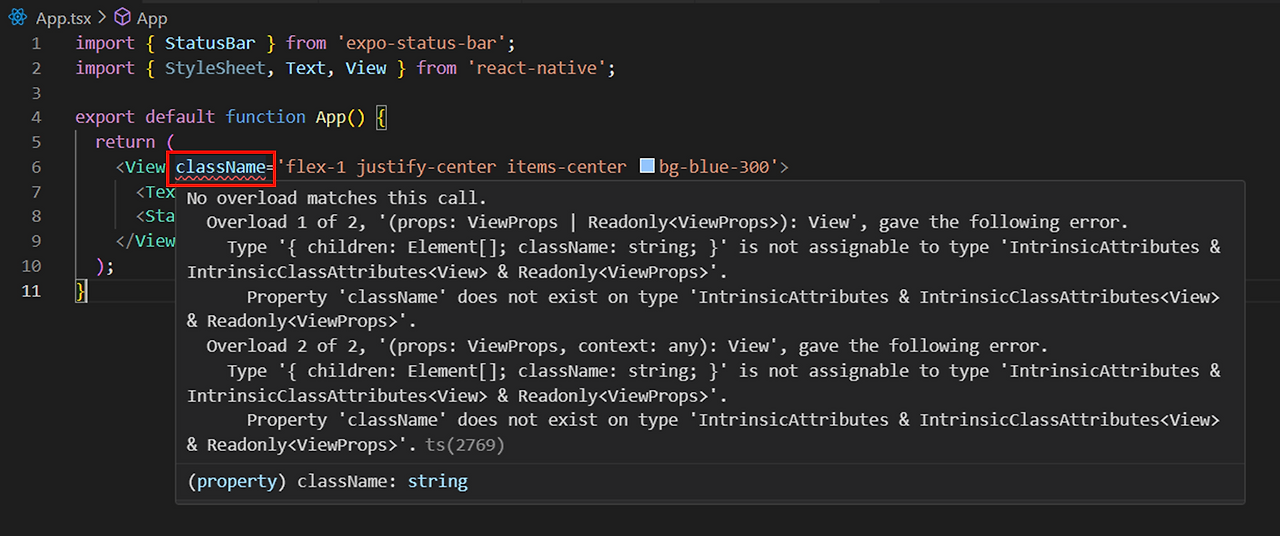
<strong><code class="language-plaintext highlighter-rouge">className</code></strong> 을 부여하여 스타일을 지정하려 하는데 에러가 발생한다.</p>

<p><img src="https://img1.daumcdn.net/thumb/R1280x0/?scode=mtistory2&amp;fname=https%3A%2F%2Fblog.kakaocdn.net%2Fdn%2FS8F9X%2FbtsEy8YrBxT%2F1O5Msq0TcZ0ctcUqlKKYq1%2Fimg.png" alt="" /></p>

<p>이 에러는,<br />
<strong><code class="language-plaintext highlighter-rouge">React-Native</code></strong> 환경에서 <strong><code class="language-plaintext highlighter-rouge">TypeScript</code></strong> 를 사용하려 할 때 주로 발생하며<br />
기본적으로 <strong><code class="language-plaintext highlighter-rouge">View</code></strong> 컴포넌트는 <strong><code class="language-plaintext highlighter-rouge">className</code></strong> props 로 인식하지 않는다.</p>

<p>이를 해결하기 위해,<br />
<strong><code class="language-plaintext highlighter-rouge">app.d.ts</code></strong> 파일을 추가하여 <strong><code class="language-plaintext highlighter-rouge">TypeScript</code></strong> 에서 사용자 지정 타입을 선언했다.</p>

<div class="language-plaintext highlighter-rouge"><div class="highlight"><pre class="highlight"><code>/// &lt;reference types="nativewind/types" /&gt;
</code></pre></div></div>

<p><img src="https://img1.daumcdn.net/thumb/R1280x0/?scode=mtistory2&amp;fname=https%3A%2F%2Fblog.kakaocdn.net%2Fdn%2F7LEJq%2FbtsExHAykTK%2FpVrWdAlfDOGXYaWHCK5uf1%2Fimg.png" alt="" /></p>

<blockquote>
  <p><strong><code class="language-plaintext highlighter-rouge">NativeWind</code></strong> 를 사용할 때 <strong><code class="language-plaintext highlighter-rouge">React-Native</code></strong> 에 사용할 수 있는 유형을 확장 해 주어야 하는데,<br />해당 유형을 참조하기 위해 <strong>삼중 슬래시 지시어</strong>를 통해 명시 해 주었다.<br /><a href="https://www.nativewind.dev/getting-started/typescript">https://www.nativewind.dev/getting-started/typescript</a></p>
</blockquote>

<hr />

<p><img src="https://img1.daumcdn.net/thumb/R1280x0/?scode=mtistory2&amp;fname=https%3A%2F%2Fblog.kakaocdn.net%2Fdn%2FtCVdU%2FbtsEvXjmWWm%2FlmJ8tzoQMKYZE5kto2u5bk%2Fimg.png" alt="" /></p>

<h2 id="reference-">Reference 🌊</h2>

<blockquote>
  <p><a href="https://enfp-jake.tistory.com/261">https://enfp-jake.tistory.com/261</a><br /><a href="https://fe-developers.kakaoent.com/2022/220303-tailwind-tips/?ref=codenary">https://fe-developers.kakaoent.com/2022/220303-tailwind-tips/?ref=codenary</a><br /><a href="https://www.nativewind.dev/getting-started/typescript">https://www.nativewind.dev/getting-started/typescript</a><br /><a href="https://tailwindcss.com/docs/utility-first">https://tailwindcss.com/docs/utility-first</a><br /><a href="https://www.nativewind.dev/quick-starts/expo">https://www.nativewind.dev/quick-starts/expo</a><br /><a href="https://www.codenary.co.kr/techstack/detail/tailwind">https://www.codenary.co.kr/techstack/detail/tailwind</a></p>
</blockquote>]]></content><author><name>전투코딩</name></author><category term="React-Native" /><category term="리액트 네이티브" /><category term="expo" /><category term="TIL" /><category term="TailwindCSS" /><summary type="html"><![CDATA[개요 👂]]></summary></entry><entry><title type="html">[DataBase] 커넥션 풀 vs 단일 커넥션 (Connection Pool vs Single Connection) (Feat. MySQL) 🔌</title><link href="/database/2024/01/24/DB-Connection-Pool.html" rel="alternate" type="text/html" title="[DataBase] 커넥션 풀 vs 단일 커넥션 (Connection Pool vs Single Connection) (Feat. MySQL) 🔌" /><published>2024-01-24T00:00:00+00:00</published><updated>2024-01-24T00:00:00+00:00</updated><id>/database/2024/01/24/DB-Connection-Pool</id><content type="html" xml:base="/database/2024/01/24/DB-Connection-Pool.html"><![CDATA[<h2 id="개요-">개요 🙋</h2>

<p><img src="https://img1.daumcdn.net/thumb/R1280x0/?scode=mtistory2&amp;fname=https%3A%2F%2Fblog.kakaocdn.net%2Fdn%2F4GPS0%2FbtsD0Gwk5dF%2FxE6WBYhJj1rgXkm1WmyHkk%2Fimg.jpg" alt="" /></p>

<p>보통 프로젝트를 진행하다보면,<br />
설계된 <strong><code class="language-plaintext highlighter-rouge">API</code></strong> 를 호출하기 위해 로직을 작성하는데<br />
그 로직 안의 내용은 보통 아래와 같을것이다.</p>

<pre><code class="language-JavaScript">const db = require('../loaders/db');

module.exports = {
  getBrandData: async () =&gt; {
    const connection = await db();
    const [rows] = await connection.query(
      'SELECT brand_name, name, caffeine FROM brand'
    );
    connection.end();
    return rows;
  }
};
</code></pre>

<p>로직을 살펴보면,<br />
외부에 정의된 데이터베이스초기화 로직을 불러와 <strong><code class="language-plaintext highlighter-rouge">connection</code></strong> 변수에 비동기로 담아 사용한다.</p>

<p><strong><code class="language-plaintext highlighter-rouge">DB</code></strong> 에 접근이 성공하게되면,<br />
쿼리문을 날려 명령을 수행한 뒤 불필요한 리소스 낭비를 방지하기 위해 <strong><code class="language-plaintext highlighter-rouge">DB</code></strong> 의 연결을 해제한다.</p>

<p>이와 같은 방식을 <strong><code class="language-plaintext highlighter-rouge">단일 커넥션</code></strong> 이라고 하며,<br />
각 클라이언트 또는 사용자에 대해<br />
하나의 데이터베이스 연결(<strong><code class="language-plaintext highlighter-rouge">createConnection</code></strong>) 만을 유지하는 방식의 개념을 갖는다.</p>

<p>그럼 이와 반대되는 개념인 <strong><code class="language-plaintext highlighter-rouge">커넥션 풀</code></strong> 에 대해<br />
장, 단점을 알아보고 이를 로직에 적용해 보고자 해당 포스팅을 시작한다.</p>

<hr />

<h3 id="단일-커넥션-single-connection-">단일 커넥션 (Single Connection) 👼</h3>

<p>위에서 간략하게 설명했듯,<br />
단일 커넥션의 경우 작은 규모의 프로젝트에서 주로 채택되는 방식이다.</p>

<p><strong>장점</strong> 👍</p>

<ul>
  <li><strong>간단한 구현</strong><br />
👉 작은 규모의 애플리케이션에서는 그에 상응하는 간단한 구현이 가능하다.</li>
  <li><strong>적은 리소스</strong><br />
👉 연결을 생성하고 필요한 만큼만 사용 후 즉시 닫을 수 있음</li>
  <li><strong>간단한 코드</strong><br />
👉 커넥션 관리가 간단하여 코드가 간결해짐</li>
</ul>

<p><strong>단점</strong> 👎</p>

<ul>
  <li><strong>동시 접속</strong><br />
👉 동시에 많은 접속이 발생 할 경우 유연한 대체가 불편하다.</li>
  <li><strong>생명주기 관리</strong><br />
👉 트랜잭션의 생명주기가 다��하고 길어질 경우 커넥션을 효과적으로 관리하기 어려움.</li>
</ul>

<h3 id="커넥션-풀-connection-pool-">커넥션 풀 (Connection Pool) 💫</h3>

<p><strong>장점</strong> 👍</p>

<ul>
  <li><strong>동시 접속</strong><br />
👉 여러 사용자의 동시 접속을 효과적으로 처리 가능.</li>
  <li><strong>리소스</strong><br />
👉 미리 생성된 커넥션을 재 사용하여 발생하는 오버헤드를 감소시키고 리소스에도 유의미한 영향을 끼침</li>
  <li><strong>연결 지속</strong><br />
👉 장기적인 연결을 통해 트랜잭션 간 효율적인 데이터 전송 가능</li>
</ul>

<p><strong>단점</strong> 👎</p>

<ul>
  <li><strong>복잡성</strong><br />
👉 커넥션 풀의 구현 및 관리는 상대적으로 복잡할 수 있다.</li>
  <li><strong>리소스</strong><br />
👉 미리 생성된 커넥션들이 항상 메모리를 차지하고 있음</li>
  <li><strong>오버헤드</strong><br />
👉 일부 상황에서는 커넥션 풀 자체의 오버헤드가 발생할 수 있음.</li>
</ul>

<blockquote>
  <p>오버헤드란 ❓<br /><strong><code class="language-plaintext highlighter-rouge">Task</code></strong> 를 처리하기 위해 사용되는 추가적인 비용이나 리소스를 말한다.<br />기본 작업의 수행을 위한것이 아닌,<br />시스템 &amp; 프로세스를 관리하고 유지하기 위한 부가적인 요소에서 발생하는 것을 말한다.</p>
</blockquote>

<p>장 단점을 확인 해 봤으니,<br />
두 방법을 코드로 구현 해 보며 확인 해 보도록 하자 ✅</p>

<hr />

<h3 id="example-">Example 💌</h3>

<h4 id="createconnection-">createConnection 🔌</h4>

<pre><code class="language-JavaScript">require('dotenv').config();
const mysql = require('mysql');
const {
  DB_HOST,
  DB_PORT,
  DB_USER,
  DB_PASSWORD,
  DB_SCHEMA
} = require('../config/index');

const conn = async () =&gt; {
    mysql
        .createConnection({
          host: DB_HOST,
          port: Number(DB_PORT),
          user: DB_USER,
          password: DB_PASSWORD,
          database: DB_SCHEMA
        })
        .connect(err =&gt; {
          err ? console.log(err) : console.log('DB_CONNECTED');
        });
};

module.exports = conn;
</code></pre>

<p>가장 기본적인 방법으로 구현된 DB 와 연결하는 로직이다.<br />
<strong><code class="language-plaintext highlighter-rouge">Callback</code></strong> 함수를 사용하기 위해 <strong><code class="language-plaintext highlighter-rouge">MySQL2</code></strong> 모듈을 사용하였고,<br />
<strong><code class="language-plaintext highlighter-rouge">createConnection</code></strong> 메서드를 호출하여 <strong><code class="language-plaintext highlighter-rouge">MySQL</code></strong> 에 대한 커넥션을 생성 해 주었다.</p>

<pre><code class="language-JavaScript">const db = require('../loaders/db');

module.exports = {
  getBrandData: async () =&gt; {
    const connection = await db();
    const [rows, fields] = await connection.query(
      'SELECT brand_name, name, caffeine FROM brand'
    );
    connection.end();
    return rows;
  }
};
</code></pre>

<p>분리된 코드를 불러와<br />
생성된 <strong><code class="language-plaintext highlighter-rouge">DB</code></strong> 에 연결 및 사용 후 <strong><code class="language-plaintext highlighter-rouge">end</code></strong>, <strong><code class="language-plaintext highlighter-rouge">destory</code></strong> 등으로 커넥션을 제거하여 사용한다.</p>

<p>이와같이 단일 커넥션을 채택하여 사용했을 경우,<br />
위의 단점에서도 언급했듯<br />
커넥션을 삭제하고 재 생성됨에 따라 발생하는 <strong><code class="language-plaintext highlighter-rouge">handshake</code></strong> 비용,<br />
프로세스 혹은 스레드 비용이 증가한다는 <strong>단점</strong>이 존재한다.</p>

<hr />

<h4 id="createpool-">createPool 💫</h4>

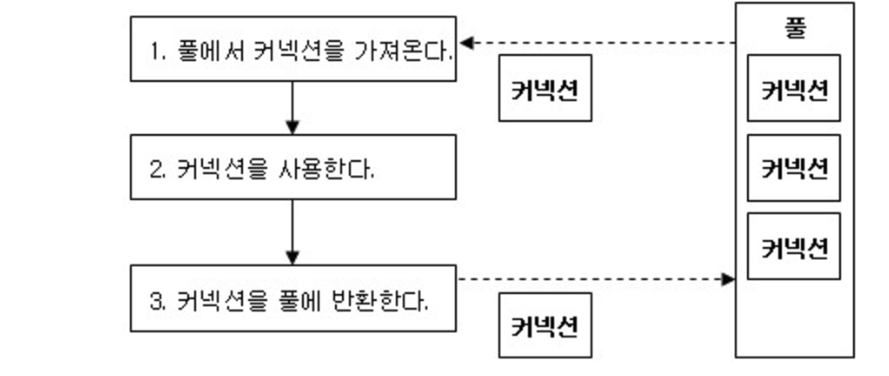
<p>커넥션 풀은 <strong>미리 필요한 수 만큼 커넥션을 생성</strong> 해 놓고,<br />
<strong>사용 후 반납</strong>하는 개념이다.</p>

<p><img src="https://img1.daumcdn.net/thumb/R1280x0/?scode=mtistory2&amp;fname=https%3A%2F%2Fblog.kakaocdn.net%2Fdn%2FpuDg7%2FbtsD4Iss3UP%2FP5gnoq8iI7kkHOxutwJtp1%2Fimg.png" alt="" /></p>

<p>이를 통해 단일 커넥션과는 다르게<br />
커넥션을 다시 생성하는데 사용되는 비용이 소비되지 않는다는 장점이 있다.</p>

<pre><code class="language-JavaScript">const conn = async () =&gt; {
  const connection = await mysql.createPool({
    host: DB_HOST,
    port: Number(DB_PORT),
    user: DB_USER,
    password: DB_PASSWORD,
    database: DB_SCHEMA,
    connectionLimit: 10
  });
  return connection;
};

module.exports = conn;
</code></pre>

<p><strong><code class="language-plaintext highlighter-rouge">async/await</code></strong> 을 사용하여 <strong><code class="language-plaintext highlighter-rouge">MySQL2</code></strong> 모듈의 <strong><code class="language-plaintext highlighter-rouge">Promise</code></strong> 기능을 활용했다.</p>

<p>위 로직과 차이점은,<br />
<strong><code class="language-plaintext highlighter-rouge">connectionLimit</code></strong> 옵션을 추가함으로 서버에 가해지는 부하를 줄일 수 있는 점 이다.</p>

<blockquote>
  <p><strong><code class="language-plaintext highlighter-rouge">connectionLimit: 10</code></strong> 은,<br />동시에 최대 10 개의 연결만 허용하겠다는 의미이며<br />11 번 째 요청은 <strong><code class="language-plaintext highlighter-rouge">Pending</code></strong> 되어 동시에 접근하는 연결을 분산시킬 수 있다.</p>
</blockquote>

<p>하지만,<br />
<strong><code class="language-plaintext highlighter-rouge">Pool</code></strong> 을 너무 적게 생성 해 놓으면 대기시간 (<strong><code class="language-plaintext highlighter-rouge">Pending</code></strong>) 이 발생할 수 있고,<br />
너무 많이 생성 해 놓으면 메모리(리소스) 낭비가 크다는 단점이 있다.</p>

<pre><code class="language-JavaScript">exports.getCoffeeInfoSum = async ({ getReq }) =&gt; {
  const conn = await db();
  const getConn = await conn.getConnection();
  const params = [getReq];
  const sql = `
  SELECT SUM(caffeine)
  FROM post
  WHERE user_id = ?
  `;
  const [row] = await getConn.query(sql, params);
  getConn.release();
  return row;
};
</code></pre>

<p>마찬가지로 분리된 코드를 불러와<br />
생성된 <strong><code class="language-plaintext highlighter-rouge">DB</code></strong> 에 <strong><code class="language-plaintext highlighter-rouge">getConnection</code></strong> 메서드를 사용하여<br />
가져온 커넥션에 쿼리문을 날리고 <strong><code class="language-plaintext highlighter-rouge">release</code></strong> 메서드를 통해 연결된 커넥션을 풀 에 반납하여 사용한다.</p>

<blockquote>
  <p><strong><code class="language-plaintext highlighter-rouge">getConnection</code></strong> 는,<br /><strong><code class="language-plaintext highlighter-rouge">MySQL</code></strong> 커넥션 풀 에서 새로운 연결을 가져오는 메서드 이다.<br /></p>
</blockquote>

<hr />

<h3 id="결론-️">결론 🤹‍♂️</h3>

<p><strong><code class="language-plaintext highlighter-rouge">Node.js</code></strong> 환경에서 <strong><code class="language-plaintext highlighter-rouge">MySQL</code></strong> 모듈을 사용하여 <strong><code class="language-plaintext highlighter-rouge">DB</code></strong> 에 접근하는 두 가지의 방법을 살펴봤는데,</p>

<p><strong>작은 규모</strong>의 애플리케이션이나<br />
간단한 작업에서는 <strong>단일 커넥션</strong>으로 구현하는 것이 보다 효율적인 부분이 있으며</p>

<p><strong>대규모</strong> 애플리케이션이나<br />
웹 서버, 데이터베이스에 잦은 요청이 요구된다면,<br />
<strong>커넥션 풀</strong> 을 사용하여 성능을 최적화 할 수 있을 것 같다.</p>

<p>단,<br />
커넥션 풀은 <strong>대부분의 상황에서 권장</strong>되는 방법이다.</p>

<p>클라이언트가 동시에 서비스에 접근하거나 웹 앱의 경우와 같이 많은 수의 요청이 들어오는 상황에서<br />
<strong>자원을 효율적으로 관리하고 성능을 최적화</strong>시킬 수 있기 때문이다.</p>

<p>이 글을 정리하며,<br />
실제 단일 커넥션으로 구현되어있던 로직을 👉 커넥션 풀로 리펙토링하여 사용중 이다.</p>

<hr />

<h2 id="reference-">Reference 🌊</h2>

<blockquote>
  <p><a href="https://velog.io/@wngud4950/MySQL-%EB%8B%A8%EC%9D%BC-Connection-VS-Connection-Pool-%EB%B0%A9%EC%8B%9D%EC%9D%98-%EC%B0%A8%EC%9D%B4">https://velog.io/@wngud4950/MySQL-%EB%8B%A8%EC%9D%BC-Connection-VS-Connection-Pool-%EB%B0%A9%EC%8B%9D%EC%9D%98-%EC%B0%A8%EC%9D%B4</a><br /><a href="https://velog.io/@gwon713/Nodejs-MySQL-DB-connection-pool">https://velog.io/@gwon713/Nodejs-MySQL-DB-connection-pool</a><br /><a href="https://techbless.github.io/2020/01/17/Node-js%EC%97%90%EC%84%9C-Mysql-Connection-Pool-%EC%9D%B4%EC%9A%A9%ED%95%98%EA%B8%B0/">https://techbless.github.io/2020/01/17/Node-js%EC%97%90%EC%84%9C-Mysql-Connection-Pool-%EC%9D%B4%EC%9A%A9%ED%95%98%EA%B8%B0/</a><br /><a href="https://m.blog.naver.com/collcr/222869575871">https://m.blog.naver.com/collcr/222869575871</a></p>
</blockquote>]]></content><author><name>전투코딩</name></author><category term="DataBase" /><category term="TIL" /><category term="DB" /><category term="MySQL" /><summary type="html"><![CDATA[개요 🙋]]></summary></entry><entry><title type="html">[DataBase] DB 에 적재할 데이터 가공하기 (Feat.Python) 🦏</title><link href="/database/2024/01/23/DB-Array-processing.html" rel="alternate" type="text/html" title="[DataBase] DB 에 적재할 데이터 가공하기 (Feat.Python) 🦏" /><published>2024-01-23T00:00:00+00:00</published><updated>2024-01-23T00:00:00+00:00</updated><id>/database/2024/01/23/DB-Array-processing</id><content type="html" xml:base="/database/2024/01/23/DB-Array-processing.html"><![CDATA[<h2 id="개요-">개요 🙋</h2>

<blockquote>
  <p><a href="https://www.eaten.co.kr/">https://www.eaten.co.kr/</a></p>
</blockquote>

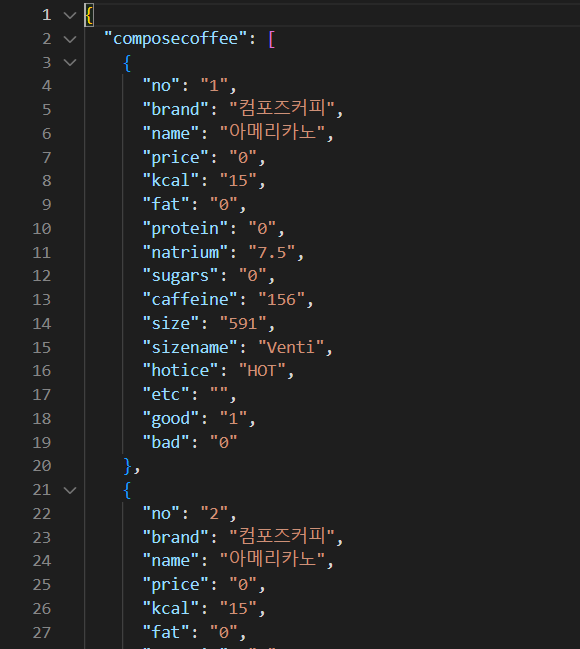
<p>위 사이트에서 커피와 관련된 <strong>브랜드별 영양 정보</strong> 를 크롤링하여<br />
필요한 정보만을 가공하여 사용하려고 한다.</p>

<p>크롤링한 데이터는 아래와 같다.</p>

<p><img src="https://img1.daumcdn.net/thumb/R1280x0/?scode=mtistory2&amp;fname=https%3A%2F%2Fblog.kakaocdn.net%2Fdn%2FbR0z7N%2FbtsDKPAz1Xt%2FsUHRBA3yM9hEzK6g8Ekvv0%2Fimg.png" alt="" /></p>

<p>이 데이터에서 필요한 정보는 <strong><code class="language-plaintext highlighter-rouge">브랜드</code></strong>, <strong><code class="language-plaintext highlighter-rouge">메뉴</code></strong>, <strong><code class="language-plaintext highlighter-rouge">카페인</code></strong> 이다.</p>

<p>먼저,<br />
번거롭지만 수기로 1 차 가공을 통해 아래와 같은 정보를 얻은 상태이다.</p>

<p><img src="https://img1.daumcdn.net/thumb/R1280x0/?scode=mtistory2&amp;fname=https%3A%2F%2Fblog.kakaocdn.net%2Fdn%2FuyWWD%2FbtsDUhaUvn9%2FPRIYGslcfE8x7LoYV40Lg1%2Fimg.png" alt="" /></p>

<p>이 정보를 바탕으로,<br />
<strong><code class="language-plaintext highlighter-rouge">MySQL</code></strong> 에 쿼리문을 사용하여 데이터를 적재하려고 하는데,<br />
쿼리문으로 사용하기엔 다소 형식이 맞지 않다고 판단되어,<br />
이를 <strong><code class="language-plaintext highlighter-rouge">{brand, name, caffeine}</code></strong> 형식으로 가공하여 적재하고자 한다.</p>

<hr />

<h3 id="생성--삽입-쿼리-">생성 &amp; 삽입 쿼리 🔮</h3>

<pre><code class="language-SQL">CREATE TABLE IF NOT EXISTS brand (

    id INT AUTO_INCREMENT PRIMARY KEY,

    brand_name VARCHAR(255),
    name VARCHAR(255),
    caffeine INT,
    url VARCHAR(255)
);
</code></pre>

<p>위 쿼리문을 해석 해 보면,<br />
먼저 고유한 <code class="language-plaintext highlighter-rouge">id</code> 값을 가지며 1씩 증가하는 옵션이 추가되어있다. 👉 <strong><code class="language-plaintext highlighter-rouge">AUTO_INCREMENT</code></strong><br />
다음으로는 문자열인 커피 브랜드, 메뉴 정보가 있고,<br />
커피 메뉴에 따른 카페인 함량에 대한 정보가 정수형태로 저장될 테이블을 생성 해 준다.</p>

<p>다음으로는 생성한 테이블에 데이터를 삽입하기 위해 쿼리문을 날려주어야 하는데,<br />
아래와 같이 작성 해 주면 될 것이다.</p>

<pre><code class="language-SQL">INSERT INTO brand (brand_name, name, caffeine) VALUES
('엔제리너스', '돌체라떼', 317),
('엔제리너스', '카페 연유다', 176),
('엔제리너스', '아메리치노 라떼', 317);
</code></pre>

<p>문제는 삽입할 데이터의 양이 너무 많다는것이다 🤦‍♂️</p>

<blockquote>
  <p>이를 일일히 수기로 작성하는것은 소위 <strong><code class="language-plaintext highlighter-rouge">미련한</code></strong> 짓이다.</p>
</blockquote>

<p>때문에,<br />
아래의 방법을 사용하여 쿼리문에 사용할 수 있도록 적절하게 가공하고자 한다.</p>

<hr />

<h3 id="python-으로-추출하기-">Python 으로 추출하기 🤓</h3>

<blockquote>
  <p><a href="https://colab.research.google.com/">https://colab.research.google.com/</a></p>
</blockquote>

<p>위 사이트는 <strong><code class="language-plaintext highlighter-rouge">Python</code></strong> 을 활용한 코드를 실행시킬 수 있는 <strong><code class="language-plaintext highlighter-rouge">IDE</code></strong> 환경이다.</p>

<p>먼저,<br />
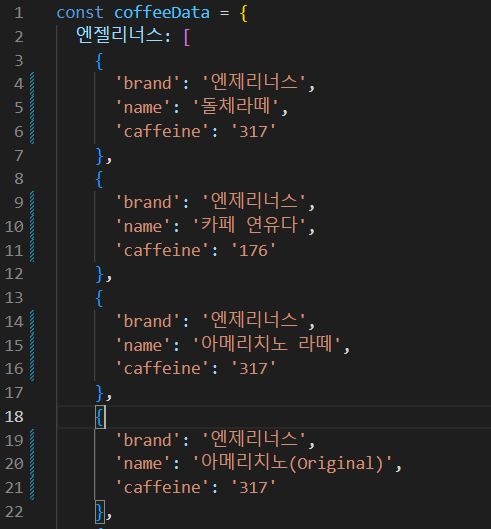
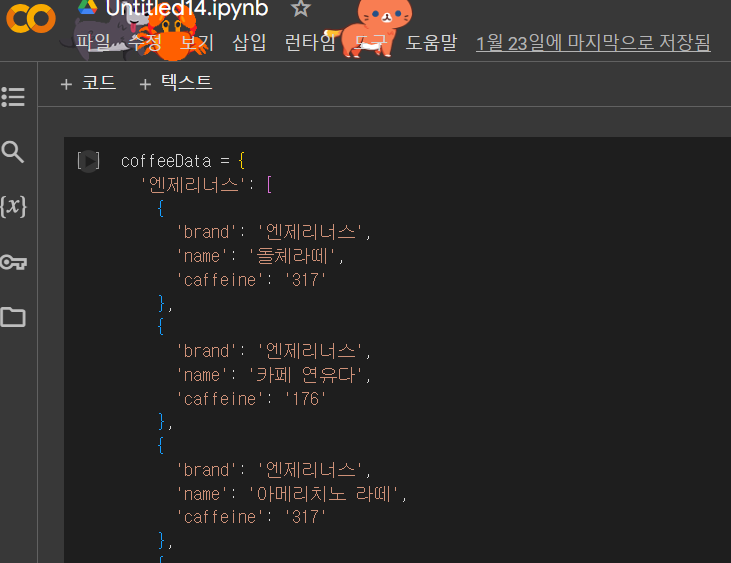
<strong>1 차 가공</strong> 을 마친 객체 형태의 데이터를 변수에 담아 할당 해 준다.</p>

<p><img src="https://img1.daumcdn.net/thumb/R1280x0/?scode=mtistory2&amp;fname=https%3A%2F%2Fblog.kakaocdn.net%2Fdn%2FoVwfV%2FbtsDUI7fI84%2FRxY0KLkGMQJOv2cVTMK5ik%2Fimg.png" alt="" /></p>

<p>그리고 이를 파싱하여 튜플로 변환하고,<br />
주어진 형식으로 튜플을 출력하고자 한다.</p>

<pre><code class="language-Python">formatted_data = []

for brand, items in coffeeData.items():
    for item in items:
        formatted_data.append((item['brand'], item['name'], item['caffeine']))

# 튜플 형식으로 출력
output = ',\n'.join([str(item) for item in formatted_data])

print(output)
</code></pre>

<p>튜플 형태의 데이터를 저장할 <strong><code class="language-plaintext highlighter-rouge">formatted_data</code></strong> 변수에 빈 리스트를 할당하고,<br />
이중 반복문을 통해 <strong><code class="language-plaintext highlighter-rouge">coffeeData</code></strong> 의 각 브랜드와 아이템에 접근한다.</p>

<blockquote>
  <p><strong>외부 루프 (`for brand, items in coffeeData.items(): )</strong><br />👉 브랜드와 그에 해당하는 아이템을 가져온다.</p>
</blockquote>

<blockquote>
  <p><strong>내부 루프 (<code class="language-plaintext highlighter-rouge">for item in items: </code>)</strong><br />👉 각 브랜드의 아이템을 하나씩 가져와 처리한다.</p>
</blockquote>

<p><strong>내부 루프</strong> 에서는,<br />
아이템의 정보를 추출하여 <strong><code class="language-plaintext highlighter-rouge">formatted_data</code></strong> 리스트에 튜플 형식으로 저장한다.<br />
이 때,<br />
각 튜플은 <strong><code class="language-plaintext highlighter-rouge">브랜드, 아이템 이름, 카페인</code></strong> 형식으로 구성된다.</p>

<p>다음으로는 <strong>리스트 컴프리헨션</strong> 문법을 사용하여<br />
<strong><code class="language-plaintext highlighter-rouge">formatted_data</code></strong> 리스트의 각 튜플을 문자열로 반환 한 후,<br />
<strong><code class="language-plaintext highlighter-rouge">',\n'</code></strong> 을 구분자로 사용하여 하나의 문자열로 결합(<strong><code class="language-plaintext highlighter-rouge">join</code></strong>) 한다.</p>

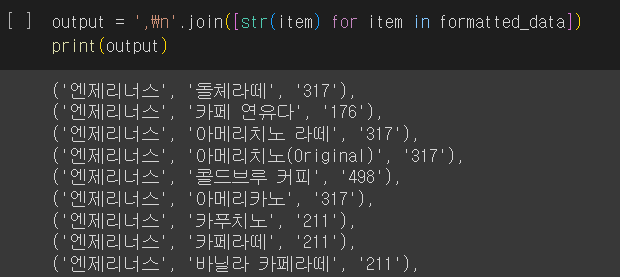
<p>위 코드를 실행하면 아래와 같이 가공된 데이터를 얻을 수 있다.</p>

<p><img src="https://img1.daumcdn.net/thumb/R1280x0/?scode=mtistory2&amp;fname=https%3A%2F%2Fblog.kakaocdn.net%2Fdn%2FdHUpqd%2FbtsDNqULKGS%2FzCYwTbQn9TM76j0qWEgnu1%2Fimg.png" alt="" /></p>

<hr />

<h3 id="javascript-로-추출하기-">JavaScript 로 추출하기 ⚡</h3>

<p>크롤링이 아무리 <strong><code class="language-plaintext highlighter-rouge">Python</code></strong> 이 쉽다 한들,<br />
이를 <strong><code class="language-plaintext highlighter-rouge">JavaScript</code></strong> 에서도 구현 가능해야 옳잖은가 ?</p>

<p>로직은 <strong><code class="language-plaintext highlighter-rouge">Python</code></strong> 과 매우 유사하다.<br />
단,<br />
<strong><code class="language-plaintext highlighter-rouge">for</code></strong> 문을 사용하지 않고 <strong>자바스크립트 내장함수</strong> 인 <strong><code class="language-plaintext highlighter-rouge">map</code></strong> 을 사용하여 반복할 것이다..</p>

<pre><code class="language-JavaScript">const formattedData =
    Object.values(coffeeData).flatMap(items =&gt;
        items.map(item =&gt; [item['brand'], item['name'], item['price']])
);

const output =
    formattedData.map(item =&gt;
        `(${item.map(i =&gt; JSON.stringify(i)).join(', ')})`).join(',\n');

console.log(output);
</code></pre>

<p>주어진 커피 데이터 👉 <strong>1 차 가공된 데이터</strong> 를 준비하고,<br />
이를 <strong><code class="language-plaintext highlighter-rouge">Object.valuse</code></strong> 를 사용하여 객체 형태의 값을 배열로 변환 해 준다.</p>

<p><strong><code class="language-plaintext highlighter-rouge">flatMap</code></strong> 함수를 사용하여 각 브랜드의 아이템들을 하나의 배열로 평탄화(?) 해 준다.</p>

<p><strong><code class="language-plaintext highlighter-rouge">map</code></strong> 함수를 사용하여 각 아이템들을 튜플 형식으로 변환하고<br />
<strong><code class="language-plaintext highlighter-rouge">join</code></strong> 메서드를 사용하여 전체 배열을 문자열로 합친다.</p>

<blockquote>
  <p><strong>평탄화</strong> 란 ❔❗<br />아래와 같이 두개의 동일한 예제가 있을 때<br /><strong><code class="language-plaintext highlighter-rouge">map</code></strong> 함수 사용 시 <strong>2 차원 배열</strong> 이 생성되는 반면,<br /><strong><code class="language-plaintext highlighter-rouge">flatMap</code></strong> 함수를 사용하면 이를 <strong>1 차원 배열</strong> 로 <strong><code class="language-plaintext highlighter-rouge">return</code></strong> 한다.<br />즉, <strong>중첩된 이중 구조를 가진 데이터를 단일 수준으로 펼친다</strong> 라는 의미를 갖고있다.</p>
</blockquote>

<pre><code class="language-JavaScript">const arr = [1, 2, 3];

const mapArr = arr.map((num) =&gt; [num, num * 2]);
console.log(mapArr); // [[1, 2], [2, 4], [3, 6]]

const flatMapArr = arr.flatMap((num) =&gt; [num, num * 2]);
console.log(flatMapArr); // [1, 2, 2, 4, 3, 6]
</code></pre>

<hr />

<h3 id="데이터-삽입-및-db-확인-">���이터 삽입 및 DB 확인 👀</h3>

<p>위에 있던 데이터 삽입 쿼리를 <strong><code class="language-plaintext highlighter-rouge">Workbench</code></strong> 에서 가공한 데이터를 삽입하고 확인하려 한다.</p>

<pre><code class="language-SQL">INSERT INTO brand (brand_name, name, caffeine) VALUES

('엔제리너스', '돌체라떼', 317),
('엔제리너스', '카페 연유다', 176),
('엔제리너스', '아메리치노 라떼', 317);
</code></pre>

<blockquote>
  <p>가공된 데이터를 출력하여 이를 복 붙 하여 가져왔다..<br />좀 더 단순화 하는 방법이 있을텐데 현재로써는 이게 최선이었다 😭</p>
</blockquote>

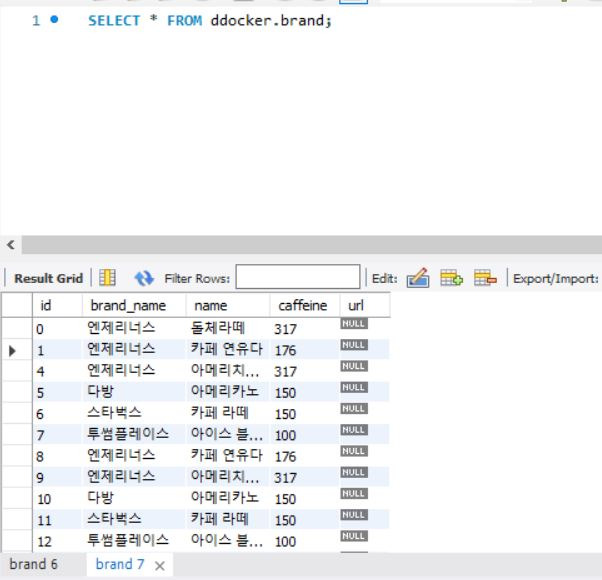
<p>쿼리문을 실행한 후 생성된 테이블을 조회하면 아래와 같은 레코드를 확인할 수 있다.</p>

<p><img src="https://img1.daumcdn.net/thumb/R1280x0/?scode=mtistory2&amp;fname=https%3A%2F%2Fblog.kakaocdn.net%2Fdn%2FlSPIm%2FbtsDQeUm0MW%2FaYwh1WQkzOTDoQ3cSobIx1%2Fimg.jpg" alt="" /></p>

<hr />

<h2 id="reference-">Reference 🌊</h2>

<blockquote>
  <p><a href="https://jerryjerryjerry.tistory.com/159">https://jerryjerryjerry.tistory.com/159</a><br /><a href="https://dang-dang12.tistory.com/18">https://dang-dang12.tistory.com/18</a><br /><a href="https://inpa.tistory.com/entry/MYSQL-%F0%9F%93%9A-%EA%B8%B0%EB%B3%B8-SQL%EB%AC%B8-%EC%A0%95%EB%A6%AC-%ED%85%8C%EC%9D%B4%EB%B8%94-%EC%A1%B0%ED%9A%8C-%EC%83%9D%EC%84%B1-%EC%88%98%EC%A0%95-%EC%82%AD%EC%A0%9C">https://inpa.tistory.com/entry/MYSQL-%F0%9F%93%9A-%EA%B8%B0%EB%B3%B8-SQL%EB%AC%B8-%EC%A0%95%EB%A6%AC-%ED%85%8C%EC%9D%B4%EB%B8%94-%EC%A1%B0%ED%9A%8C-%EC%83%9D%EC%84%B1-%EC%88%98%EC%A0%95-%EC%82%AD%EC%A0%9C</a><br /><a href="https://121202.tistory.com/25">https://121202.tistory.com/25</a></p>
</blockquote>]]></content><author><name>전투코딩</name></author><category term="DataBase" /><category term="TIL" /><category term="DB" /><category term="MySQL" /><category term="colap" /><summary type="html"><![CDATA[개요 🙋]]></summary></entry><entry><title type="html">[AWS] EC2 에 RDS 연동하기 (Feat. MySQL) 👑</title><link href="/aws/2024/01/12/AWS-RDS.html" rel="alternate" type="text/html" title="[AWS] EC2 에 RDS 연동하기 (Feat. MySQL) 👑" /><published>2024-01-12T00:00:00+00:00</published><updated>2024-01-12T00:00:00+00:00</updated><id>/aws/2024/01/12/AWS-RDS</id><content type="html" xml:base="/aws/2024/01/12/AWS-RDS.html"><![CDATA[<h2 id="개요-">개요 🔔</h2>

<p>이전 포스팅을 확인 해 보면,<br />
<strong><code class="language-plaintext highlighter-rouge">AWS</code></strong> 에서 생성한 <strong><code class="language-plaintext highlighter-rouge">EC2</code></strong> 인스턴스에 <strong><code class="language-plaintext highlighter-rouge">MySQL</code></strong> 을 설치하여 외부에서 접근이 가능한 환경을 구축했다.</p>

<p>다만 문제가 있었다.</p>

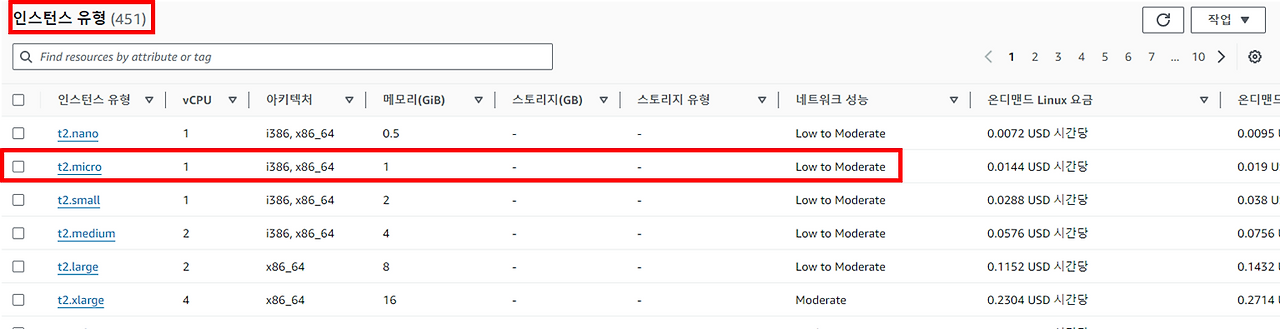
<p><strong>프리티어</strong> 로 생성한 서버였기에<br />
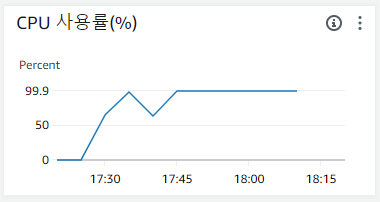
<strong><code class="language-plaintext highlighter-rouge">t2.micro</code></strong> 메모리로는 <strong><code class="language-plaintext highlighter-rouge">MySQL</code></strong> 까지 돌리기에는 버거웠는지 서버가 종종 터지는 경우가 발생했다.</p>

<blockquote>
  <p><strong><code class="language-plaintext highlighter-rouge">Git</code></strong> 을 설치하여 <strong><code class="language-plaintext highlighter-rouge">Node</code></strong> 서버가 존재함</p>
</blockquote>

<p><img src="https://img1.daumcdn.net/thumb/R1280x0/?scode=mtistory2&amp;fname=https%3A%2F%2Fblog.kakaocdn.net%2Fdn%2FbPgcjm%2FbtsDivig9jS%2Fl6SZozS2PGEZjK6TNxgHUK%2Fimg.png" alt="" /></p>

<blockquote>
  <p>보통 위와같은 화면이 지속되면 <strong>서버가 터졋다</strong> 라고 간주할 수 있다.</p>
</blockquote>

<p><img src="https://img1.daumcdn.net/thumb/R1280x0/?scode=mtistory2&amp;fname=https%3A%2F%2Fblog.kakaocdn.net%2Fdn%2FbMsV4g%2FbtsDivig9yg%2FTJLvTX5BvtEePvjz5eP1jk%2Fimg.png" alt="" /></p>

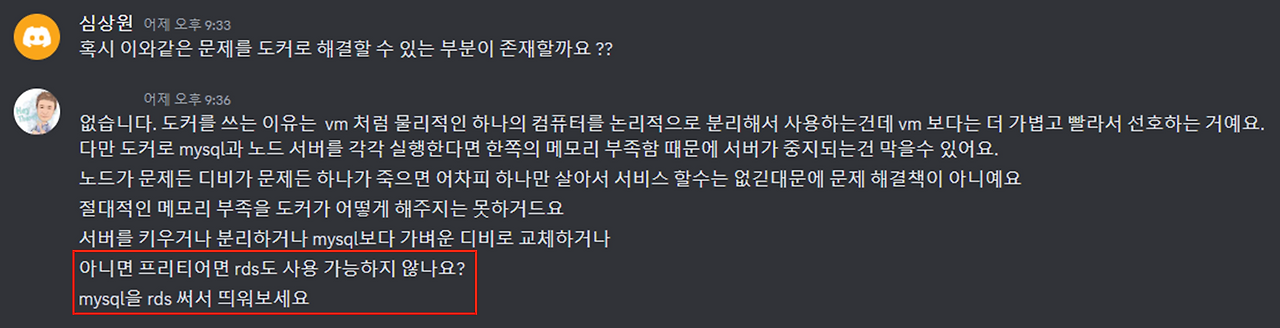
<p>해당 문제를 해결하기 위해 조언을 구하고 얻은 답변을 통해</p>

<blockquote>
  <p>도커의 이미지로 <strong><code class="language-plaintext highlighter-rouge">EC2</code></strong> 와 <strong><code class="language-plaintext highlighter-rouge">DB</code></strong> 를 분리하여 띄워도 보고,<br />조금 더 가벼운 <strong><code class="language-plaintext highlighter-rouge">SQLite</code></strong> 로 마이그레이션 하여 환경을 구축 해 봤지만<br />해당 이슈를 해결할 수 없었다 😭</p>
</blockquote>

<p>해당 포스팅에서는 마지막 최후의 방법인,<br />
<strong><code class="language-plaintext highlighter-rouge">RDS</code></strong> 사용하여 데이터베이스를 구축하고 인스턴스와 연결하는 과정을 기록하고자 한다.</p>

<hr />

<h2 id="rds-">RDS ❓</h2>

<p><img src="https://img1.daumcdn.net/thumb/R1280x0/?scode=mtistory2&amp;fname=https%3A%2F%2Fblog.kakaocdn.net%2Fdn%2FYvTWG%2FbtsDpaqOzFA%2F8498ZKhMwF3otJXs6TxYwk%2Fimg.png" alt="" /></p>

<p><strong><code class="language-plaintext highlighter-rouge">RDS</code></strong> 란, <strong><code class="language-plaintext highlighter-rouge">AWS</code></strong> 에서 제공하는 관계형 데이터베이스이다.</p>

<p>클라우드 환경에서 제공하는 관계형데이터베이스를 통해 보다 쉬운 설정, 운영 및 확장의 기능까지 제공한다.</p>

<blockquote>
  <p>인스턴스 내부에 <strong><code class="language-plaintext highlighter-rouge">MySQL</code></strong> 을 설치하여 사용해도 무관하지만,<br />위에서 발생한 이슈도 존재할 뿐더러 여러 방면에서 효율적이지 못하다고 한다.</p>
</blockquote>

<p><strong><code class="language-plaintext highlighter-rouge">RDS</code></strong> 에서 제공하는 <strong><code class="language-plaintext highlighter-rouge">스냅샷</code></strong> 기능이 있는데,<br />
이는 데이터베이스를 일정한 주기로 저장하여 예상치 못한 삭제나 버그 등으로 발생한 이슈에서 롤백이 가능하다.</p>

<p><strong><code class="language-plaintext highlighter-rouge">예약 인스턴스</code></strong> 기능은,<br />
데이터베이스를 실행하는 시간을 사전에 정의해둠으로써<br />
프리티어로 제공된 시간 안에서 ���다 많은 서버를 돌릴 수 있다.</p>

<hr />

<h3 id="rds-생성-">RDS 생성 🚀</h3>

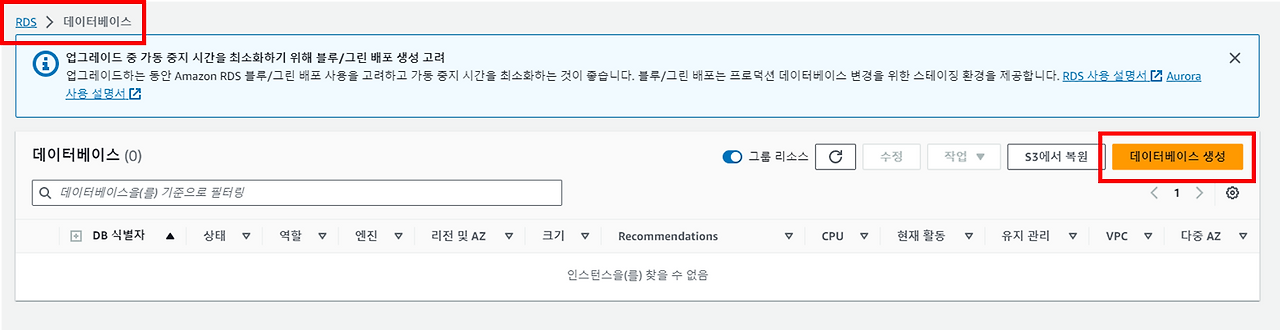
<p>서비스 검색에서 <strong><code class="language-plaintext highlighter-rouge">RDS</code></strong> 를 검색 후 데이터베이스 탭에서 생성 가능하다.</p>

<p><img src="https://img1.daumcdn.net/thumb/R1280x0/?scode=mtistory2&amp;fname=https%3A%2F%2Fblog.kakaocdn.net%2Fdn%2FcmC6cu%2FbtsDqMbAIOt%2FDweHS70tinQTKzJIo6x7MK%2Fimg.png" alt="" /></p>

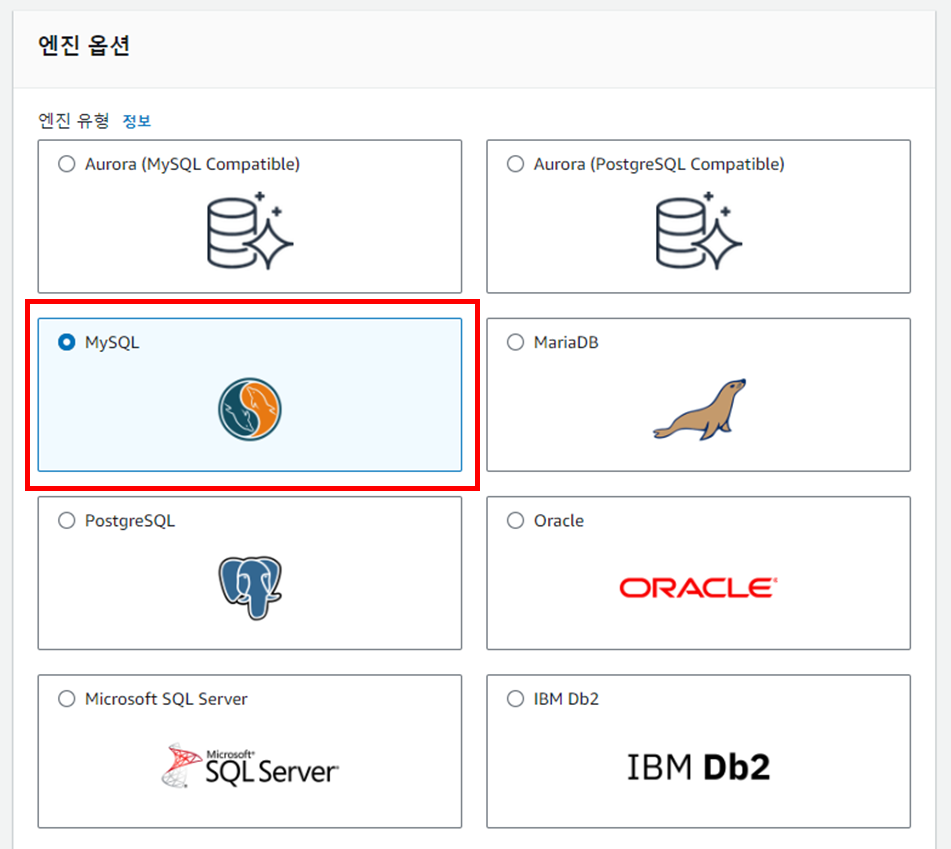
<p>다양한 데이터베이스를 제공하는데 해당 포스팅에서는 <strong><code class="language-plaintext highlighter-rouge">MySQL</code></strong> 환경을 선택 해 생성할 것이다.</p>

<p><img src="https://img1.daumcdn.net/thumb/R1280x0/?scode=mtistory2&amp;fname=https%3A%2F%2Fblog.kakaocdn.net%2Fdn%2FcJJT47%2FbtsDnvbo8HJ%2Fg9Wbingnxx4EHD0gLIhKGK%2Fimg.png" alt="" /></p>

<blockquote>
  <p><strong><code class="language-plaintext highlighter-rouge">Amazon Aurora</code></strong> 도 <strong><code class="language-plaintext highlighter-rouge">MySQL</code></strong> 과 작동방식은 같지만 보다 우수한 성능을 자랑한다 라고 일단 알고있자 ❗❗</p>
</blockquote>

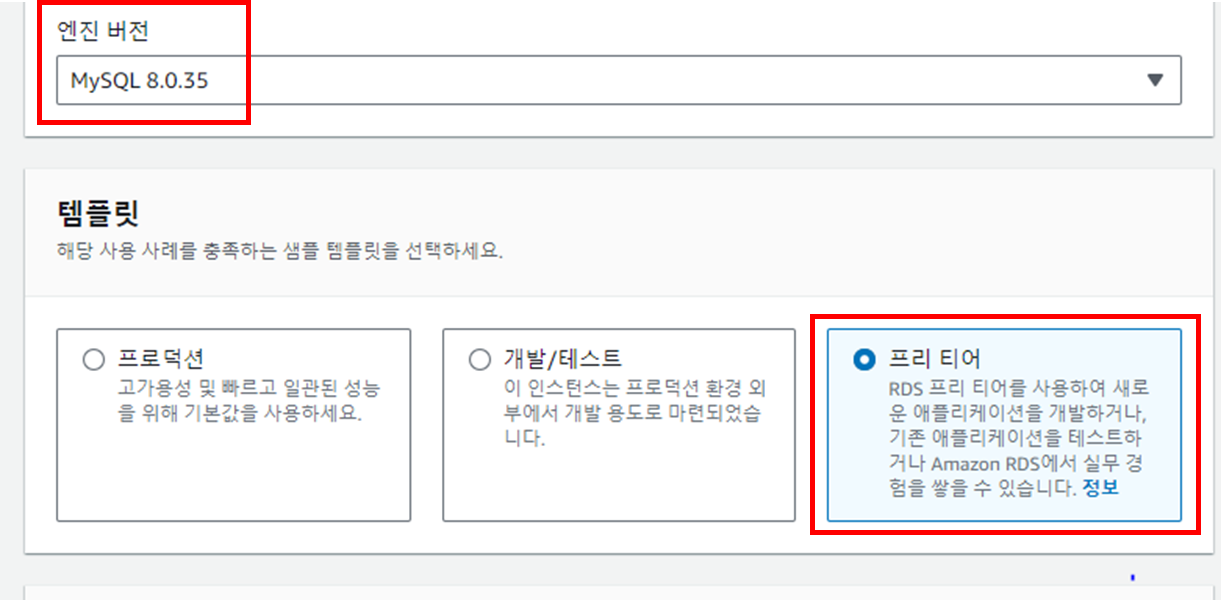
<p>낮은 버전으로 생성 할 경우,<br />
레거시코드를 사용하면 작동되지 않은 버전이 존재할 수 있기에 가급적 최신 버전을 유지하도록 하자.</p>

<p><img src="https://img1.daumcdn.net/thumb/R1280x0/?scode=mtistory2&amp;fname=https%3A%2F%2Fblog.kakaocdn.net%2Fdn%2F5gdnA%2FbtsDnDNK7Ux%2Fujz65V3P4626Hjc0XkVyOK%2Fimg.png" alt="" /></p>

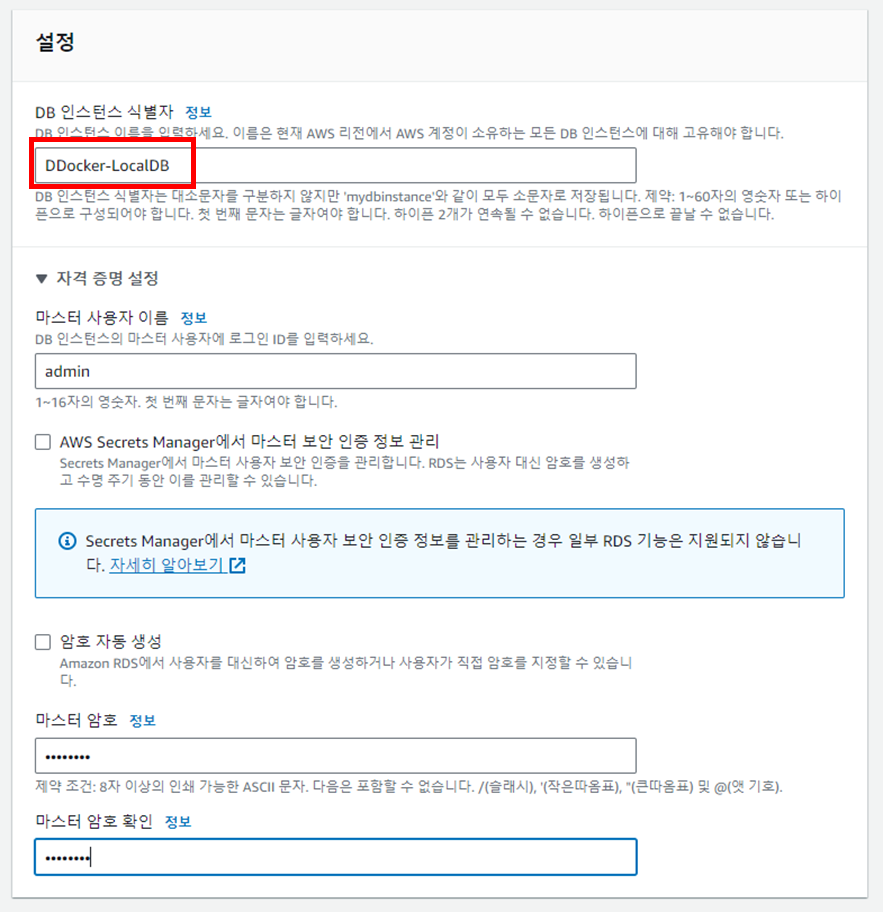
<p>지정한 식별자를 통해 데이터베이스에 접근하기 때문에,<br />
가급적 식별자를 자세히 명시 해 주는것이 좋다.</p>

<p><img src="https://img1.daumcdn.net/thumb/R1280x0/?scode=mtistory2&amp;fname=https%3A%2F%2Fblog.kakaocdn.net%2Fdn%2FQiCxd%2FbtsDpc3bU0a%2FkWuhsUIKyRDLoR6KOOh9d1%2Fimg.png" alt="" /></p>

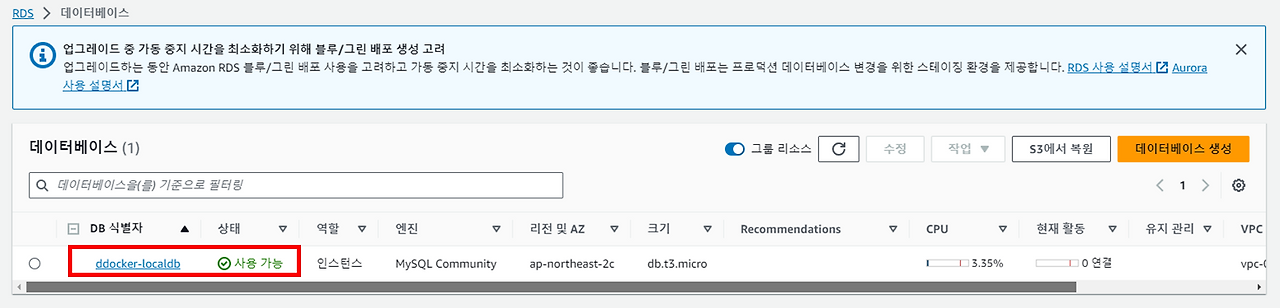
<p>이제 생성된 데이터베이스를 <strong><code class="language-plaintext highlighter-rouge">MySQL</code></strong> 에서 제공하는 <strong><code class="language-plaintext highlighter-rouge">GUI</code></strong> 프로그램인 워크벤치를 통해 연결 해 보려고 한다.</p>

<p><img src="https://img1.daumcdn.net/thumb/R1280x0/?scode=mtistory2&amp;fname=https%3A%2F%2Fblog.kakaocdn.net%2Fdn%2FceZ9jp%2FbtsDp5CL3nl%2FvPdCKxKcohjDPTzUBnYUX1%2Fimg.png" alt="" /></p>

<hr />

<h3 id="rds-연결">RDS 연결</h3>

<p>사실 데이터베이스를 <strong>비쥬얼라이징 도구 (GUI)</strong> 에서 확인하는 방법은 <strong>매우 간단</strong>하다.</p>

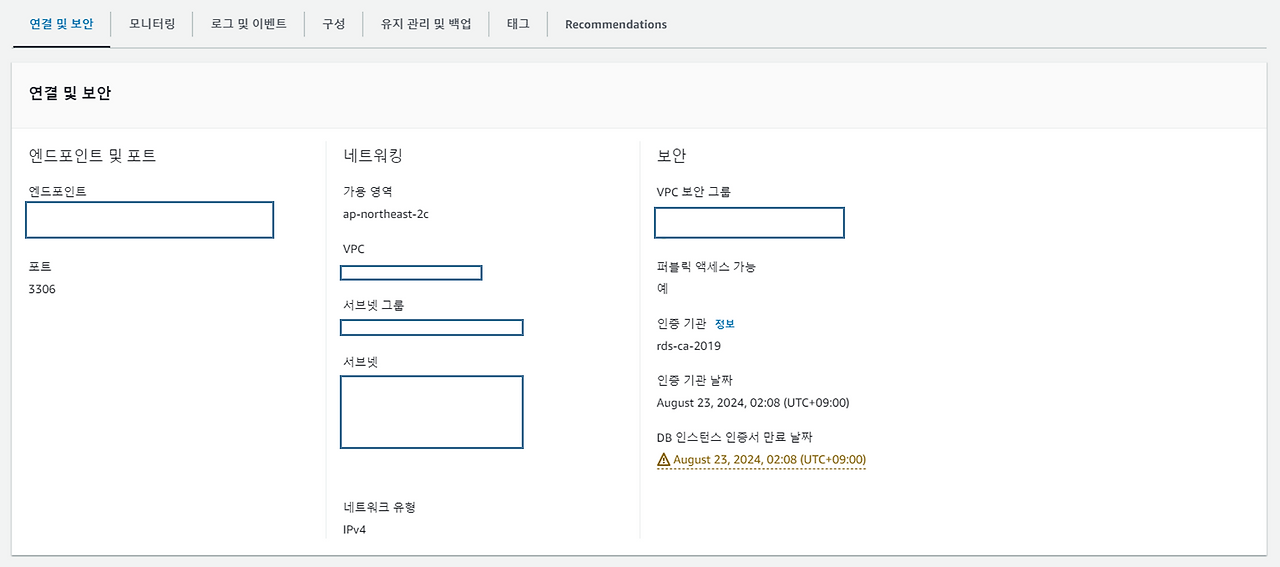
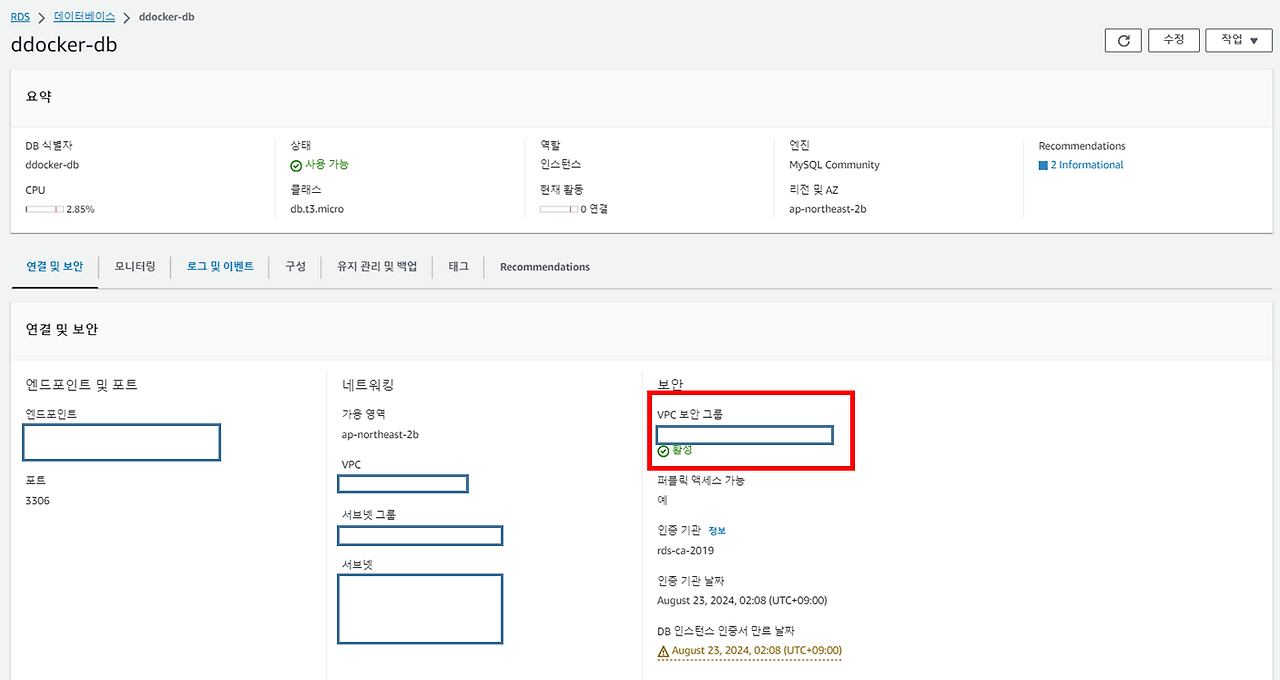
<p>생성된 데이터베이스의 상세정보를 확인 해 보면,<br />
엔드포인트가 생성 되어있을텐데 이를 워크벤치의 <strong><code class="language-plaintext highlighter-rouge">Host</code></strong> 부분에 넣어주면 끝이다.</p>

<p><img src="https://img1.daumcdn.net/thumb/R1280x0/?scode=mtistory2&amp;fname=https%3A%2F%2Fblog.kakaocdn.net%2Fdn%2Fb2x786%2FbtsDon40nse%2FblP70SjpytMcqPIWDXSYU1%2Fimg.png" alt="" /></p>

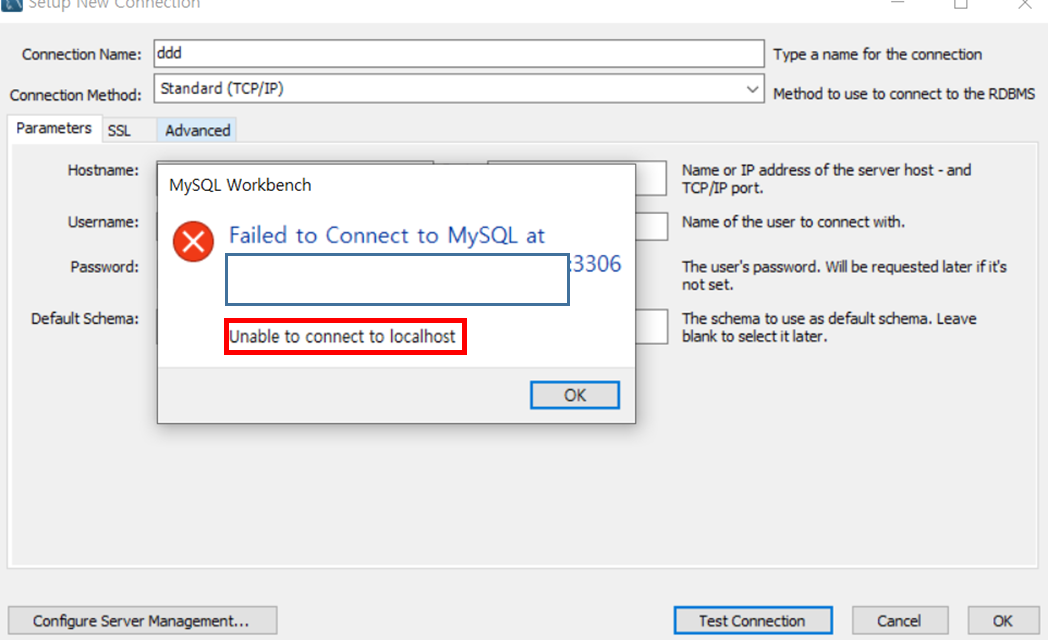
<p>음.. 근데 연결에 실패했다 🤦‍♂️</p>

<p><img src="https://img1.daumcdn.net/thumb/R1280x0/?scode=mtistory2&amp;fname=https%3A%2F%2Fblog.kakaocdn.net%2Fdn%2FbxEfR6%2FbtsDrmjrnNp%2FQ4kxVcmPWfLT8e7KPA5EJ0%2Fimg.png" alt="" /></p>

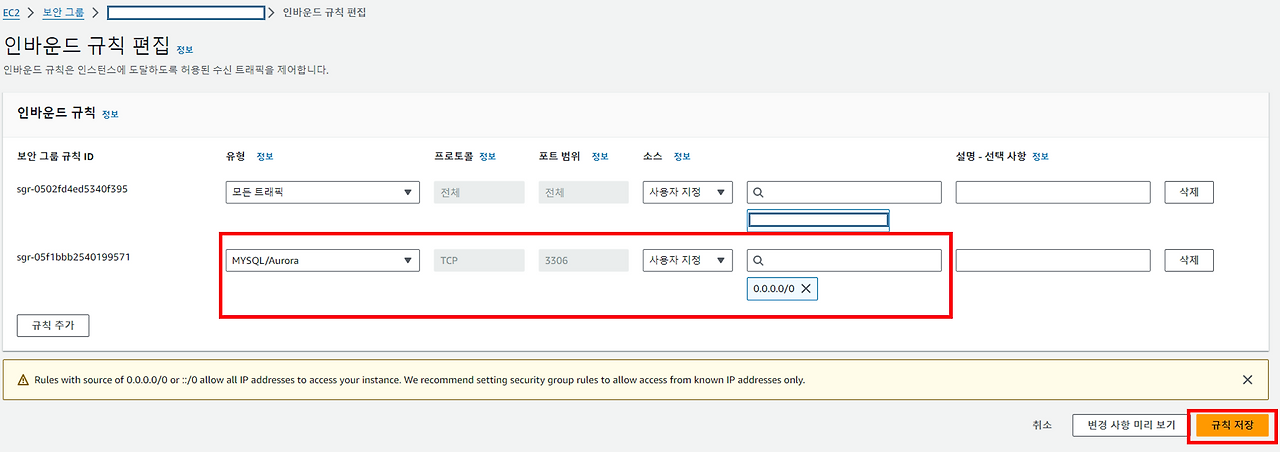
<p>위와 같이 <strong>연결에 실패 할 경우</strong> 체크해야할 부분이 2️⃣ 개가 있다.</p>

<ul>
  <li><strong><code class="language-plaintext highlighter-rouge">퍼블릭 엑세스</code></strong></li>
  <li><strong><code class="language-plaintext highlighter-rouge">인바운드 규칙</code></strong></li>
</ul>

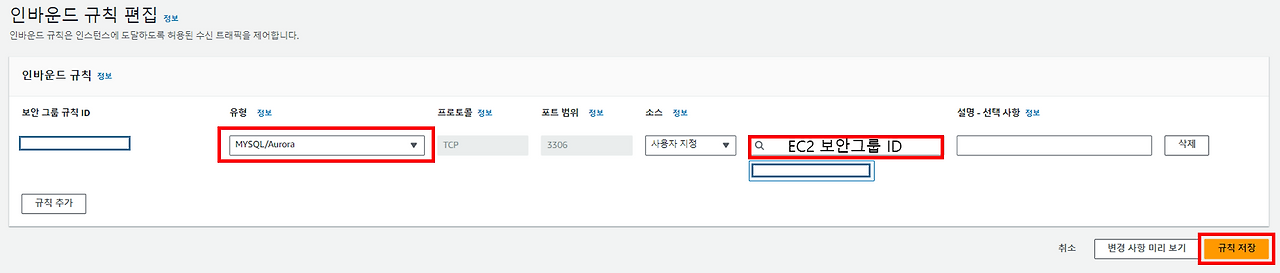
<p>예상했던 대로 <strong><code class="language-plaintext highlighter-rouge">인바운드 규칙</code></strong> 이 추가되지 않아 해당 포트(<strong><code class="language-plaintext highlighter-rouge">3306</code></strong>) 으로의 접근이 불가능한 상태였고,<br />
이를 보안그룹에서 추가 해 주었다.</p>

<p><img src="https://img1.daumcdn.net/thumb/R1280x0/?scode=mtistory2&amp;fname=https%3A%2F%2Fblog.kakaocdn.net%2Fdn%2FxxyI6%2FbtsDrnvTjPS%2FIBW26VwSh6cMGZC1D6LruK%2Fimg.png" alt="" /></p>

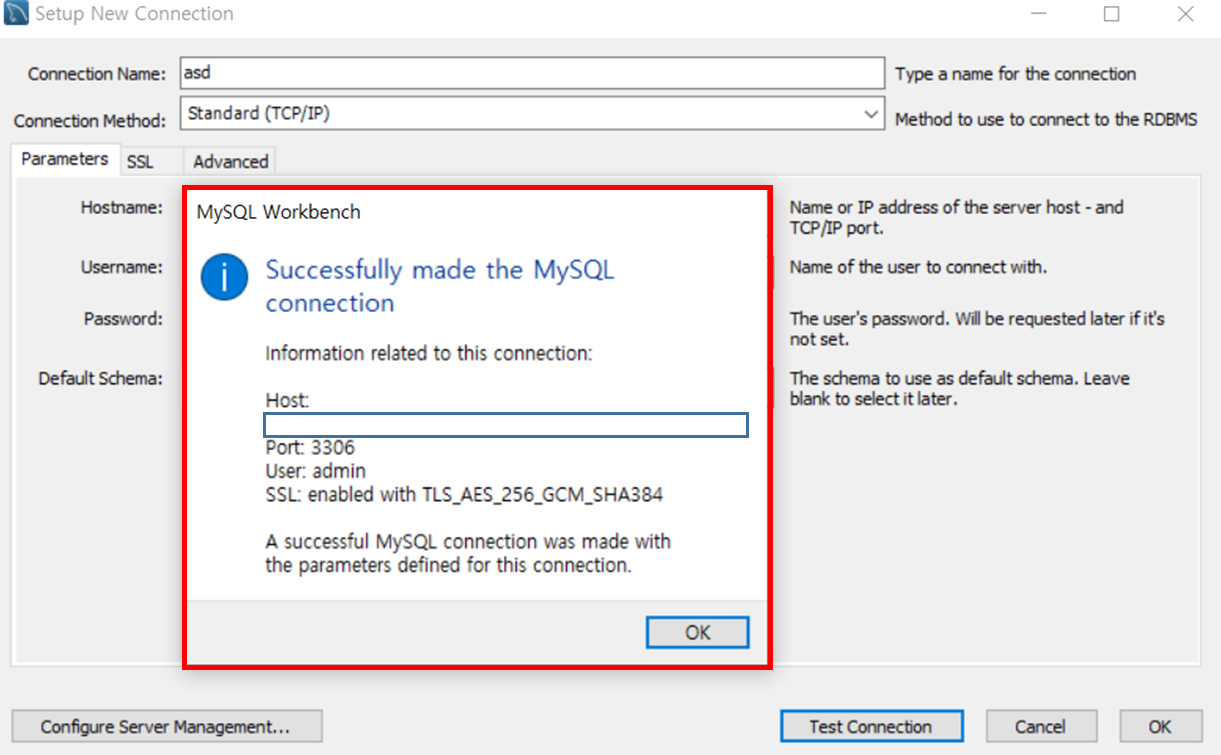
<p><strong><code class="language-plaintext highlighter-rouge">Test Connection</code></strong> 을 해 보면 아래와 같이 정상적으로 연결 됨을 확인할 수 있다.</p>

<p><img src="https://img1.daumcdn.net/thumb/R1280x0/?scode=mtistory2&amp;fname=https%3A%2F%2Fblog.kakaocdn.net%2Fdn%2FdLziOe%2FbtsDpcCa5cA%2FDZoH4KuvNFJGGc4fk2Ryz0%2Fimg.png" alt="" /></p>

<hr />

<h2 id="ec2-와의-연결-">EC2 와의 연결 🔌</h2>

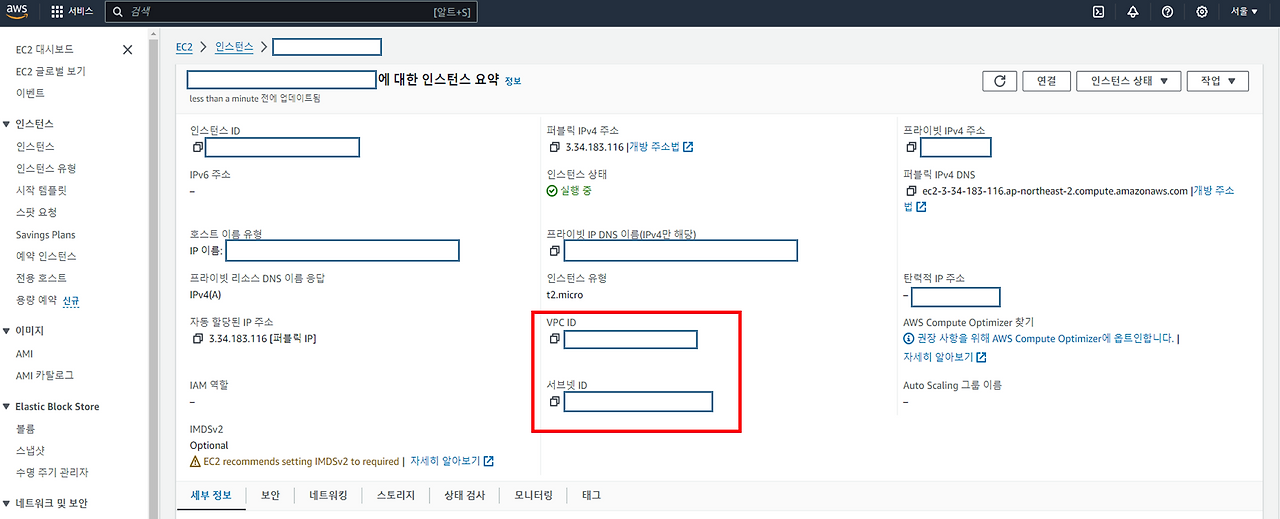
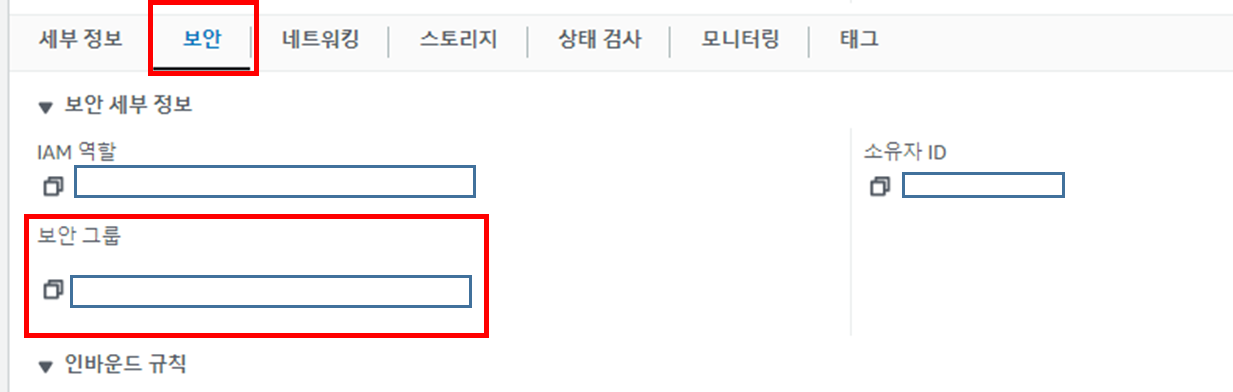
<p>생성된 <strong><code class="language-plaintext highlighter-rouge">인스턴스</code></strong> 와 <strong><code class="language-plaintext highlighter-rouge">RDS</code></strong>, <strong><code class="language-plaintext highlighter-rouge">보안그룹</code></strong>, <strong><code class="language-plaintext highlighter-rouge">서브넷그룹</code></strong> 모두<br />
<strong>같은 네트워크 안에서 사용</strong>해야 하기 때문에 해당 정보를 파악하고 있어야 한다.</p>

<p><img src="https://img1.daumcdn.net/thumb/R1280x0/?scode=mtistory2&amp;fname=https%3A%2F%2Fblog.kakaocdn.net%2Fdn%2FlDuPs%2FbtsDrmda19L%2Fkg9InVc2HU7N6rnbx3HAY0%2Fimg.png" alt="" /></p>

<p><img src="https://img1.daumcdn.net/thumb/R1280x0/?scode=mtistory2&amp;fname=https%3A%2F%2Fblog.kakaocdn.net%2Fdn%2FytznO%2FbtsDuSPSpNh%2FamCFH7BldW2fkCSI4HXtw0%2Fimg.png" alt="" /></p>

<blockquote>
  <p>빨간 네모 영역의 정보를 사용할 것이다.</p>
</blockquote>

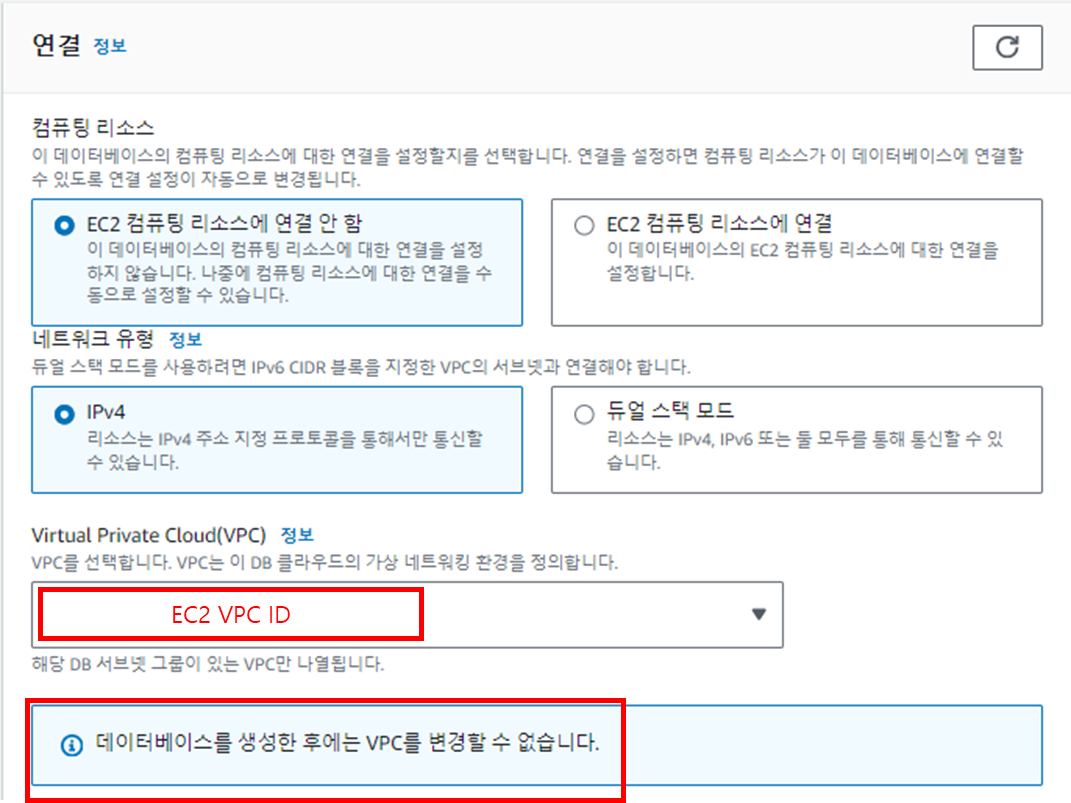
<p><strong><code class="language-plaintext highlighter-rouge">EC2</code></strong> 와 <strong><code class="language-plaintext highlighter-rouge">RDS</code></strong> 를 연결하기 위해서는,<br />
인스턴스를 생성할 때 사용된 <strong><code class="language-plaintext highlighter-rouge">VPC</code></strong> 를 기준으로 <strong><code class="language-plaintext highlighter-rouge">RDS</code></strong> 를 생성 해 주어야 한다.</p>

<blockquote>
  <p><strong>해당 자료는 어떤 레퍼런스에서도 설명이 없어 굉장히 많은 삽질을 해서 얻은 결과이다.. 😭</strong></p>
</blockquote>

<p><img src="https://img1.daumcdn.net/thumb/R1280x0/?scode=mtistory2&amp;fname=https%3A%2F%2Fblog.kakaocdn.net%2Fdn%2Fc3JEN9%2FbtsDsZhtwQG%2FXGMRFffRFGpuxkldXMEXN1%2Fimg.png" alt="" /></p>

<p>나의 경우 각각 독립적으로 <strong><code class="language-plaintext highlighter-rouge">인스턴스</code></strong> 와 <strong><code class="language-plaintext highlighter-rouge">RDS</code></strong> 를 생성 해 놓은 상태였고,<br />
<strong><code class="language-plaintext highlighter-rouge">VPC</code></strong> 또한 하나에 몰아서 생성하는 경우 보안적인 이슈가 발생할 수 있다 라고 인지하고 있는 상태였기에,<br />
서비스마다 새 <strong><code class="language-plaintext highlighter-rouge">VPC</code></strong> 를 생성하여 분리 생성 해 놓은 상태였다.</p>

<blockquote>
  <p>이미 생성 한 서비스는 <strong><code class="language-plaintext highlighter-rouge">VPC</code></strong> 를 변경 할 수 없다.</p>
</blockquote>

<hr />

<h3 id="보안그룹-생성-">보안그룹 생성 🚧</h3>

<p>위에서 한 번 설명했듯,<br />
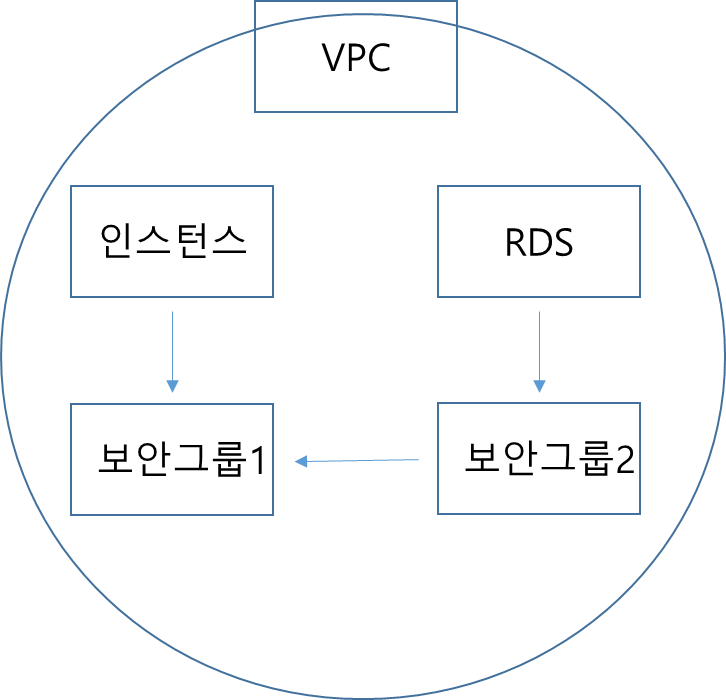
<strong><code class="language-plaintext highlighter-rouge">EC2</code></strong> 와 연결하기 위해 <strong><code class="language-plaintext highlighter-rouge">인스턴스</code></strong> 에 연결 해 놓은 보안그룹에 <strong><code class="language-plaintext highlighter-rouge">RDS</code></strong> 보안그룹을 생성 해 줄 것이다.</p>

<p><strong>이게 무슨 말이냐 ?</strong></p>

<p><img src="https://img1.daumcdn.net/thumb/R1280x0/?scode=mtistory2&amp;fname=https%3A%2F%2Fblog.kakaocdn.net%2Fdn%2FGBZM5%2FbtsDxhvMRI1%2FMkFrPgKsyXjIwKRfKoR3Kk%2Fimg.png" alt="" /></p>

<p>이런 형태로 통신이 이루어질 것이다.</p>

<p>먼저 인스턴스를 생성하면서 발급받은 <strong><code class="language-plaintext highlighter-rouge">VPC</code></strong> 아래에<br />
<strong><code class="language-plaintext highlighter-rouge">인스턴스</code></strong> 와 <strong><code class="language-plaintext highlighter-rouge">보안그룹1</code></strong> 과 <strong><code class="language-plaintext highlighter-rouge">보안그룹2</code></strong> 가 존재 할 것이고,<br />
그 <strong><code class="language-plaintext highlighter-rouge">VPC</code></strong> 를 기준으로 <strong><code class="language-plaintext highlighter-rouge">RDS</code></strong> 를 생성하여 종속되게끔 지정 해 주는 것이다.</p>

<p><img src="https://img1.daumcdn.net/thumb/R1280x0/?scode=mtistory2&amp;fname=https%3A%2F%2Fblog.kakaocdn.net%2Fdn%2FbhKWqe%2FbtsDuRRF4Sm%2F4hC1frKwTDgp8FfAfKLKh0%2Fimg.png" alt="" /></p>

<p>기본 값으로 <strong><code class="language-plaintext highlighter-rouge">RDS</code></strong> 를 생성 할 때 정의한 <strong><code class="language-plaintext highlighter-rouge">default</code></strong> 보안그룹이 연결되어있을 것이다.<br />
이 보안그룹에 접근하여 아래와 같이 추가 해 주면 된다.</p>

<p><img src="https://img1.daumcdn.net/thumb/R1280x0/?scode=mtistory2&amp;fname=https%3A%2F%2Fblog.kakaocdn.net%2Fdn%2FcutMTq%2FbtsDxmwXWM6%2FA0vPkWJm47jhaRkKFRInaK%2Fimg.png" alt="" /></p>

<blockquote>
  <p><strong><code class="language-plaintext highlighter-rouge">소스</code></strong> 부분에는 <strong><code class="language-plaintext highlighter-rouge">EC2</code></strong> 에 연결되어있는 <strong>보안그룹 ID</strong> 를 선택 해 주면된다.<br />해당 보안그룹 역시 하나의 <strong><code class="language-plaintext highlighter-rouge">VPC</code></strong> 안에서 생성 했다면 선택할 수 있는 드롭다운박스에서 선택할 수 있을것이다.</p>
</blockquote>

<hr />

<h3 id="mysql-제거-">MySQL 제거 🚫✅</h3>

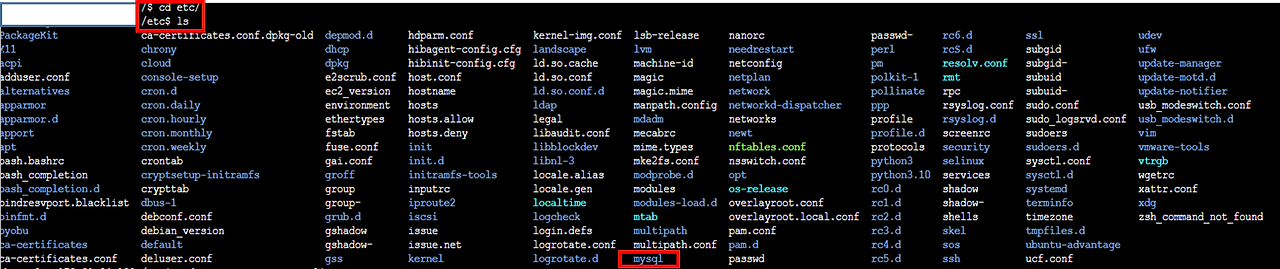
<p>먼저 인스턴스를 연결하여 터미널에 접근 해 <strong><code class="language-plaintext highlighter-rouge">ls</code></strong> 명령어로 현재 디렉토리상의 <strong><code class="language-plaintext highlighter-rouge">파일/폴더</code></strong> 를 확인한다.</p>

<p><img src="https://img1.daumcdn.net/thumb/R1280x0/?scode=mtistory2&amp;fname=https%3A%2F%2Fblog.kakaocdn.net%2Fdn%2Fmd40h%2FbtsDrEMk0Xs%2F85mpkpjKlDdtY6ektR1HfK%2Fimg.png" alt="" /></p>

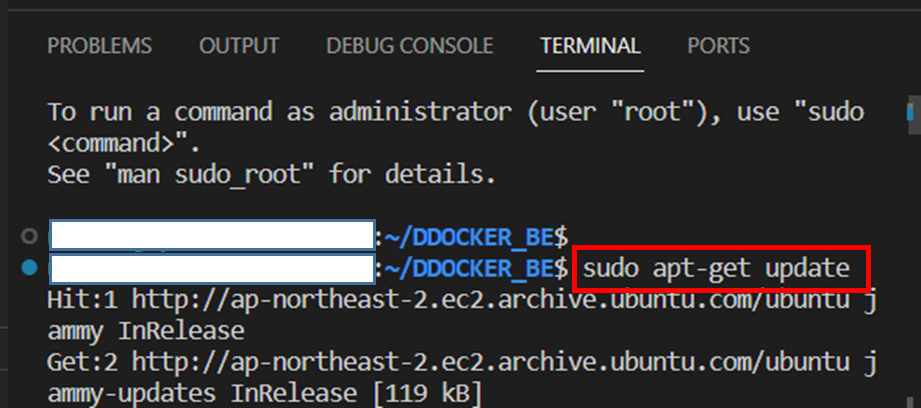
<p>아래 명령어를 실행하여 MySQL과 관련된 모든 패키지와 설정 파일들을 완전히 제거 해 준다.</p>

<pre><code class="language-linux">sudo apt-get purge mysql* -y
</code></pre>

<p><img src="https://img1.daumcdn.net/thumb/R1280x0/?scode=mtistory2&amp;fname=https%3A%2F%2Fblog.kakaocdn.net%2Fdn%2FbIlw5g%2FbtsDuRxCUO5%2F0C0n5Muxkh3JVi7HPEBp6k%2Fimg.png" alt="" /></p>

<blockquote>
  <p><strong><code class="language-plaintext highlighter-rouge">-y</code></strong> 옵션은 사용자에게 확인 메세지를 표시하지 않고 강제로 제거하기 위해 추가</p>
</blockquote>

<p>그리고 <strong><code class="language-plaintext highlighter-rouge">MySQL</code></strong> 관련 디렉토리를 모두 제거 해 준다.</p>

<pre><code class="language-linux">sudo rm -rf /var/log/mysql
sudo rm -rf /var/log/mysql.*
sudo rm -rf /var/lib/mysql
sudo rm -rf /etc/mysql
</code></pre>

<p><img src="https://img1.daumcdn.net/thumb/R1280x0/?scode=mtistory2&amp;fname=https%3A%2F%2Fblog.kakaocdn.net%2Fdn%2Fc3ClLh%2FbtsDxfSvgI3%2FkKScw7q3RGeJS8U3oboHbk%2Fimg.png" alt="" /></p>

<p>이렇게 다시 <strong><code class="language-plaintext highlighter-rouge">ls</code></strong> 로 확인 해 보면 <strong><code class="language-plaintext highlighter-rouge">mysql</code></strong> 폴더가 사라졌음을 확인할 수 있다.</p>

<p><img src="https://img1.daumcdn.net/thumb/R1280x0/?scode=mtistory2&amp;fname=https%3A%2F%2Fblog.kakaocdn.net%2Fdn%2FdQ6Oz5%2FbtsDxKq2ubr%2FU3Bb7iXo0V1ToshO5aLq1K%2Fimg.png" alt="" /></p>

<p>더불어 아래 명령을 통해 <strong><code class="language-plaintext highlighter-rouge">MySQL</code></strong> 이 제거되었는지 확인할 수 있다.<br />
<strong>(만약 제거가 되지 않았다면 버전이 정상적으로 출력이 될 것임.)</strong></p>

<p><img src="https://img1.daumcdn.net/thumb/R1280x0/?scode=mtistory2&amp;fname=https%3A%2F%2Fblog.kakaocdn.net%2Fdn%2Fd5cYFW%2FbtsDrEyLfLd%2Ftrz9K51sNkwCXncL1UY2X0%2Fimg.png" alt="" /></p>

<p><img src="https://img1.daumcdn.net/thumb/R1280x0/?scode=mtistory2&amp;fname=https%3A%2F%2Fblog.kakaocdn.net%2Fdn%2FPHNty%2FbtsDyOs4FvU%2FGhB1hTyHWdxB8hN4Jt26j0%2Fimg.png" alt="" /></p>

<hr />

<h3 id="특정-ip-주소-접근-">특정 IP 주소 접근 🌐</h3>

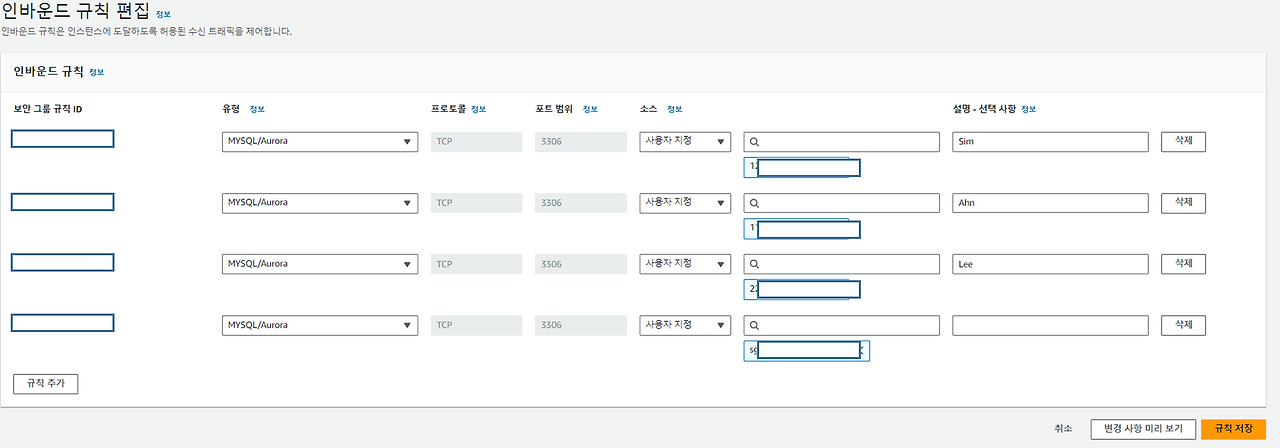
<p>기존에 설정한 보안그룹의 <strong><code class="language-plaintext highlighter-rouge">인바운드 규칙</code></strong> 에서는<br />
테스트 ��적으로 모든 접근을 허용하기 위해 <strong><code class="language-plaintext highlighter-rouge">0.0.0.0</code></strong> 으로 지정했었다.</p>

<p>하지만 이는 보안적으로 외부 침입에 대한 이슈가 발생할 수 있기에 안전하지 않다.<br />
그렇기에 팀원들의 <strong><code class="language-plaintext highlighter-rouge">ip</code></strong> 주소만 허용하여<br />
특정 주소만 <strong><code class="language-plaintext highlighter-rouge">DB</code></strong> 에 접근이 가능하게 설정 해 주려고 한다.</p>

<p>설정을 모두 마친 모습은 아래와 같다.</p>

<p><img src="https://img1.daumcdn.net/thumb/R1280x0/?scode=mtistory2&amp;fname=https%3A%2F%2Fblog.kakaocdn.net%2Fdn%2FYqtFM%2FbtsDBsYs5rb%2Fmxsshcbo4kyS1athN0AdMk%2Fimg.png" alt="" /></p>

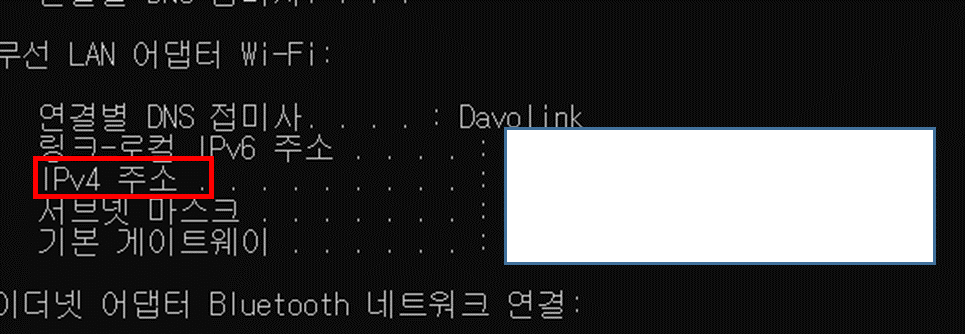
<p>해당 ip 주소는 각 로컬 커맨드 창에서 <strong><code class="language-plaintext highlighter-rouge">ipconfig</code></strong> 명령으로 주소를 획득할 수 있으며,<br />
이를 넣어주면 된다.</p>

<h4 id="외부-접근-ip-">외부 접근 IP 💻</h4>

<p>테스트 해 본 결과 <strong><code class="language-plaintext highlighter-rouge">ipconfig</code></strong> 로 획득한 ip 주소는,<br />
말 그대로 <strong>로컬 컴퓨터 자체의 ip 주소</strong> 이며 <strong>외부와 통신이 불가능</strong> 한 형태였다.</p>

<p><img src="https://img1.daumcdn.net/thumb/R1280x0/?scode=mtistory2&amp;fname=https%3A%2F%2Fblog.kakaocdn.net%2Fdn%2FkQEJW%2FbtsDBtwld8J%2FDAAyMWzsZduR65f8FMpO60%2Fimg.png" alt="" /></p>

<blockquote>
  <p>해당 <strong><code class="language-plaintext highlighter-rouge">IPv4</code></strong> 주소를 인바운드 규칙에 추가 시 <strong><code class="language-plaintext highlighter-rouge">MySQL</code></strong> 접근 안됨 ❗❗</p>
</blockquote>

<p>검색 해 본 결과,<br />
<strong><code class="language-plaintext highlighter-rouge">AWS</code></strong> 의 <strong><code class="language-plaintext highlighter-rouge">RDS</code></strong> 는 외부에서 운영중인 서비스 이므로 해당 서비스에 접근하기 위해서는<br />
<strong>인터넷을 통해 접속 가능한 외부 IP 주소</strong> 를 획득하여 추가해야한다고 한다.</p>

<blockquote>
  <p>Window 환경<br />👉 <a href="https://www.whatismyip.com/">https://www.whatismyip.com/</a><br />Linux 환경<br />👉 <strong><code class="language-plaintext highlighter-rouge">curl ifconfig.me</code></strong><br />Mac 환경<br />👉 <strong><code class="language-plaintext highlighter-rouge">ifconfig</code></strong> or <strong><code class="language-plaintext highlighter-rouge">ipconfig getifaddr en0</code></strong></p>
</blockquote>

<p>문제는,<br />
해당 IP 주소는 연결된 네트워크의 환경에 따라 동적으로 바뀌게 된다.</p>

<p>가장 쉬운 방법은<br />
<strong><code class="language-plaintext highlighter-rouge">AWS</code></strong> 에서 팀원들에게 할당해준 <strong><code class="language-plaintext highlighter-rouge">IAM</code></strong> 유저로 인바운드 규칙에 접근하여 직접 <strong>내 IP</strong> 를 추가 해 주는것이다.</p>

<p><img src="https://img1.daumcdn.net/thumb/R1280x0/?scode=mtistory2&amp;fname=https%3A%2F%2Fblog.kakaocdn.net%2Fdn%2Fbz2aCH%2FbtsDyNbtZUB%2Fe6ASTvlshooSNUK6tRXJDK%2Fimg.png" alt="" /></p>

<p>이를 통해<br />
<strong>매번 다른 환경(장소 👉 집, 카페, 학교, etc..)</strong> 에서<br />
접속한 네트워크 환경마다 다른 ip 주소를 추가하여 DB 에 접근할 수 있었다.</p>

<hr />

<h2 id="reference-">Reference 🌊</h2>

<blockquote>
  <p><a href="https://velog.io/@yoonth95/AWS-04.-RDS-MySQL-%EC%97%B0%EA%B2%B0-%EB%B0%8F-Workbench#1-%EC%9D%B8%EC%8A%A4%ED%84%B4%EC%8A%A4-%EC%83%9D%EC%84%B1">https://velog.io/@yoonth95/AWS-04.-RDS-MySQL-%EC%97%B0%EA%B2%B0-%EB%B0%8F-Workbench#1-%EC%9D%B8%EC%8A%A4%ED%84%B4%EC%8A%A4-%EC%83%9D%EC%84%B1</a><br /><a href="https://dooyeoung.tistory.com/31">https://dooyeoung.tistory.com/31</a><br /><a href="https://deepmal.tistory.com/9">https://deepmal.tistory.com/9</a><br /><a href="https://velog.io/@whytili/AWS-RDS%EC%99%80-EC2-%EC%97%B0%EB%8F%99%ED%95%98%EA%B8%B0">https://velog.io/@whytili/AWS-RDS%EC%99%80-EC2-%EC%97%B0%EB%8F%99%ED%95%98%EA%B8%B0</a></p>
</blockquote>]]></content><author><name>전투코딩</name></author><category term="AWS" /><category term="Node.js" /><category term="AWS" /><category term="EC2" /><category term="RDS" /><category term="MySQL" /><category term="TIL" /><category term="프로젝트" /><summary type="html"><![CDATA[개요 🔔]]></summary></entry><entry><title type="html">[코딩테스트] 알고리즘 스터디 시작 👀🚀</title><link href="/review/2024/01/11/Coding_Test.html" rel="alternate" type="text/html" title="[코딩테스트] 알고리즘 스터디 시작 👀🚀" /><published>2024-01-11T00:00:00+00:00</published><updated>2024-01-11T00:00:00+00:00</updated><id>/review/2024/01/11/Coding_Test</id><content type="html" xml:base="/review/2024/01/11/Coding_Test.html"><![CDATA[<p>아아, <strong>마이크테스트</strong> 🎤🔊</p>

<p><strong>매번 해야지..</strong> 라고만 생각했던 <code class="language-plaintext highlighter-rouge">알고리즘 공부</code> 를 <strong>어떤 계기</strong>를 통해</p>

<p>드디어 시작하게되었다.</p>

<p><img src="https://img1.daumcdn.net/thumb/R1280x0/?scode=mtistory2&amp;fname=https%3A%2F%2Fblog.kakaocdn.net%2Fdn%2FXK2pR%2FbtsDmqfMkqY%2FBBlEKHuHnqwAPmtho1ihrk%2Fimg.png" alt="" /></p>

<p><code class="language-plaintext highlighter-rouge">멋쟁이사자처럼 프론트엔드 플러스 스쿨</code> 에서 만나게 된 팀원들과 함께<br />
팀 프로젝트를 진행하고,<br />
교육과정 수료 후 까지 인연이 깊어지며<br />
정말 하고싶었던 <code class="language-plaintext highlighter-rouge">알고리즘 스터디</code> 를 결성하게 되었다 🤓💨</p>

<p>스크립트를 작성하며 매번 자신감이 없었는데,<br />
개인적으로 <strong>개발자스러운</strong> 사고회로가 부족하다고 생각했기 때문이다.</p>

<p>이는 매번 효율적인 코드를 작성하는 방법을 생각하지 않고,<br />
<code class="language-plaintext highlighter-rouge">ctrl + c</code> , <code class="language-plaintext highlighter-rouge">ctrl + v</code> 만 하던 내게 스노우볼처럼 크게 다가왔다.</p>

<p>해당 문제를 분명 인지하고 있던 <code class="language-plaintext highlighter-rouge">나</code> 였지만,</p>

<p>보다 보여지는 부분에서도 부족하다고 생각했기에<br />
프로젝트나 경험 위주로의 코딩을 해왔던 <code class="language-plaintext highlighter-rouge">나</code> 였다.</p>

<p>이번 기회를 통해<br />
<strong>보다 나은 개발자</strong> 가 되는 첫 발돋음으로 삼을 수 있는 계기가 될 수 있었으면 좋겠다 상원아 ❗❗</p>

<hr />

<p>코딩테스트는 <code class="language-plaintext highlighter-rouge">프로그래머스</code> 를 통해 진행 할 계획이며,<br />
하루 <code class="language-plaintext highlighter-rouge">4</code> 문제씩<br />
0 레벨부터 기초적인 부분부터 가능한 문제를 생각하며 풀어볼 생각을 갖고 있다.</p>

<p><img src="https://img1.daumcdn.net/thumb/R1280x0/?scode=mtistory2&amp;fname=https%3A%2F%2Fblog.kakaocdn.net%2Fdn%2FdZzdPr%2FbtsDopf0ktV%2FyBkLW9zaYRvn11PiJtxRN1%2Fimg.png" alt="" /></p>

<p>서로를 감시자 삼아 동기부여를 얻을 수 있는 <code class="language-plaintext highlighter-rouge">스터디</code> 가 필요했던 <code class="language-plaintext highlighter-rouge">나</code> 이니까<br /></p>

<blockquote>
  <p><strong>꾸준히 열심히 해보자 상원아 ❗❗</strong><br />스터디 저장소 👉 <a href="https://github.com/4CCF/CC">https://github.com/4CCF/CC</a></p>
</blockquote>]]></content><author><name>전투코딩</name></author><category term="Review" /><category term="코딩테스트" /><category term="일상" /><summary type="html"><![CDATA[아아, 마이크테스트 🎤🔊]]></summary></entry><entry><title type="html">[AWS] AWS EC2 에 MySQL 환경 구축하기 (Feat. RDS) 🏦</title><link href="/aws/2024/01/07/AWS-MySQL.html" rel="alternate" type="text/html" title="[AWS] AWS EC2 에 MySQL 환경 구축하기 (Feat. RDS) 🏦" /><published>2024-01-07T00:00:00+00:00</published><updated>2024-01-07T00:00:00+00:00</updated><id>/aws/2024/01/07/AWS-MySQL</id><content type="html" xml:base="/aws/2024/01/07/AWS-MySQL.html"><![CDATA[<h2 id="개요-">개요 🔔</h2>

<p>이번 포스팅에서는 진행중이었던 <strong><code class="language-plaintext highlighter-rouge">DDocker</code></strong> 프로젝트를<br />
파이어베이스에서 <strong><code class="language-plaintext highlighter-rouge">Node.js</code></strong> 서버로 마이그레이션 하는 과정에서<br />
<strong><code class="language-plaintext highlighter-rouge">Firestore</code></strong> 의 기능을,<br />
<strong><code class="language-plaintext highlighter-rouge">AWS</code></strong> 의 <strong><code class="language-plaintext highlighter-rouge">EC2</code></strong> 에 <strong><code class="language-plaintext highlighter-rouge">MySQL</code></strong> 을 설치하여 구현하는 방법을 기록하고자 한다.</p>

<hr />

<h2 id="rds-란-">RDS 란 ❔</h2>

<p>데이터베이스를 다루다 보면,<br />
<strong><code class="language-plaintext highlighter-rouge">비 관계형 데이터베이스 (NoSQL)</code></strong> 나 <strong><code class="language-plaintext highlighter-rouge">관계형 데이터베이스 (SQL)</code></strong> 들을 한 번쯤은 들어 봤을 것이다.</p>

<p><strong><code class="language-plaintext highlighter-rouge">RDS</code></strong> 는 관계형 데이터베이스의 약자이며,<br />
<strong>AWS</strong> 에서 제공하는 클라우드 형태의 관계형 데이터베이스를 <strong><code class="language-plaintext highlighter-rouge">AWS RDS</code></strong> 라고 칭한다.</p>

<p>만약,<br />
데이터베이스를 로컬에서 관리한다고 가정해보자.<br />
제일 먼저 이를 관리할 개발자가 필요할 것이며,<br />
서버의 과부하로 인해<br />
사용자가 <strong>데이터베이스에 접근하지 못하는 경우</strong>를 대비하여 24시�� 내내 감시할 <strong>사람이 필요</strong> 할 것이다.</p>

<p><img src="https://img1.daumcdn.net/thumb/R1280x0/?scode=mtistory2&amp;fname=https%3A%2F%2Fblog.kakaocdn.net%2Fdn%2Fbcozmu%2FbtsC5XZFT8K%2FpydZvSrODBV6Tu9xYLXnQ0%2Fimg.jpg" alt="" /></p>

<p>이를 위해 중앙화 된 서버(클라우드) 를 통해 위와같은 불편함을 대신 처리해주는 역할을<br />
<strong><code class="language-plaintext highlighter-rouge">AWS</code></strong> 의 <strong><code class="language-plaintext highlighter-rouge">RDS</code></strong> 서비스가 대신 처리 해 준다.</p>

<p><img src="https://img1.daumcdn.net/thumb/R1280x0/?scode=mtistory2&amp;fname=https%3A%2F%2Fblog.kakaocdn.net%2Fdn%2Fb6T0fQ%2FbtsC52zTWnA%2F5o47KLeAitE6g4KwBZukNk%2Fimg.jpg" alt="" /></p>

<p>하지만,<br />
해당 포스팅에서는 <strong><code class="language-plaintext highlighter-rouge">AWS</code></strong> 의 <strong><code class="language-plaintext highlighter-rouge">RDS</code></strong> 서비스를 사용하지 않고,<br />
이 모든 과정을 직접 경험 해 보고자<br />
직접 <strong><code class="language-plaintext highlighter-rouge">EC2</code></strong> 안에 관계형데이터베이스 (<strong><code class="language-plaintext highlighter-rouge">MySQL</code></strong>) 을 설치하여 사용하는 목적으로 작성하고자 한다.</p>

<hr />

<h2 id="mysql-설치-">MySQL 설치 💻</h2>

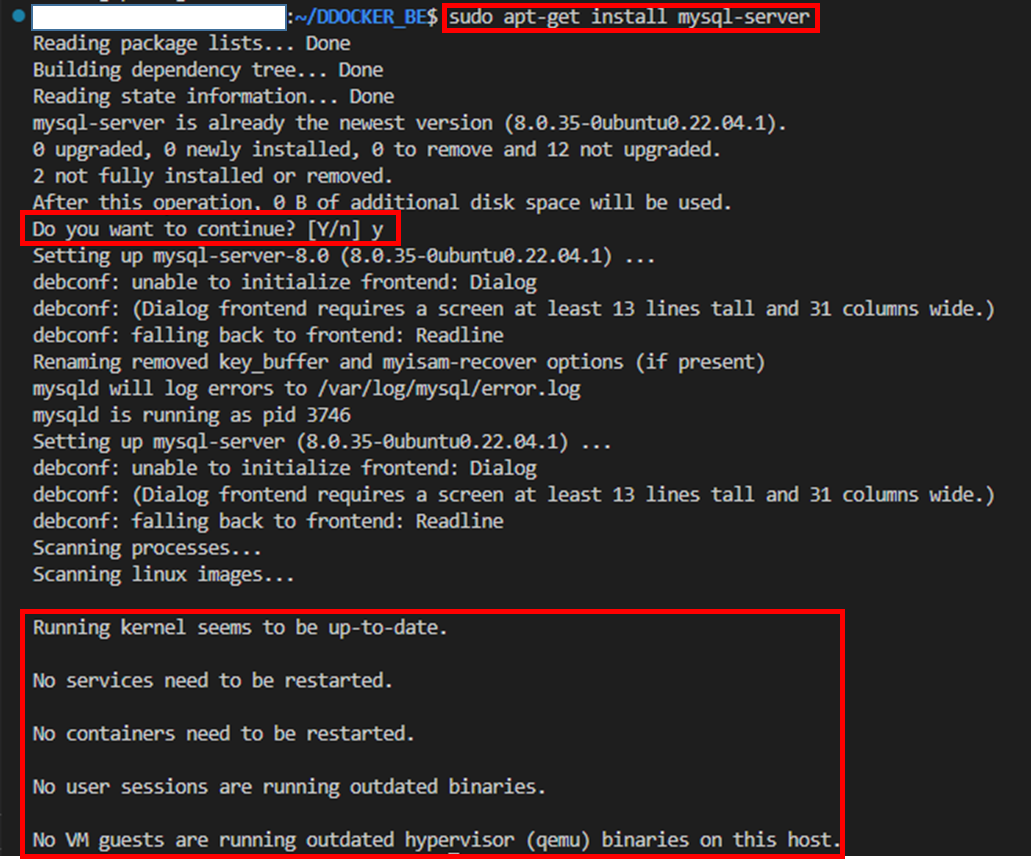
<p>터미널에 아래 리눅스 명령으로 <strong><code class="language-plaintext highlighter-rouge">MySQL</code></strong> 서버를 설치 해 준다.</p>

<pre><code class="language-linux">apt-get install mysql-server
</code></pre>

<p><img src="https://img1.daumcdn.net/thumb/R1280x0/?scode=mtistory2&amp;fname=https%3A%2F%2Fblog.kakaocdn.net%2Fdn%2Folecl%2FbtsC2zL2yeP%2F5E4KUOhuC8E2smTsuHivaK%2Fimg.png" alt="" /></p>

<p>위 사진과 같이 <strong><code class="language-plaintext highlighter-rouge">Permission denied</code></strong> 에러가 발생한다면 <strong><code class="language-plaintext highlighter-rouge">sudo</code></strong> 명령을 통해 관리자 모드로 접근 하면 된다.</p>

<pre><code class="language-linux">sudo apt-get install mysql-server
</code></pre>

<p><img src="https://img1.daumcdn.net/thumb/R1280x0/?scode=mtistory2&amp;fname=https%3A%2F%2Fblog.kakaocdn.net%2Fdn%2FbXYB8O%2FbtsC4C2sx24%2FLgLOY7sz5sKnVuXdCEGUvK%2Fimg.png" alt="" /></p>

<p>설치가 끝난다면 아래와 같은 화면을 볼 수 있을텐데,<br />
이를통해 <strong><code class="language-plaintext highlighter-rouge">MySQL</code></strong> 서버가 정상적으로 설치 됬음을 알 수 있다.</p>

<p><img src="https://img1.daumcdn.net/thumb/R1280x0/?scode=mtistory2&amp;fname=https%3A%2F%2Fblog.kakaocdn.net%2Fdn%2FIQubC%2FbtsC9aKFufi%2FSz5zFLgtHNrM2TEPuk0kH0%2Fimg.png" alt="" /></p>

<blockquote>
  <p>Running kernel seems to be up-to-date.<br />
No services need to be restarted.<br />
No containers need to be restarted.<br />
No user sessions are running outdated binaries.<br />
No VM guests are running outdated hypervisor (qemu) binaries on this host.<br />👉 시스템의 커널이 최신 상태이며, 업데이트를 통해 변경된 부분이나<br />재시작이 필요한 서비스, 컨테이너, 사용자세션, 가상머신 등이 없음을 의미한다.</p>
</blockquote>

<p>설치된 <strong><code class="language-plaintext highlighter-rouge">MySQL</code></strong> 의 버전을 확인한다.</p>

<pre><code class="language-linux">mysql --version
</code></pre>

<p><img src="https://img1.daumcdn.net/thumb/R1280x0/?scode=mtistory2&amp;fname=https%3A%2F%2Fblog.kakaocdn.net%2Fdn%2FbdHCzD%2FbtsC39sN0Jt%2FFuimY97I28qnvlTgYUajqk%2Fimg.png" alt="" /></p>

<p>그리고,<br />
데이터베이스를 실행하는 명령어를 입력하는데, 명령어를 실행하면 터미널에 아무것도 출력되지 않는게 정상이다.</p>

<pre><code class="language-linux">sudo service mysql start
</code></pre>

<p><img src="https://img1.daumcdn.net/thumb/R1280x0/?scode=mtistory2&amp;fname=https%3A%2F%2Fblog.kakaocdn.net%2Fdn%2FbU4r5L%2FbtsC84jn1Sb%2Fd5VVFelkF3ZOTkLPOA4oI0%2Fimg.png" alt="" /></p>

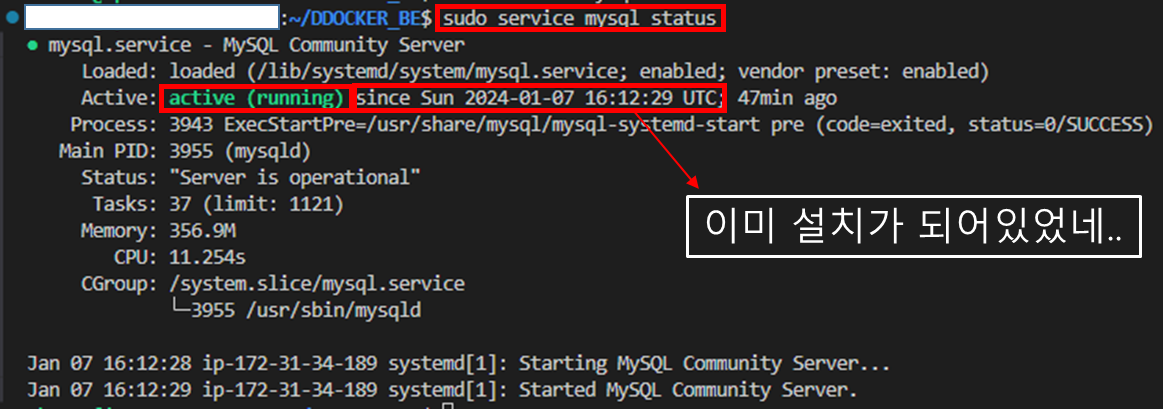
<p>실행중인 데이터베이스를 확인하려면 아래 명령어를 실행하면 된다.</p>

<pre><code class="language-linux">sudo service mysql status
</code></pre>

<p><img src="https://img1.daumcdn.net/thumb/R1280x0/?scode=mtistory2&amp;fname=https%3A%2F%2Fblog.kakaocdn.net%2Fdn%2FdBkznY%2FbtsC8ThR0Mk%2Fo06iFEoeRVt36Fw6sUIHMk%2Fimg.png" alt="" /></p>

<blockquote>
  <p>이미 <strong><code class="language-plaintext highlighter-rouge">EC2</code></strong> 에 MySQL 이 설치가 되어있었다..🤦‍♂️<br />해당 게시물 참조 👉 <a href="https://bit.ly/3TMAz7J">https://bit.ly/3TMAz7J</a></p>
</blockquote>

<hr />

<h3 id="사용자-설정-">사용자 설정 👶</h3>

<p>설치 후 <strong><code class="language-plaintext highlighter-rouge">MySQL</code></strong> 을 실행하면,<br />
임시로 <strong><code class="language-plaintext highlighter-rouge">root</code></strong> 계정과 비밀번호가 발급되어있는 상태이므로<br />
CLI 명령으로 데이터베이스에 접근하여 계정과 비밀번호를 변경 해 주어야한다.</p>

<blockquote>
  <p>만약, 암호 설정 없이 <strong><code class="language-plaintext highlighter-rouge">EC2</code></strong> 를 종료 할 경우 찾을 방법이 없다.<br />초기화 하는 방법이 있지만 다소 번거로운 작업이 필요하다.</p>
</blockquote>

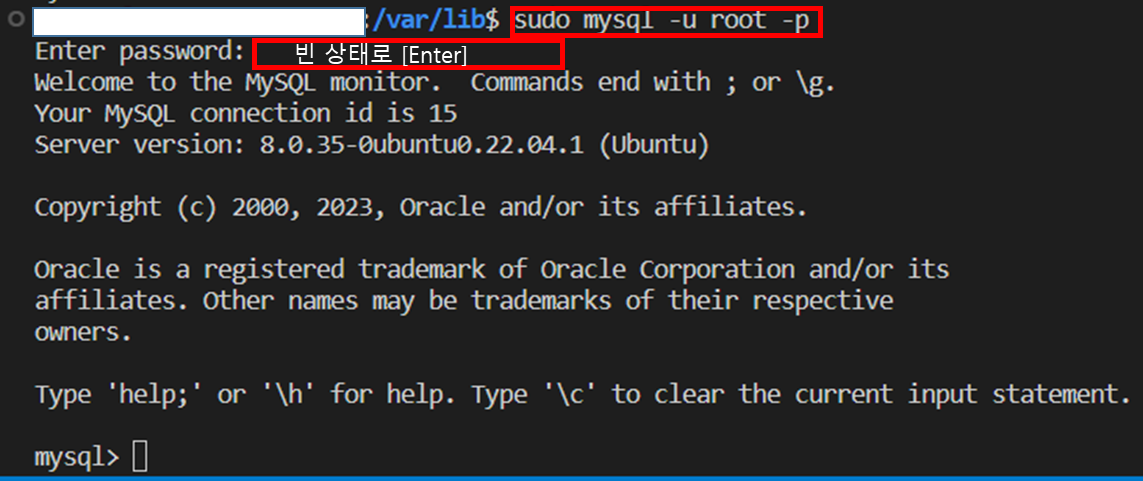
<pre><code class="language-linux">sudo mysql -u root -p
</code></pre>

<blockquote>
  <p>초기 상태이므로 비밀번호를 입력하라는 <strong><code class="language-plaintext highlighter-rouge">Enter password: </code></strong> 가 나온다면 엔터 키를 누르면 된다.</p>
</blockquote>

<p><img src="https://img1.daumcdn.net/thumb/R1280x0/?scode=mtistory2&amp;fname=https%3A%2F%2Fblog.kakaocdn.net%2Fdn%2FIIl8r%2FbtsC5ZDaK4L%2FIXoU0iUSpf9MKELIWb3EJ0%2Fimg.png" alt="" /></p>

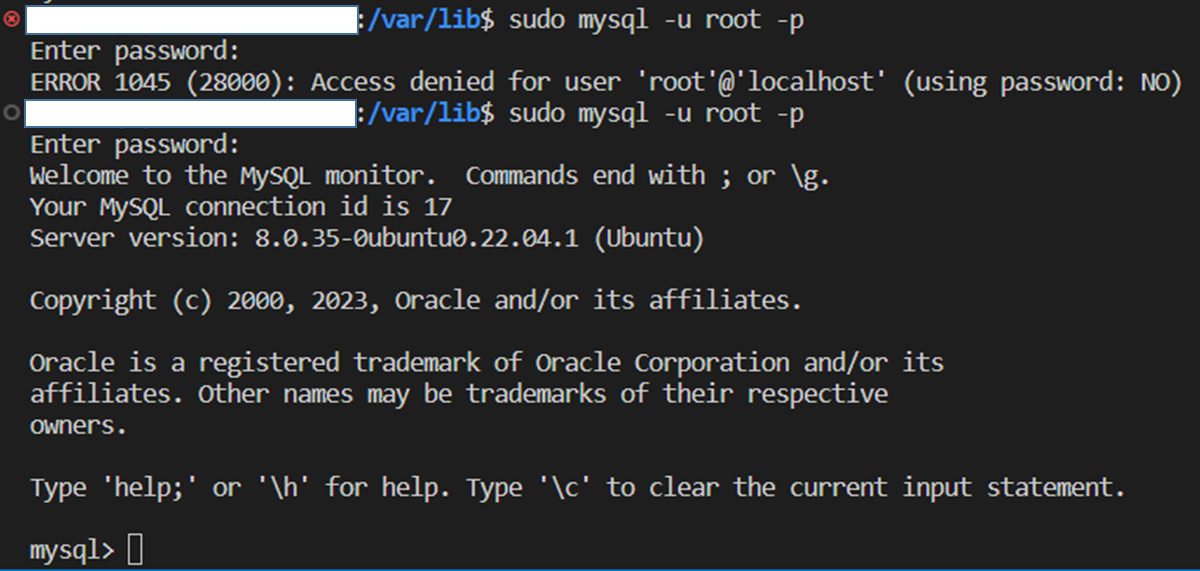
<p>아래 명령을 통해 비밀번호를 변경 할 수 있다.</p>

<pre><code class="language-SQL">5 버전의 경우 👉 UPDATE user SET PASSWORD=PASSWORD("암호") WHERE user="root";
8 버전의 경우 👉 ALTER user "root"@"localhost" identified WITH mysql_native_password BY "변경할 비밀번호";
</code></pre>

<p><img src="https://img1.daumcdn.net/thumb/R1280x0/?scode=mtistory2&amp;fname=https%3A%2F%2Fblog.kakaocdn.net%2Fdn%2FuiML4%2FbtsDdGB3Kh0%2F8hhLW9Ex73ubT364cVIa4K%2Fimg.png" alt="" /></p>

<p>이전과 같이 빈 값을 입력하여 root 사용자에 접근하려하면 에러가 발생하고,<br />
변경한 비밀번호를 적게되면 정상적으로 접근이 가능함을 확인할 수 있다.</p>

<p><img src="https://img1.daumcdn.net/thumb/R1280x0/?scode=mtistory2&amp;fname=https%3A%2F%2Fblog.kakaocdn.net%2Fdn%2FWeD5W%2FbtsDawzI4GQ%2F6KWsjPVXNO5XoTt9k2bqz1%2Fimg.png" alt="" /></p>

<hr />

<h3 id="외부-접근-허용-">외부 접근 허용 👋</h3>

<p><strong><code class="language-plaintext highlighter-rouge">MySQL</code></strong> 에서 제공하는 GUI 프로그램인 <strong><code class="language-plaintext highlighter-rouge">Workbench</code></strong> 를 통해<br />
할당받은 <strong><code class="language-plaintext highlighter-rouge">EC2</code></strong> IP 주소로 접근하려하면 에러가 발생할 것이다.</p>

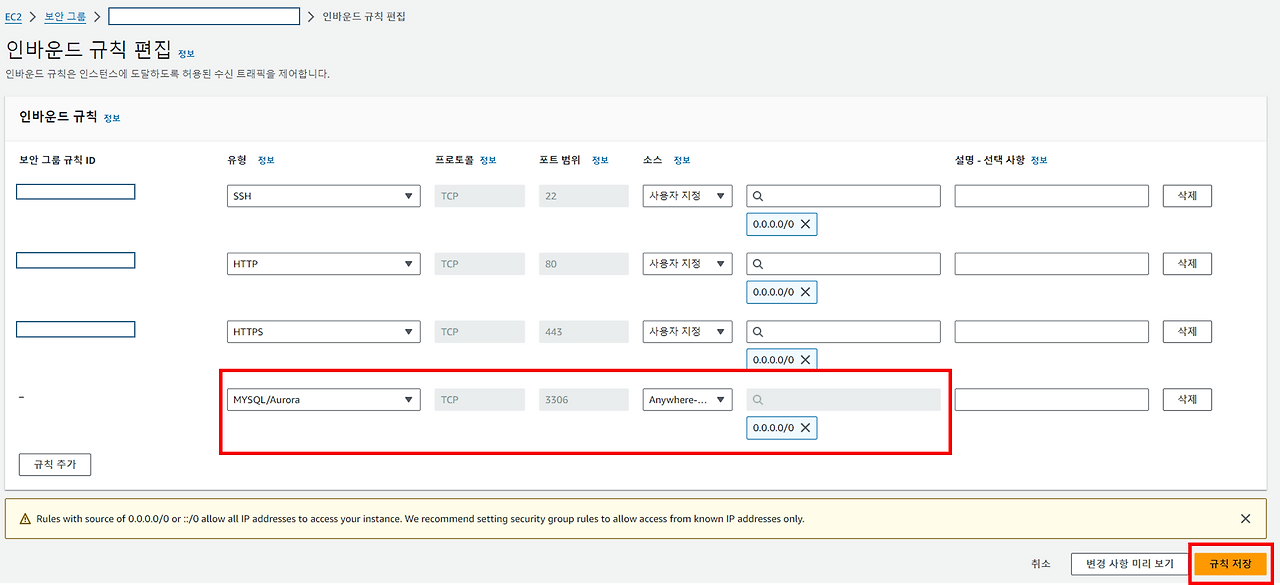
<p>아래와 같이 <strong><code class="language-plaintext highlighter-rouge">EC2</code></strong> 에 <strong>인바운드 규칙</strong> 을 추가 해 주어야 한다.</p>

<p><img src="https://img1.daumcdn.net/thumb/R1280x0/?scode=mtistory2&amp;fname=https%3A%2F%2Fblog.kakaocdn.net%2Fdn%2FcqU1O9%2FbtsDdE5jD4h%2FaT6NwNKNKLBwa78il4taSk%2Fimg.png" alt="" /></p>

<p>그리고, 다시 터미널로 돌아와<br />
<strong><code class="language-plaintext highlighter-rouge">mysqld.cnf</code></strong> 파일을 수정 해 주어야 한다.</p>

<p>먼저 관리자 계정으로 접근하고,<br />
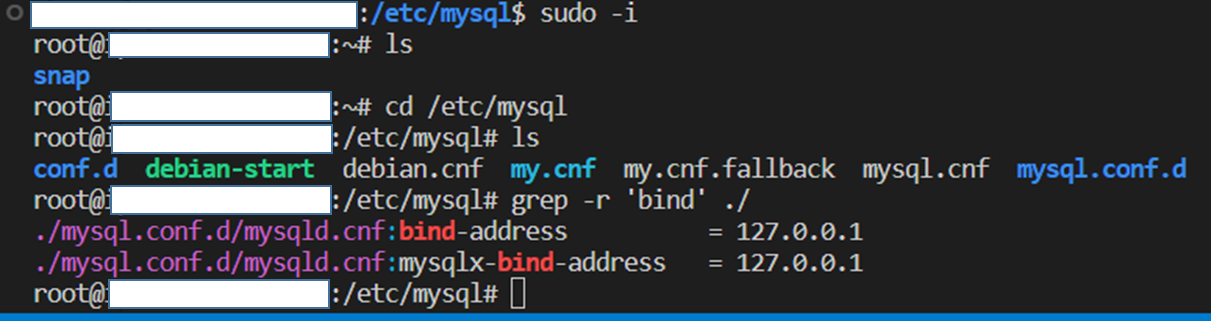
<strong><code class="language-plaintext highlighter-rouge">/etc/mysql</code></strong> 경로로 이동하여 <strong><code class="language-plaintext highlighter-rouge">bind-address</code></strong> 를 찾아 수정 해 주면 된다.</p>

<pre><code class="language-linux">grep -r 'bind' ./
</code></pre>

<p><img src="https://img1.daumcdn.net/thumb/R1280x0/?scode=mtistory2&amp;fname=https%3A%2F%2Fblog.kakaocdn.net%2Fdn%2FVOdGZ%2FbtsC6SKt0h0%2FcmHmxSgIa6lDi8aJZeZWkk%2Fimg.png" alt="" /></p>

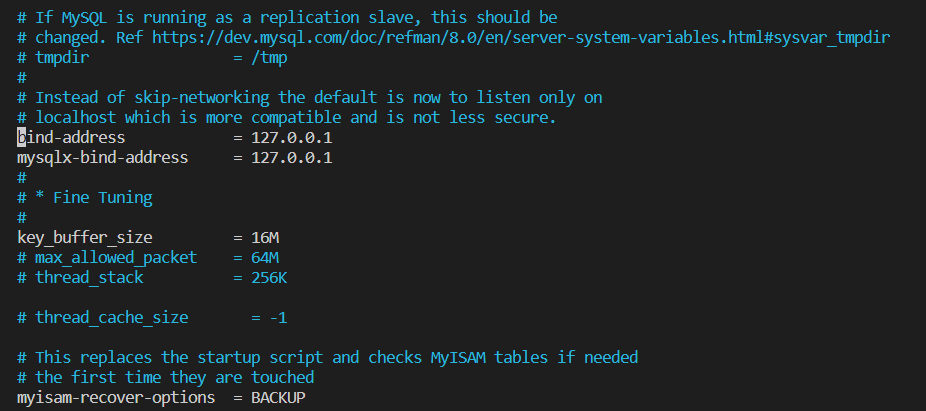
<p><strong><code class="language-plaintext highlighter-rouge">cd</code></strong> 명령으로 해당 경로로 이동 후, 설정 파일을 열어 해당 부분을 <strong><code class="language-plaintext highlighter-rouge">0.0.0.0</code></strong> 으로 변경 해 주면 된다.</p>

<p><img src="https://img1.daumcdn.net/thumb/R1280x0/?scode=mtistory2&amp;fname=https%3A%2F%2Fblog.kakaocdn.net%2Fdn%2FdGFjuD%2FbtsC74cTITR%2F2H90mUFewsgN0qFjPDLAUk%2Fimg.png" alt="" /></p>

<p><img src="https://img1.daumcdn.net/thumb/R1280x0/?scode=mtistory2&amp;fname=https%3A%2F%2Fblog.kakaocdn.net%2Fdn%2FchfnAq%2FbtsDdF4dvhu%2FXkPEoADmJkzKPtl7dUI0TK%2Fimg.png" alt="" /></p>

<p><strong>이제 진짜 마지막이다 ❗❗</strong><br />
다시 터미널로 돌아와 <strong><code class="language-plaintext highlighter-rouge">MySQL</code></strong> 서버를 재 시작 해 주면 끝이다.</p>

<pre><code class="language-linux">sudo systemctl restart mysql
</code></pre>

<p><strong><code class="language-plaintext highlighter-rouge">MySQL Workbench</code></strong> 에서 생성된 데이터베이스에 접근 해 보겠다.</p>

<p><img src="https://img1.daumcdn.net/thumb/R1280x0/?scode=mtistory2&amp;fname=https%3A%2F%2Fblog.kakaocdn.net%2Fdn%2FKKwMY%2FbtsC7mq83BS%2FCc8iwbrrjKQW94xtw30D40%2Fimg.png" alt="" /></p>

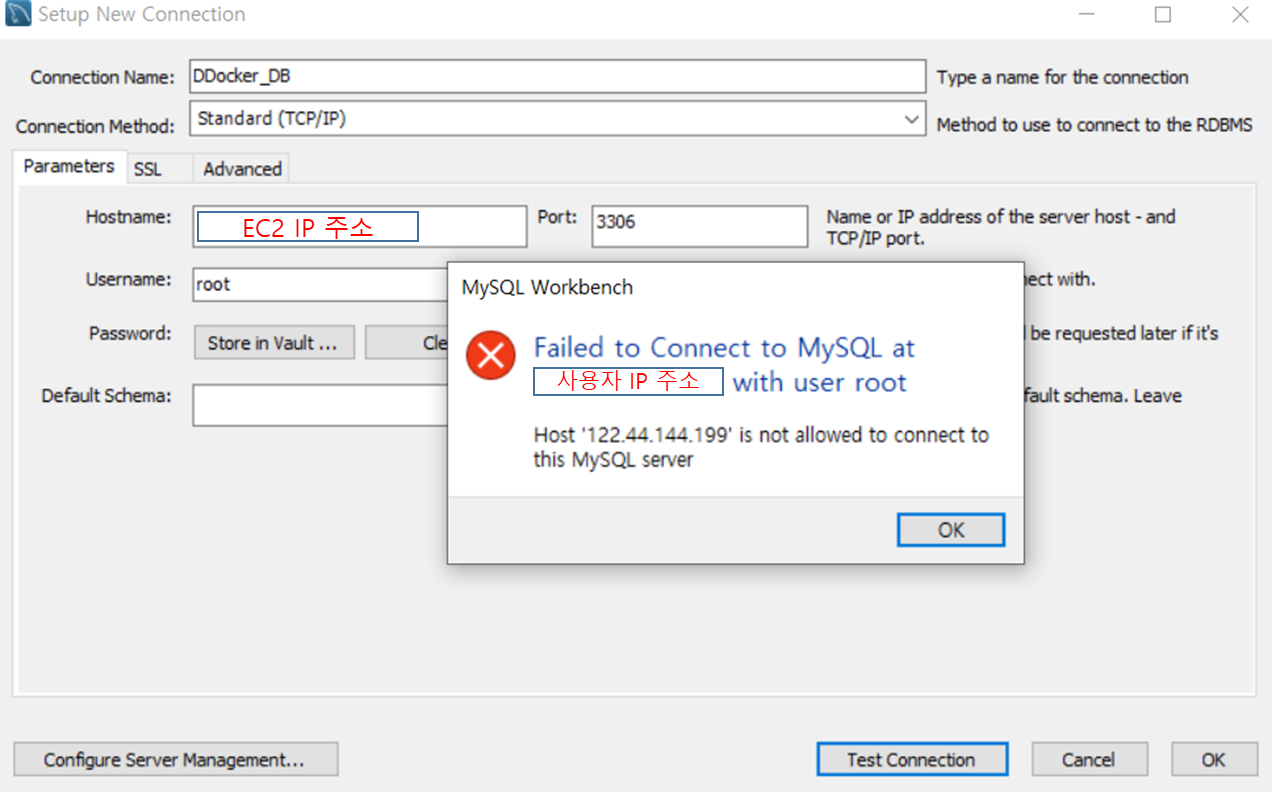
<p><strong>에러 발생….🤮</strong><br />
오 하지만 에러를 금방 해결할 수 있을 것 같다..❗</p>

<hr />

<h3 id="계정-생성-">계정 생성 👼</h3>

<p>위 에러 메세지를 보면,<br />
외부 환경인 <strong><code class="language-plaintext highlighter-rouge">EC2</code></strong> 에 내가 접근하려고 하는데,<br />
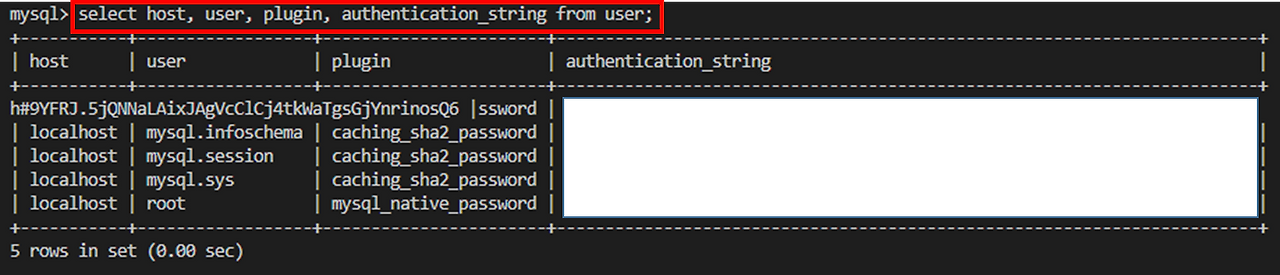
<strong>내부 ip 주소로는 외부 ip 주소에 접근할 수 가 없기 때문에</strong> 접속 가능한 계정을 생성 해 주어야 한다.</p>

<ul>
  <li>계정 조회</li>
</ul>

<p><img src="https://img1.daumcdn.net/thumb/R1280x0/?scode=mtistory2&amp;fname=https%3A%2F%2Fblog.kakaocdn.net%2Fdn%2F0OLgB%2FbtsC2BJPgnD%2FkltgkEk1t8dgXvNDkd2mxK%2Fimg.png" alt="" /></p>

<p>아래 명령을 통해 외부, 내부 ip 에 접근 가능한 계정을 생성 해 준다.</p>

<pre><code class="language-SQL">CREATE USER '계정아이디'@'localhost' IDENTIFIED BY '비밀번호';
CREATE USER '계정아이디'@'호스트' IDENTIFIED BY '비밀번호';
</code></pre>

<p><img src="https://img1.daumcdn.net/thumb/R1280x0/?scode=mtistory2&amp;fname=https%3A%2F%2Fblog.kakaocdn.net%2Fdn%2FbKQJpq%2FbtsC4IhlpSw%2FIEIpZ72NHWFboNKkP2mmX0%2Fimg.png" alt="" /></p>

<p><img src="https://img1.daumcdn.net/thumb/R1280x0/?scode=mtistory2&amp;fname=https%3A%2F%2Fblog.kakaocdn.net%2Fdn%2FstHZQ%2FbtsC74qrxii%2FzH5IBNyKioXDFEDni07KVk%2Fimg.png" alt="" /></p>

<p><img src="https://img1.daumcdn.net/thumb/R1280x0/?scode=mtistory2&amp;fname=https%3A%2F%2Fblog.kakaocdn.net%2Fdn%2FV0DGN%2FbtsC5W7v6lT%2F0f3tiZHn5foYdJFSq71SVk%2Fimg.png" alt="" /></p>

<p>그리고, 생성한 계정에 권한을 부여 해 주어야 한다.</p>

<pre><code class="language-SQL">GRANT ALL PRIVILEGES ON *.* TO '계정아이디'@'localhost';
GRANT ALL PRIVILEGES ON *.* TO '계정아이디'@'호스트';
</code></pre>

<p><img src="https://img1.daumcdn.net/thumb/R1280x0/?scode=mtistory2&amp;fname=https%3A%2F%2Fblog.kakaocdn.net%2Fdn%2FWSReB%2FbtsC4J1A7j1%2Fc6x4kK1BdCdQ0aJnOy5A11%2Fimg.png" alt="" /></p>

<p>권한 부여 후에는 이를 적용하는 명령어를 실행 해 주어야 한다.</p>

<pre><code class="language-SQL">FLUSH PRIVILEGES;
</code></pre>

<p><img src="https://img1.daumcdn.net/thumb/R1280x0/?scode=mtistory2&amp;fname=https%3A%2F%2Fblog.kakaocdn.net%2Fdn%2Fbh8jF1%2FbtsC8Vmte03%2FwaSWhhRStFk3V138XIUjt0%2Fimg.png" alt="" /></p>

<p>모든 적용이 끝난 후 다시 <strong><code class="language-plaintext highlighter-rouge">MySQL WorkBench</code></strong> 에서 생성한 외부ip 접근 가능 사용자 정보를 입력하고,<br />
<strong>Test Connection</strong> 을 해 보면 정상적으로 연결이 됨을 확인할 수 있다 ✨</p>

<p><img src="https://img1.daumcdn.net/thumb/R1280x0/?scode=mtistory2&amp;fname=https%3A%2F%2Fblog.kakaocdn.net%2Fdn%2Fb3qMC6%2FbtsDdJr1j6J%2FqIeWzlnbAuDD6lQvrMUZWK%2Fimg.png" alt="" /></p>

<hr />

<h3 id="인코딩-방식-변경-">인코딩 방식 변경 🔮</h3>

<p>아래 설정은 기존의 <strong><code class="language-plaintext highlighter-rouge">UTF-8</code></strong> 방식의 <strong><code class="language-plaintext highlighter-rouge">4Btye</code></strong> 가변 길이 인코딩 방식을 적용하는 방법이다.<br /></p>

<blockquote>
  <p><strong><code class="language-plaintext highlighter-rouge">MySQL</code></strong> 은 <strong><code class="language-plaintext highlighter-rouge">UTF-8</code></strong> 방식의 인코딩 방식을 지원하지만,<br /><strong><code class="language-plaintext highlighter-rouge">3Byte</code></strong> 방식을 지원했었으며 이후 업데이트를 통해 <strong><code class="language-plaintext highlighter-rouge">4Btye</code></strong> 를 추가했다.<br />👉 이는 <strong><code class="language-plaintext highlighter-rouge">MySQL 5.5</code></strong> &amp; <strong><code class="language-plaintext highlighter-rouge">MariaDB 5.5</code></strong> 이후 버전에서만 사용 가능하다.</p>
</blockquote>

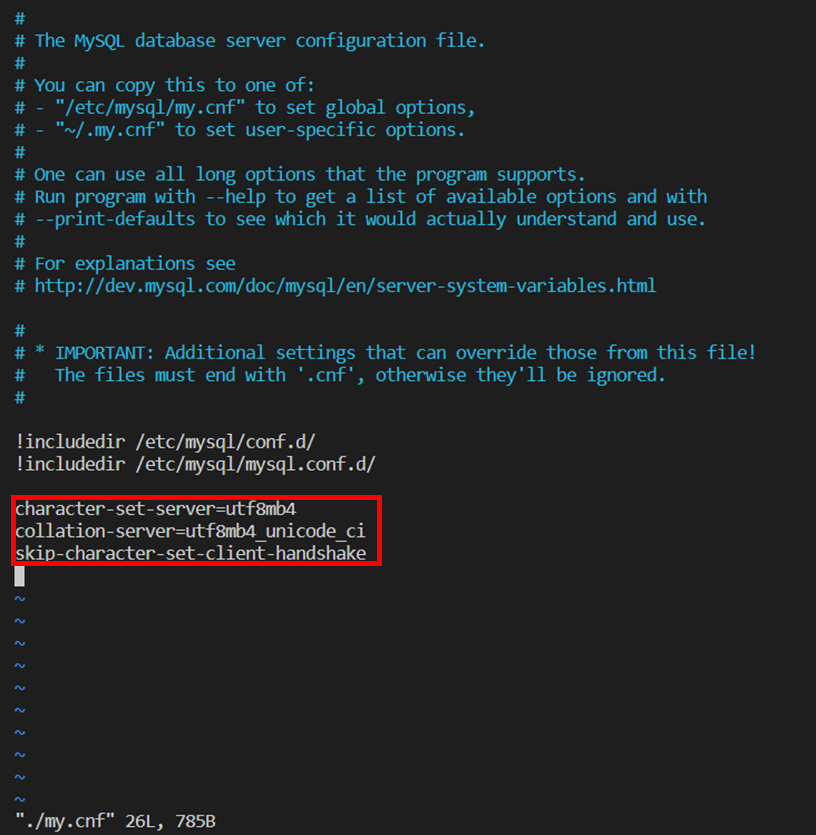
<p>루트 경로로 이동하여<br />
<strong><code class="language-plaintext highlighter-rouge">/mysql</code></strong> 디렉토리에 있는 <strong><code class="language-plaintext highlighter-rouge">my.cnf</code></strong> 파일에 <strong><code class="language-plaintext highlighter-rouge">vim</code></strong> 에디터를 사용하여 접근한다.</p>

<p><img src="https://img1.daumcdn.net/thumb/R1280x0/?scode=mtistory2&amp;fname=https%3A%2F%2Fblog.kakaocdn.net%2Fdn%2FcA1Huy%2FbtsC52NqoFt%2FXVcJ7KSSkrNMEaqkawGSk0%2Fimg.png" alt="" /></p>

<blockquote>
  <p><strong><code class="language-plaintext highlighter-rouge">vim</code></strong> 은, 별도의 설치 없이 파일을 수정할 수 있는 에디터 기능을 제공한다.</p>
</blockquote>

<p>파일 내부로 진입했다면, 네모 박스의 옵션을 추가 해 주고 저장한다.</p>

<p><img src="https://img1.daumcdn.net/thumb/R1280x0/?scode=mtistory2&amp;fname=https%3A%2F%2Fblog.kakaocdn.net%2Fdn%2FbtsoGY%2FbtsC4pPBmpZ%2FiskZmjNlRx0saQihni7TkK%2Fimg.png" alt="" /></p>

<p>파일의 변경이 있을 경우, 재시작을 해 주어야 한다.</p>

<pre><code class="language-linux">sudo service restart mysql
</code></pre>

<hr />

<h2 id="reference-">Reference 🌊</h2>

<blockquote>
  <p><a href="https://velog.io/@ghldjfldj/AWS-RDS%EB%9E%80-%EB%AC%B4%EC%97%87%EC%9D%B8%EA%B0%80-zuaaizv4">https://velog.io/@ghldjfldj/AWS-RDS%EB%9E%80-%EB%AC%B4%EC%97%87%EC%9D%B8%EA%B0%80-zuaaizv4</a><br /><a href="https://velog.io/@cptkuk91/AWS-EC2%EC%97%90-MySQL-%EC%84%A4%EC%B9%98-%EC%82%AC%EC%9A%A9%ED%95%98%EA%B8%B0">https://velog.io/@cptkuk91/AWS-EC2%EC%97%90-MySQL-%EC%84%A4%EC%B9%98-%EC%82%AC%EC%9A%A9%ED%95%98%EA%B8%B0</a><br /><a href="https://joonyon.tistory.com/entry/MySQL-root-%EB%B9%84%EB%B0%80%EB%B2%88%ED%98%B8-%EC%84%A4%EC%A0%95">https://joonyon.tistory.com/entry/MySQL-root-%EB%B9%84%EB%B0%80%EB%B2%88%ED%98%B8-%EC%84%A4%EC%A0%95</a><br /><a href="https://www.lesstif.com/dbms/mysql-error-1698-28000-89555999.html">https://www.lesstif.com/dbms/mysql-error-1698-28000-89555999.html</a><br /><a href="https://goddaehee.tistory.com/292">https://goddaehee.tistory.com/292</a><br /><a href="https://goddaehee.tistory.com/331">https://goddaehee.tistory.com/331</a></p>
</blockquote>]]></content><author><name>전투코딩</name></author><category term="AWS" /><category term="Node.js" /><category term="AWS" /><category term="EC2" /><category term="MySQL" /><category term="TIL" /><category term="프로젝트" /><summary type="html"><![CDATA[개요 🔔]]></summary></entry><entry><title type="html">[AWS] VSCode 에서 SSH 로 실행한 원격 서버 연결 실패시 해결방법 🙋‍♂️</title><link href="/aws/2024/01/07/AWS-SSH-Error.html" rel="alternate" type="text/html" title="[AWS] VSCode 에서 SSH 로 실행한 원격 서버 연결 실패시 해결방법 🙋‍♂️" /><published>2024-01-07T00:00:00+00:00</published><updated>2024-01-07T00:00:00+00:00</updated><id>/aws/2024/01/07/AWS-SSH-Error</id><content type="html" xml:base="/aws/2024/01/07/AWS-SSH-Error.html"><![CDATA[<h2 id="개요-">개요 🔔</h2>

<p><strong><code class="language-plaintext highlighter-rouge">AWS</code></strong> 에서 생성한 <strong><code class="language-plaintext highlighter-rouge">EC2 인스턴스</code></strong> 에 <code class="language-plaintext highlighter-rouge">MySQL</code> 설치 명령을 실행하니,<br />
아래와 같이 원격 서버에 접속이 되지 않는 상황이다.</p>

<p>실행한 명령은 다음과 같다.</p>

<p><img src="https://img1.daumcdn.net/thumb/R1280x0/?scode=mtistory2&amp;fname=https%3A%2F%2Fblog.kakaocdn.net%2Fdn%2Folecl%2FbtsC2zL2yeP%2F5E4KUOhuC8E2smTsuHivaK%2Fimg.png" alt="" /></p>

<p><strong><code class="language-plaintext highlighter-rouge">Permission denied</code></strong> 에러가 발생하여 권한(<strong><code class="language-plaintext highlighter-rouge">sudo</code></strong>)을 추가 해 주었다.</p>

<p><img src="https://img1.daumcdn.net/thumb/R1280x0/?scode=mtistory2&amp;fname=https%3A%2F%2Fblog.kakaocdn.net%2Fdn%2FbXYB8O%2FbtsC4C2sx24%2FLgLOY7sz5sKnVuXdCEGUvK%2Fimg.png" alt="" /></p>

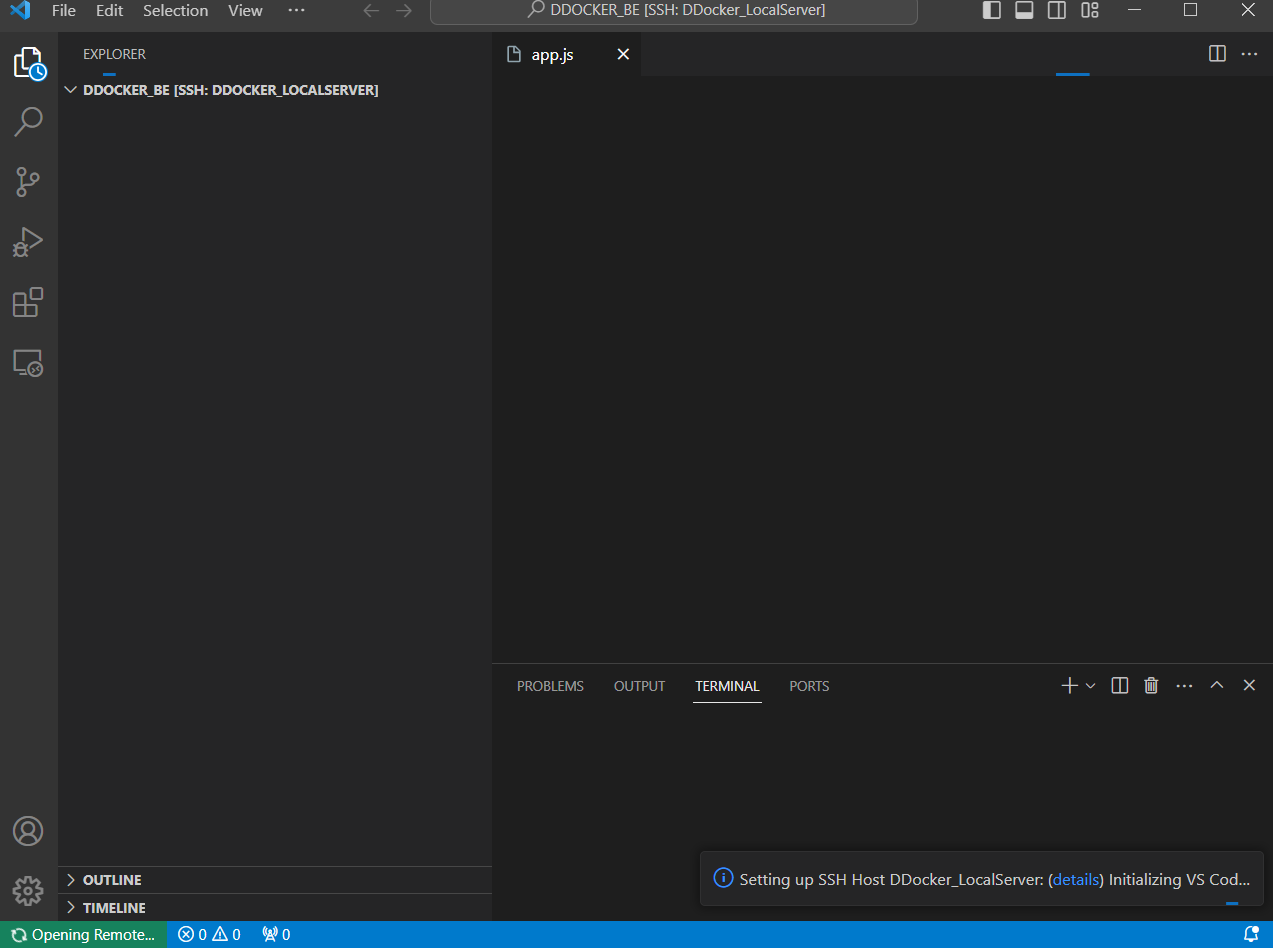
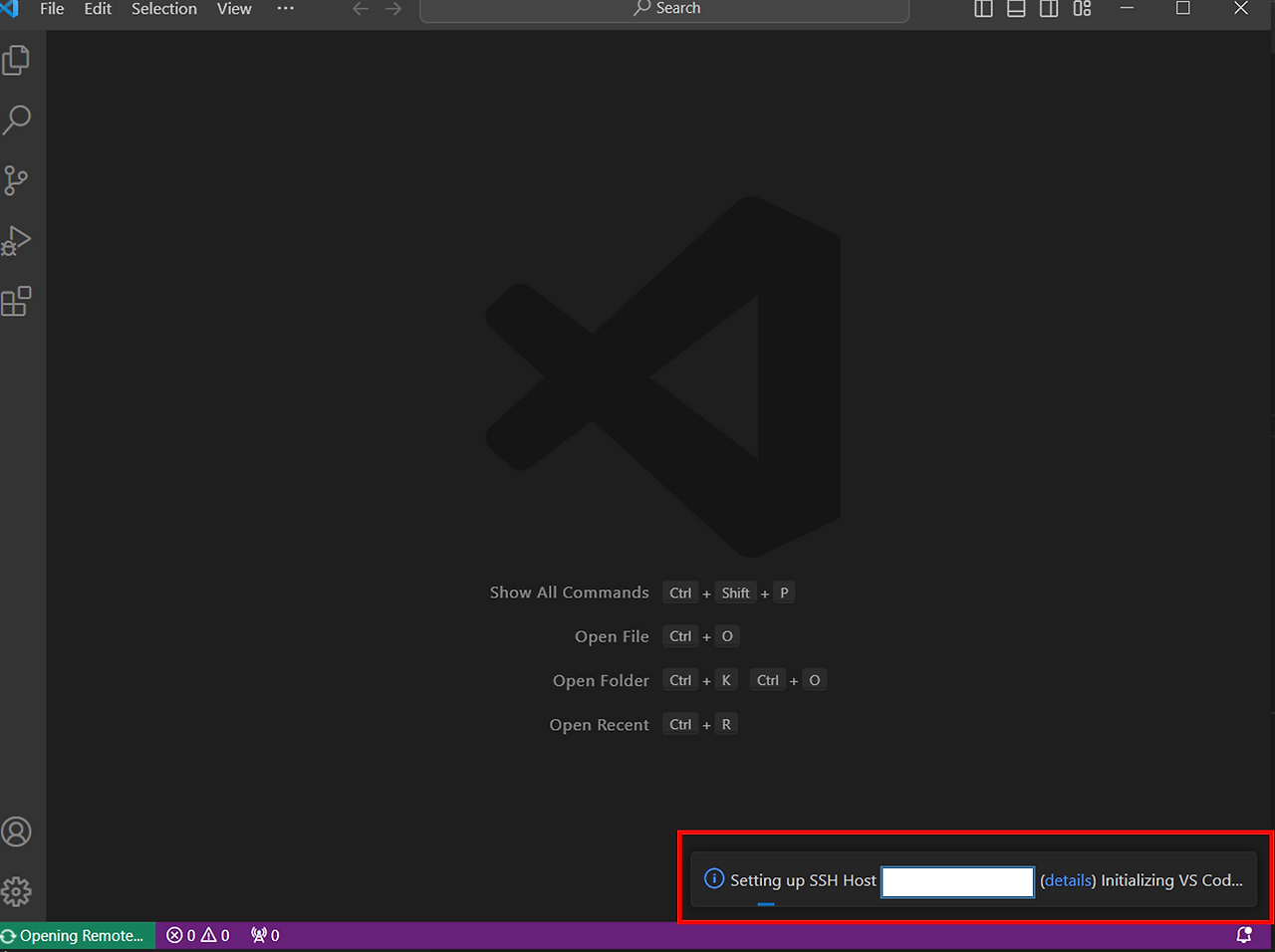
<p>이후 설치가 멈추더니, <strong><code class="language-plaintext highlighter-rouge">VSCode</code></strong> 에디터가 종료되었고<br />
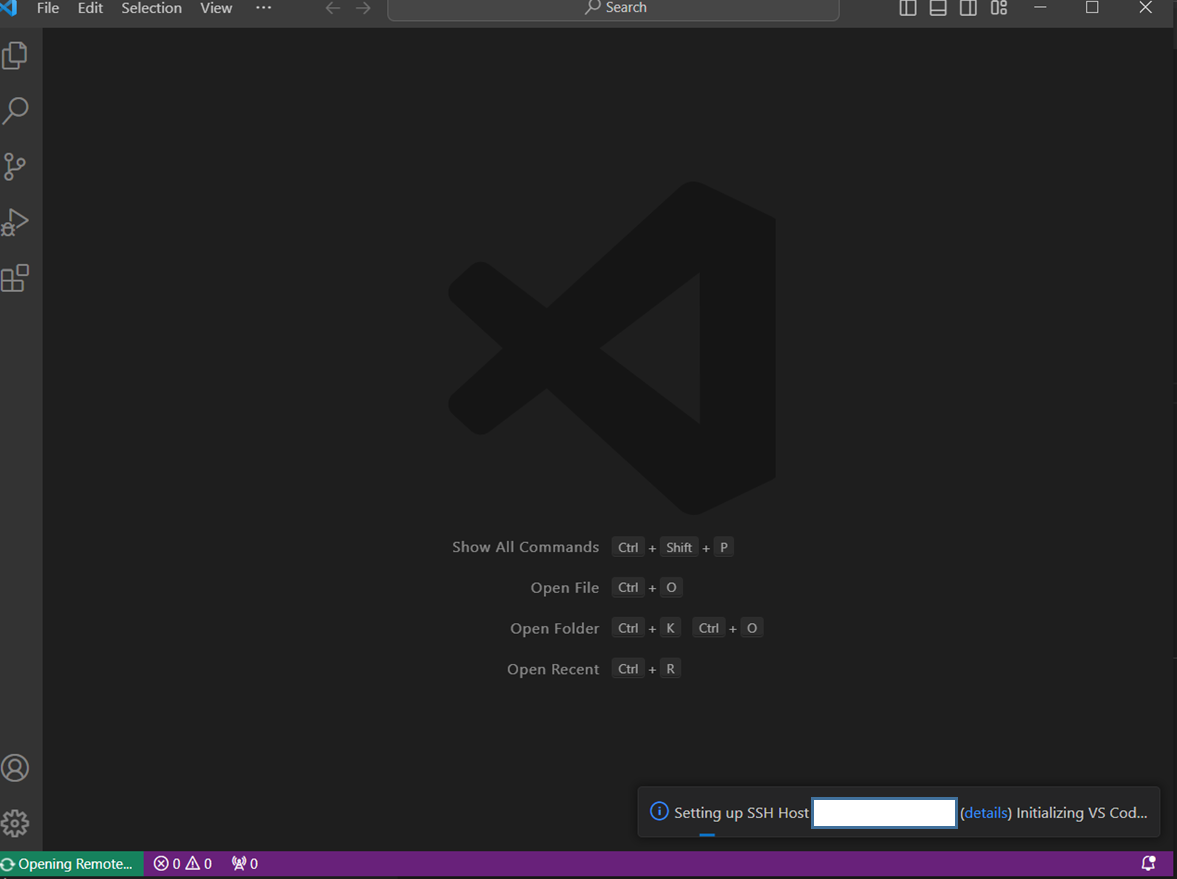
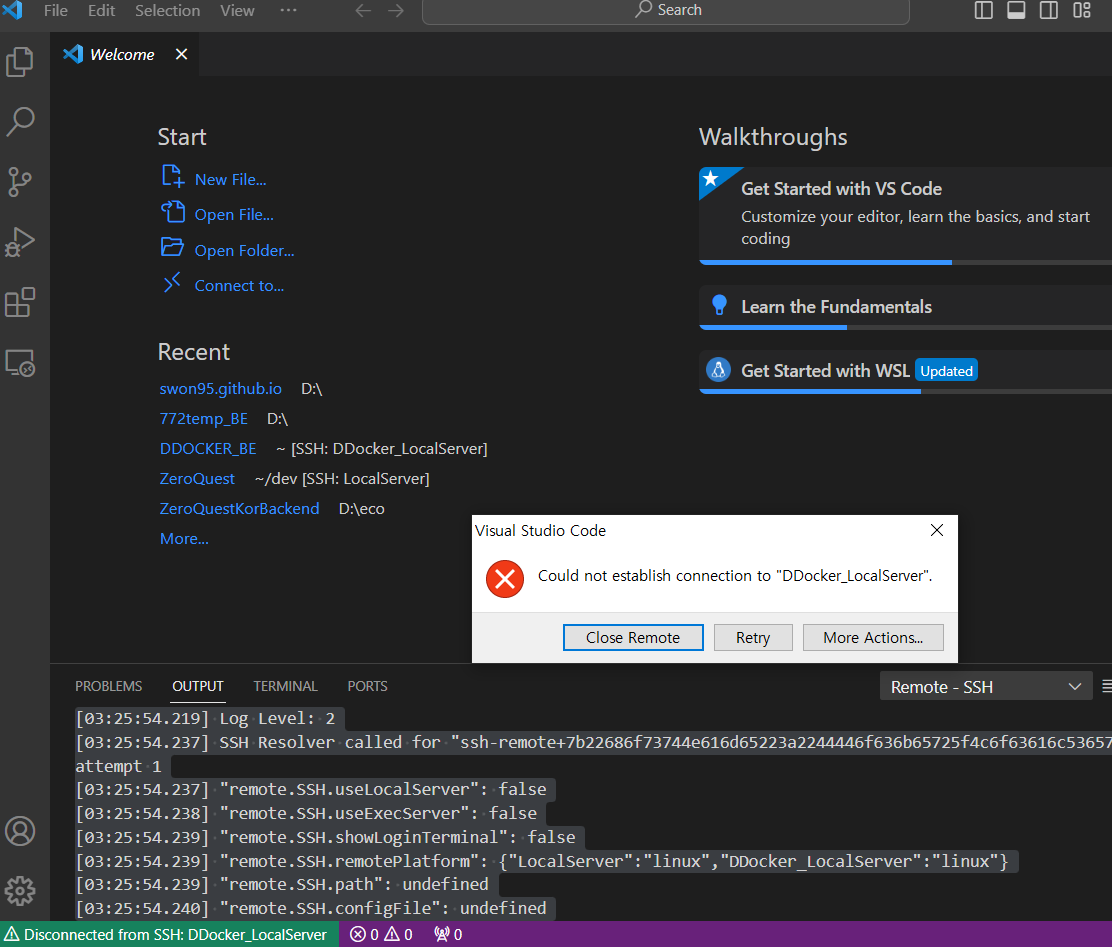
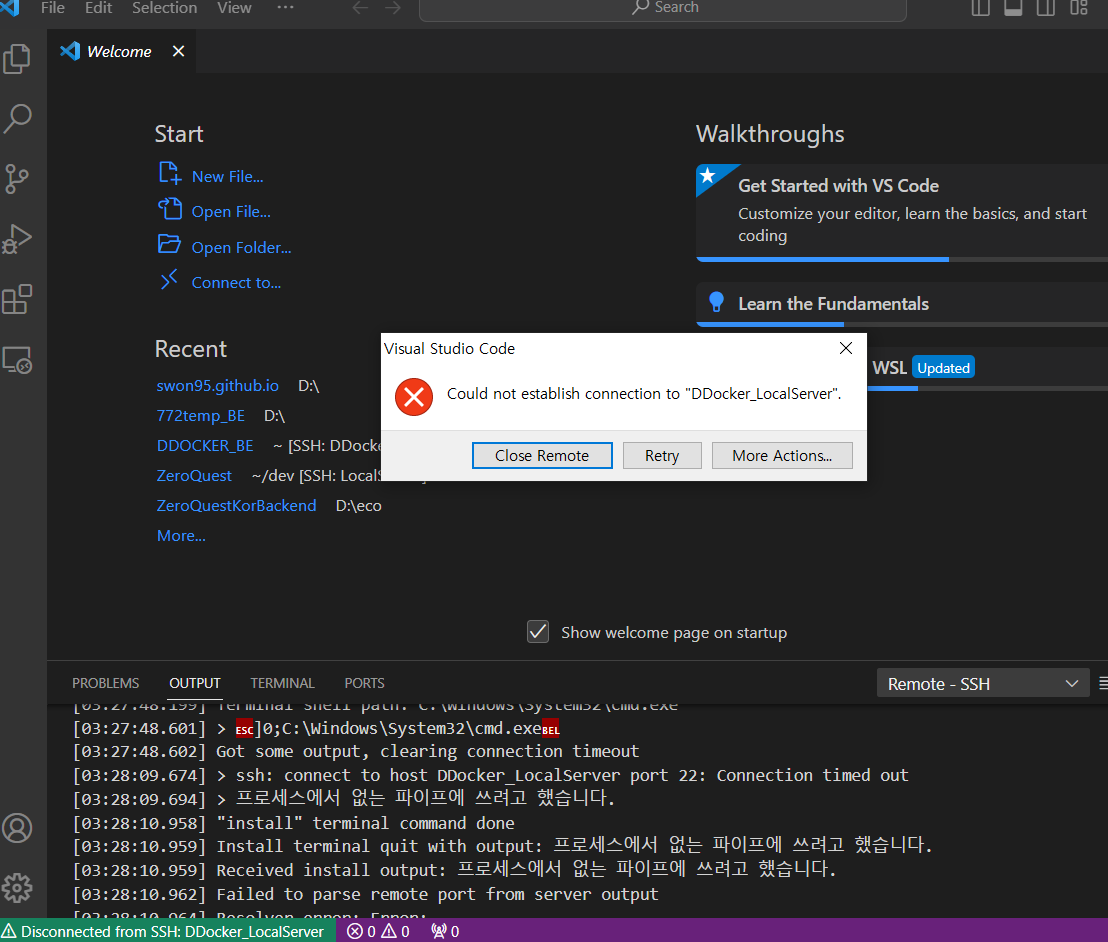
아래와 같이 원격 서버를 실행하기 위한 로딩 화면이 무한 반복되고있다 😭😭</p>

<p><img src="https://img1.daumcdn.net/thumb/R1280x0/?scode=mtistory2&amp;fname=https%3A%2F%2Fblog.kakaocdn.net%2Fdn%2FwCMWo%2FbtsC7p2pLvq%2Fy0GYfrt2qaBtBqedBDQK2K%2Fimg.png" alt="" /></p>

<p><img src="https://img1.daumcdn.net/thumb/R1280x0/?scode=mtistory2&amp;fname=https%3A%2F%2Fblog.kakaocdn.net%2Fdn%2Fn6lGf%2FbtsC2y7dVfF%2FqYzzrrqlb9uORq6Z34Dg8K%2Fimg.png" alt="" /></p>

<p><img src="https://img1.daumcdn.net/thumb/R1280x0/?scode=mtistory2&amp;fname=https%3A%2F%2Fblog.kakaocdn.net%2Fdn%2Fdi2mPU%2FbtsC36Qfb8A%2F64SnoYRvck0x48WS5bWHQk%2Fimg.png" alt="" /></p>

<pre><code class="language-linux">[22:50:29.446] Log Level: 2
[22:50:29.480] SSH Resolver called for "ssh-remote+7b22686f73744e616d65223a2244446f636b65725f4c6f63616c536572766572227d", attempt 1
[22:50:29.481] "remote.SSH.useLocalServer": false
[22:50:29.482] "remote.SSH.useExecServer": false
[22:50:29.482] "remote.SSH.showLoginTerminal": false
[22:50:29.482] "remote.SSH.remotePlatform": {"LocalServer":"linux","DDocker_LocalServer":"linux"}
[22:50:29.482] "remote.SSH.path": undefined
[22:50:29.482] "remote.SSH.configFile": undefined
[22:50:29.483] "remote.SSH.useFlock": true
[22:50:29.483] "remote.SSH.lockfilesInTmp": false
[22:50:29.484] "remote.SSH.localServerDownload": auto
[22:50:29.484] "remote.SSH.remoteServerListenOnSocket": false
[22:50:29.484] "remote.SSH.showLoginTerminal": false
[22:50:29.484] "remote.SSH.defaultExtensions": []
[22:50:29.485] "remote.SSH.loglevel": 2
[22:50:29.486] "remote.SSH.enableDynamicForwarding": true
[22:50:29.486] "remote.SSH.enableRemoteCommand": false
[22:50:29.486] "remote.SSH.serverPickPortsFromRange": {}
[22:50:29.486] "remote.SSH.serverInstallPath": {}
[22:50:29.488] VS Code version: 1.85.1
[22:50:29.488] Remote-SSH version: remote-ssh@0.107.1
[22:50:29.488] win32 x64
[22:50:29.490] SSH Resolver called for host: DDocker_LocalServer
[22:50:29.490] Setting up SSH remote "DDocker_LocalServer"
[22:50:29.495] Using commit id "0ee08df0cf4527e40edc9aa28f4b5bd38bbff2b2" and quality "stable" for server
[22:50:29.500] Install and start server if needed
[22:50:29.506] Checking ssh with "C:\Program Files\Eclipse Adoptium\jdk-11.0.19.7-hotspot\bin\ssh.exe -V"
[22:50:29.509] Got error from ssh: spawn C:\Program Files\Eclipse Adoptium\jdk-11.0.19.7-hotspot\bin\ssh.exe ENOENT
[22:50:29.510] Checking ssh with "C:\Ruby32-x64\bin\ssh.exe -V"
[22:50:29.511] Got error from ssh: spawn C:\Ruby32-x64\bin\ssh.exe ENOENT
[22:50:29.511] Checking ssh with "C:\Windows\system32\ssh.exe -V"
[22:50:29.513] Got error from ssh: spawn C:\Windows\system32\ssh.exe ENOENT
[22:50:29.514] Checking ssh with "C:\Windows\ssh.exe -V"
[22:50:29.516] Got error from ssh: spawn C:\Windows\ssh.exe ENOENT
[22:50:29.517] Checking ssh with "C:\Windows\System32\Wbem\ssh.exe -V"
[22:50:29.518] Got error from ssh: spawn C:\Windows\System32\Wbem\ssh.exe ENOENT
[22:50:29.518] Checking ssh with "C:\Windows\System32\WindowsPowerShell\v1.0\ssh.exe -V"
[22:50:29.520] Got error from ssh: spawn C:\Windows\System32\WindowsPowerShell\v1.0\ssh.exe ENOENT
[22:50:29.520] Checking ssh with "C:\Windows\System32\OpenSSH\ssh.exe -V"
[22:50:29.748] &gt; OpenSSH_for_Windows_8.1p1, LibreSSL 3.
[22:50:29.749] &gt; 0.2

[22:50:29.755] Running script with connection command: "C:\Windows\System32\OpenSSH\ssh.exe" -T -D 52752 "DDocker_LocalServer" bash
[22:50:29.758] Terminal shell path: C:\Windows\System32\cmd.exe
[22:50:30.135] &gt; ]0;C:\Windows\System32\cmd.exe
[22:50:30.136] Got some output, clearing connection timeout
[22:50:51.200] &gt; ssh: connect to host DDocker_LocalServer port 22: Connection timed out
[22:50:51.254] &gt; 프로세스에서 없는 파이프에 쓰려고 했습니다.
[22:50:52.528] "install" terminal command done
[22:50:52.528] Install terminal quit with output: 프로세스에서 없는 파이프에 쓰려고 했습니다.
[22:50:52.528] Received install output: 프로세스에서 없는 파이프에 쓰려고 했습니다.
[22:50:52.529] Failed to parse remote port from server output
[22:50:52.532] Resolver error: Error:
	at g.Create (c:\Users\user\.vscode\extensions\ms-vscode-remote.remote-ssh-0.107.1\out\extension.js:2:642703)
	at t.handleInstallOutput (c:\Users\user\.vscode\extensions\ms-vscode-remote.remote-ssh-0.107.1\out\extension.js:2:640069)
	at t.tryInstall (c:\Users\user\.vscode\extensions\ms-vscode-remote.remote-ssh-0.107.1\out\extension.js:2:761983)
	at async c:\Users\user\.vscode\extensions\ms-vscode-remote.remote-ssh-0.107.1\out\extension.js:2:722522
	at async t.withShowDetailsEvent (c:\Users\user\.vscode\extensions\ms-vscode-remote.remote-ssh-0.107.1\out\extension.js:2:725828)
	at async I (c:\Users\user\.vscode\extensions\ms-vscode-remote.remote-ssh-0.107.1\out\extension.js:2:719493)
	at async t.resolve (c:\Users\user\.vscode\extensions\ms-vscode-remote.remote-ssh-0.107.1\out\extension.js:2:723199)
	at async c:\Users\user\.vscode\extensions\ms-vscode-remote.remote-ssh-0.107.1\out\extension.js:2:907003
[22:50:52.552] ------


[22:50:54.951] Opening exec server for ssh-remote+7b22686f73744e616d65223a2244446f636b65725f4c6f63616c536572766572227d
[22:50:55.037] Initizing new exec server for ssh-remote+7b22686f73744e616d65223a2244446f636b65725f4c6f63616c536572766572227d
[22:50:55.102] Using commit id "0ee08df0cf4527e40edc9aa28f4b5bd38bbff2b2" and quality "stable" for server
[22:50:55.106] Install and start server if needed
[22:50:55.129] Running script with connection command: "C:\Windows\System32\OpenSSH\ssh.exe" -T -D 52780 "DDocker_LocalServer" bash
[22:50:55.131] Terminal shell path: C:\Windows\System32\cmd.exe
[22:50:55.469] &gt; ]0;C:\Windows\System32\cmd.exe
[22:50:55.470] Got some output, clearing connection timeout
[22:51:16.497] &gt; ssh: connect to host DDocker_LocalServer port 22: Connection timed out
[22:51:16.521] &gt; 프로세스에서 없는 파이프에 쓰려고 했습니다.
[22:51:17.785] "install" terminal command done
[22:51:17.786] Install terminal quit with output: 프로세스에서 없는 파이프에 쓰려고 했습니다.
[22:51:17.786] Received install output: 프로세스에서 없는 파이프에 쓰려고 했습니다.
[22:51:17.787] Failed to parse remote port from server output
[22:51:17.788] Exec server for ssh-remote+7b22686f73744e616d65223a2244446f636b65725f4c6f63616c536572766572227d failed: Error
[22:51:17.788] Error opening exec server for ssh-remote+7b22686f73744e616d65223a2244446f636b65725f4c6f63616c536572766572227d: Error
</code></pre>

<hr />

<h2 id="에러-확인-">에러 확인 ❌</h2>

<p>로그를 보면,<br />
<strong><code class="language-plaintext highlighter-rouge">SSH</code></strong> 호스트에 연결하려고 시도하고 있지만, 시간 ⏱ 이 초과되는 문제가 발생하고있다 ✅</p>

<pre><code class="language-linux">ssh: connect to host DDocker_LocalServer port 22: Connection timed out
</code></pre>

<p><strong><code class="language-plaintext highlighter-rouge">SSH</code></strong> 클라이언트를 실행 하는 중 문제 ❌ 가 발생했다.</p>

<pre><code class="language-linux">프로세스에서 없는 파이프에 쓰려고 했습니다.
</code></pre>

<p>이는 <strong><code class="language-plaintext highlighter-rouge">SSH</code></strong> 클라이언트 실행 중에 다른 문제가 발생한 것으로,<br />
<strong>명령이 중단되거나 비 정상적으로 종료되었다는 것을 의미</strong>한다.</p>

<hr />

<h2 id="해결-방법-">해결 방법 💨</h2>

<h3 id="known_hosts-">known_hosts 🙄</h3>

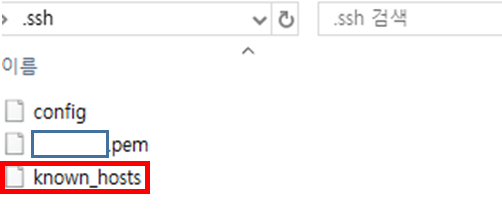
<p>앞서 <strong><code class="language-plaintext highlighter-rouge">EC2</code></strong> 인스턴스를 생성할 때 발급받은 <strong><code class="language-plaintext highlighter-rouge">.pem</code></strong> 키를 저장한 디렉토리로 가 보면,</p>

<p><img src="https://img1.daumcdn.net/thumb/R1280x0/?scode=mtistory2&amp;fname=https%3A%2F%2Fblog.kakaocdn.net%2Fdn%2FOu3ie%2FbtsC8YKgjOa%2FXes9NPBcG4R90763y4K97K%2Fimg.png" alt="" /></p>

<p><strong><code class="language-plaintext highlighter-rouge">known_hosts</code></strong> 파일이 생성되어 있을텐데,<br />
이 파일을 열어보면 <strong><code class="language-plaintext highlighter-rouge">서버 IP ssh - ras 키</code></strong> 순으로 여러 줄이 작성되어 있을것이다.</p>

<p>여기서 접속이 되지 않는 IP 주소 <strong><code class="language-plaintext highlighter-rouge">(Remote)</code></strong> 를 찾아<br />
그 줄을 제거 후 다시 <strong><code class="language-plaintext highlighter-rouge">SSH</code></strong> 접속을 하면 대부분 해결이 된다.</p>

<p>해당 에러는 <strong>이전 호스트들과 충돌</strong>하여 발생하는 문제 때문에 발생하는 에러이다.</p>

<p>하지만, 내가 마���친 에러는 이 해결방법으로 해결이 되지 않아 <strong>다른 방법</strong>을 시도해야할것같다.</p>

<p><img src="https://img1.daumcdn.net/thumb/R1280x0/?scode=mtistory2&amp;fname=https%3A%2F%2Fblog.kakaocdn.net%2Fdn%2Fdi2mPU%2FbtsC36Qfb8A%2F64SnoYRvck0x48WS5bWHQk%2Fimg.png" alt="" /></p>

<h3 id="uninstall-vscode-server-">Uninstall VSCode Server 💥</h3>

<p>1️⃣ <strong><code class="language-plaintext highlighter-rouge">VSCode</code></strong> 에서 명령 팔레트를 열고,<br />
<strong><code class="language-plaintext highlighter-rouge">Remote-SSH: Kill VS Code Server on Host...</code></strong> 를 선택하고<br />
종료 할 <strong>Remote 서버를 선택하여 종료</strong> 후 재 시도한다.</p>

<p><img src="https://img1.daumcdn.net/thumb/R1280x0/?scode=mtistory2&amp;fname=https%3A%2F%2Fblog.kakaocdn.net%2Fdn%2FbuM9hu%2FbtsC5YjWjTR%2FetBCUR1WmYTCFzvz28Xo2K%2Fimg.png" alt="" /></p>

<p>2️⃣ 1️⃣ 번으로 해결이 되지 않을 경우,<br />
<strong><code class="language-plaintext highlighter-rouge">Remote-SSH: Uninstall VS Code Server from Host...</code></strong> 를 선택후<br />
<strong>Remote 서버를 삭제 후 재 설치</strong> 하여 다시 시도해본다.</p>

<p><img src="https://img1.daumcdn.net/thumb/R1280x0/?scode=mtistory2&amp;fname=https%3A%2F%2Fblog.kakaocdn.net%2Fdn%2FGlABC%2FbtsC52s8EXa%2FLkO2nDxCHIX1mJVm2Ik5rk%2Fimg.png" alt="" /></p>

<hr />

<h3 id="ssh-key-permission-">SSH Key Permission 🔑</h3>

<p>위 두가지의 방법으로도 해결이 되지 않아 이 방법까지 왔을텐데,<br />
<strong>나는 실제 이 방법으로 해결이 되었다.</strong></p>

<p>먼저, <strong><code class="language-plaintext highlighter-rouge">EC2</code></strong> 를 생성하며 발급받은 <strong><code class="language-plaintext highlighter-rouge">.pem</code></strong> 키가 있는 디렉토리에서,<br />
파일의 속성을 클릭한다.</p>

<p><img src="https://img1.daumcdn.net/thumb/R1280x0/?scode=mtistory2&amp;fname=https%3A%2F%2Fblog.kakaocdn.net%2Fdn%2FdSsm1t%2FbtsC9A3pAOH%2FNMQ8E5vGPWL53CpJkLrxLK%2Fimg.png" alt="" /></p>

<p><strong>[보안]</strong> 탭에서 <strong>[고급]</strong> 으로 접근한다.</p>

<p><img src="https://img1.daumcdn.net/thumb/R1280x0/?scode=mtistory2&amp;fname=https%3A%2F%2Fblog.kakaocdn.net%2Fdn%2FznXn4%2FbtsC7mxSSuQ%2FAsRuwKbI91laa2jqDLQYf1%2Fimg.png" alt="" /></p>

<p>이미 존재하는 사용 권한 항목들을 아래 <strong>[상속 사용 안 함]</strong> 버튼을 클릭하여 모두 제거 해 준다.</p>

<p><img src="https://img1.daumcdn.net/thumb/R1280x0/?scode=mtistory2&amp;fname=https%3A%2F%2Fblog.kakaocdn.net%2Fdn%2FbiNYy0%2FbtsC2w9zY9z%2FYg84a4e8tSqHvjKtDKrEVk%2Fimg.png" alt="" /></p>

<p><img src="https://img1.daumcdn.net/thumb/R1280x0/?scode=mtistory2&amp;fname=https%3A%2F%2Fblog.kakaocdn.net%2Fdn%2FcTWiDb%2FbtsC4GcJQND%2FNSaH1e3Tpn98ln7vLM8ek1%2Fimg.png" alt="" /></p>

<p>빈 값이 확인되면, <strong>[보안 주체 선택]</strong> 을 클릭하여 사용자를 추가 해 준다.</p>

<p><img src="https://img1.daumcdn.net/thumb/R1280x0/?scode=mtistory2&amp;fname=https%3A%2F%2Fblog.kakaocdn.net%2Fdn%2FEVU5Q%2FbtsC2yzxPXU%2FNK5OIxomVgdhqBl2GRvOl0%2Fimg.png" alt="" /></p>

<p>위 과정을 모두 마치면,<br />
<strong><code class="language-plaintext highlighter-rouge">VSCode</code></strong> 의 <strong><code class="language-plaintext highlighter-rouge">Remote</code></strong> 서버에 정상적으로 접근이 가능해 진다.</p>

<hr />

<h2 id="reference-">Reference 🌊</h2>

<blockquote>
  <p><a href="https://lovflag.tistory.com/17">https://lovflag.tistory.com/17</a><br /><a href="https://bonita-sy.tistory.com/entry/VSCode-%ED%94%84%EB%A1%9C%EC%84%B8%EC%8A%A4%EC%97%90%EC%84%9C-%EC%97%86%EB%8A%94-%ED%8C%8C%EC%9D%B4%ED%94%84%EC%97%90-%EC%93%B0%EB%A0%A4%EA%B3%A0-%ED%96%88%EC%8A%B5%EB%8B%88%EB%8B%A4-The-process-tried-to-write-to-a-nonexistent-pi">https://bonita-sy.tistory.com/entry/VSCode-%ED%94%84%EB%A1%9C%EC%84%B8%EC%8A%A4%EC%97%90%EC%84%9C-%EC%97%86%EB%8A%94-%ED%8C%8C%EC%9D%B4%ED%94%84%EC%97%90-%EC%93%B0%EB%A0%A4%EA%B3%A0-%ED%96%88%EC%8A%B5%EB%8B%88%EB%8B%A4-The-process-tried-to-write-to-a-nonexistent-pi</a></p>
</blockquote>]]></content><author><name>전투코딩</name></author><category term="AWS" /><category term="Node.js" /><category term="AWS" /><category term="EC2" /><category term="TIL" /><category term="Error" /><category term="프로젝트" /><summary type="html"><![CDATA[개요 🔔]]></summary></entry><entry><title type="html">[AWS] AWS EC2 인스턴스 CPU 사용량 100 % 에러 해결 방법 (Feat. EIP) 👀</title><link href="/aws/2024/01/06/AWS-EC2-CPU-Error.html" rel="alternate" type="text/html" title="[AWS] AWS EC2 인스턴스 CPU 사용량 100 % 에러 해결 방법 (Feat. EIP) 👀" /><published>2024-01-06T00:00:00+00:00</published><updated>2024-01-06T00:00:00+00:00</updated><id>/aws/2024/01/06/AWS-EC2-CPU-Error</id><content type="html" xml:base="/aws/2024/01/06/AWS-EC2-CPU-Error.html"><![CDATA[<h2 id="개요-">개요 🔔</h2>

<p>해당 포스팅의 시작은 <strong><code class="language-plaintext highlighter-rouge">AWS</code></strong> 에서 생성한 <strong><code class="language-plaintext highlighter-rouge">EC2 인스턴스</code></strong> 를<br />
<strong>VSCode</strong> 의 <strong>SSH Extension</strong> 으로 실행했을 때 발생한 에러를 기록하고자 한다.</p>

<p><img src="https://img1.daumcdn.net/thumb/R1280x0/?scode=mtistory2&amp;fname=https%3A%2F%2Fblog.kakaocdn.net%2Fdn%2F1XSeI%2FbtsC33eSR7c%2FUGGNNT66lgP2aT3PNAf5w1%2Fimg.png" alt="" /></p>

<p>위 사진은 <strong><code class="language-plaintext highlighter-rouge">VSCode</code></strong> 에서 <strong>SSH</strong> 로 원격 서버를 실행했을 때 발생한 <strong>무��� 부팅 (?)</strong> 에러이다.</p>

<pre><code class="language-linux">[22:17:58.478] Log Level: 2
[22:17:58.495] VS Code version: 1.85.1
[22:17:58.495] Remote-SSH version: remote-ssh@0.107.1
[22:17:58.496] win32 x64
[22:17:58.499] SSH Resolver called for "ssh-remote+7b22686f73744e616d65223a2244446f636b65725f4c6f63616c536572766572227d", attempt 1
[22:17:58.500] "remote.SSH.useLocalServer": false
[22:17:58.500] "remote.SSH.useExecServer": false
[22:17:58.500] "remote.SSH.showLoginTerminal": false
[22:17:58.500] "remote.SSH.remotePlatform": {"LocalServer":"linux","DDocker_LocalServer":"linux"}
[22:17:58.501] "remote.SSH.path": undefined
[22:17:58.501] "remote.SSH.configFile": undefined
[22:17:58.501] "remote.SSH.useFlock": true
[22:17:58.501] "remote.SSH.lockfilesInTmp": false
[22:17:58.501] "remote.SSH.localServerDownload": auto
[22:17:58.504] "remote.SSH.remoteServerListenOnSocket": false
[22:17:58.504] "remote.SSH.showLoginTerminal": false
[22:17:58.504] "remote.SSH.defaultExtensions": []
[22:17:58.504] "remote.SSH.loglevel": 2
[22:17:58.504] "remote.SSH.enableDynamicForwarding": true
[22:17:58.505] "remote.SSH.enableRemoteCommand": false
[22:17:58.505] "remote.SSH.serverPickPortsFromRange": {}
[22:17:58.505] "remote.SSH.serverInstallPath": {}
[22:17:58.515] SSH Resolver called for host: DDocker_LocalServer
[22:17:58.515] Setting up SSH remote "DDocker_LocalServer"
[22:17:58.520] Using commit id "0ee08df0cf4527e40edc9aa28f4b5bd38bbff2b2" and quality "stable" for server
[22:17:58.526] Install and start server if needed
[22:17:58.533] Checking ssh with "C:\Program Files\Eclipse Adoptium\jdk-11.0.19.7-hotspot\bin\ssh.exe -V"
[22:17:58.538] Got error from ssh: spawn C:\Program Files\Eclipse Adoptium\jdk-11.0.19.7-hotspot\bin\ssh.exe ENOENT
[22:17:58.538] Checking ssh with "C:\Ruby32-x64\bin\ssh.exe -V"
[22:17:58.540] Got error from ssh: spawn C:\Ruby32-x64\bin\ssh.exe ENOENT
[22:17:58.540] Checking ssh with "C:\Windows\system32\ssh.exe -V"
[22:17:58.542] Got error from ssh: spawn C:\Windows\system32\ssh.exe ENOENT
[22:17:58.542] Checking ssh with "C:\Windows\ssh.exe -V"
[22:17:58.544] Got error from ssh: spawn C:\Windows\ssh.exe ENOENT
[22:17:58.544] Checking ssh with "C:\Windows\System32\Wbem\ssh.exe -V"
[22:17:58.546] Got error from ssh: spawn C:\Windows\System32\Wbem\ssh.exe ENOENT
[22:17:58.546] Checking ssh with "C:\Windows\System32\WindowsPowerShell\v1.0\ssh.exe -V"
[22:17:58.550] Got error from ssh: spawn C:\Windows\System32\WindowsPowerShell\v1.0\ssh.exe ENOENT
[22:17:58.550] Checking ssh with "C:\Windows\System32\OpenSSH\ssh.exe -V"
[22:17:58.640] &gt; OpenSSH_for_Windows_8.1p1, Lib
[22:17:58.640] &gt; reSSL 3.0.2

[22:17:58.645] Running script with connection command: "C:\Windows\System32\OpenSSH\ssh.exe" -T -D 53233 "DDocker_LocalServer" bash
[22:17:58.650] Terminal shell path: C:\Windows\System32\cmd.exe
[22:17:58.965] &gt; ]0;C:\Windows\System32\cmd.exe
[22:17:58.965] Got some output, clearing connection timeout
[22:18:20.019] &gt; ssh: connect to host DDocker_LocalServer port 22: Connection timed out
[22:18:20.033] &gt; 프로세스에서 없는 파이프에 쓰려고 했습니다.
[22:18:21.322] "install" terminal command done
[22:18:21.322] Install terminal quit with output: 프로세스에서 없는 파이프에 쓰려고 했습니다.
[22:18:21.323] Received install output: 프로세스에서 없는 파이프에 쓰려고 했습니다.
[22:18:21.324] Failed to parse remote port from server output
[22:18:21.326] Resolver error: Error:
	at g.Create (c:\Users\user\.vscode\extensions\ms-vscode-remote.remote-ssh-0.107.1\out\extension.js:2:642703)
	at t.handleInstallOutput (c:\Users\user\.vscode\extensions\ms-vscode-remote.remote-ssh-0.107.1\out\extension.js:2:640069)
	at t.tryInstall (c:\Users\user\.vscode\extensions\ms-vscode-remote.remote-ssh-0.107.1\out\extension.js:2:761983)
	at async c:\Users\user\.vscode\extensions\ms-vscode-remote.remote-ssh-0.107.1\out\extension.js:2:722522
	at async t.withShowDetailsEvent (c:\Users\user\.vscode\extensions\ms-vscode-remote.remote-ssh-0.107.1\out\extension.js:2:725828)
	at async I (c:\Users\user\.vscode\extensions\ms-vscode-remote.remote-ssh-0.107.1\out\extension.js:2:719493)
	at async t.resolve (c:\Users\user\.vscode\extensions\ms-vscode-remote.remote-ssh-0.107.1\out\extension.js:2:723199)
	at async c:\Users\user\.vscode\extensions\ms-vscode-remote.remote-ssh-0.107.1\out\extension.js:2:907003
[22:18:21.340] ------

[22:18:23.868] Opening exec server for ssh-remote+7b22686f73744e616d65223a2244446f636b65725f4c6f63616c536572766572227d
[22:18:23.899] Initizing new exec server for ssh-remote+7b22686f73744e616d65223a2244446f636b65725f4c6f63616c536572766572227d
[22:18:23.906] Using commit id "0ee08df0cf4527e40edc9aa28f4b5bd38bbff2b2" and quality "stable" for server
[22:18:23.911] Install and start server if needed
[22:18:23.933] Running script with connection command: "C:\Windows\System32\OpenSSH\ssh.exe" -T -D 53263 "DDocker_LocalServer" bash
[22:18:23.935] Terminal shell path: C:\Windows\System32\cmd.exe
[22:18:24.276] &gt; ]0;C:\Windows\System32\cmd.exe
[22:18:24.277] Got some output, clearing connection timeout
</code></pre>

<p>터미널도 열리지 않고,<br />
아무런 키가 작동을 하지 않아 여러 방면으로 검색 등을 활용 해 봤지만<br />
필요한 정보는 얻을 수 없었다.</p>

<p>어제까지만 해도 잘 열리던 서버인데 먼가 이상하다..🙄</p>

<p>그런 중 <strong>EC2 인스턴스 관리 페이지</strong>에서 아래와 같은 정보를 확인할 수 있었다.</p>

<p><img src="https://img1.daumcdn.net/thumb/R1280x0/?scode=mtistory2&amp;fname=https%3A%2F%2Fblog.kakaocdn.net%2Fdn%2FcPESoi%2FbtsC6p9y5GG%2FJIqDFHkRnWuCmwUNb5xYK1%2Fimg.png" alt="" /></p>

<p><strong><code class="language-plaintext highlighter-rouge">CPU</code></strong> 의 사용량이 <strong>비 정상적인 수치</strong>로 확인되고있다.</p>

<hr />

<h2 id="에러-확인-">에러 확인 💥</h2>

<p>확인 해 본 결과,<br />
위 에러는 비 정상적으로 치솟은 <strong><code class="language-plaintext highlighter-rouge">CPU</code></strong> 사용량에 의해<br />
연결되어있는 <strong><code class="language-plaintext highlighter-rouge">SSH 서버</code></strong> 가 모두 끊기는 (터지는) 현상이었다.</p>

<p><strong>원인없는 결과는 존재할수없듯,</strong><br />
내가 시도했던 방법을 추적해본 결과</p>

<p><strong>무언가를 설치하는 명령어</strong> 를 실행할때마다 CPU 사용량이 기하급수적으로 치솟았다.</p>

<p>즉,<br />
리눅스 쉘에서 <strong>외부와 통신하는 명령어</strong>를 실행 할 때<br />
이를 수행할 <strong>메모리에 부하</strong>가 기준치보다 높게 측정되어 발생하는게 원인이었다.</p>

<p>프리티어로 생성한 <strong><code class="language-plaintext highlighter-rouge">EC2 인스턴스</code></strong> 의 경우 보통 <strong><code class="language-plaintext highlighter-rouge">t2.micro</code></strong> 를 사용하게 될 텐데,<br />
지원되는 <strong>메모리의 크기가 작고,</strong><br />
<strong>네트워크의 성능이 비교적 낮음</strong>을 확인할 수 있다.</p>

<p><img src="https://img1.daumcdn.net/thumb/R1280x0/?scode=mtistory2&amp;fname=https%3A%2F%2Fblog.kakaocdn.net%2Fdn%2FxCCe0%2FbtsC6TwwAlm%2FSjYcwedGsWTZDqPiqzR9h0%2Fimg.png" alt="" /></p>

<p>이 경우 인스턴스 유형을 업그레이드 하여<br />
보다 좋은 성능을 가진 인스턴스를 사용하면 문제가 가볍게 해결될테지만,<br />
그에 따른 <strong>과금</strong>되는 요금또한 만만치 않으며</p>

<p>미니 프로젝트를 위한 인스턴스로는 <strong><code class="language-plaintext highlighter-rouge">t2.micro</code></strong> 로도 감사하다..🙏</p>

<p>아..❗<br />
언제 문득 <strong><code class="language-plaintext highlighter-rouge">EC2 인스턴스</code></strong> 를 <strong>도커 (Docker)</strong> 로 가져와 이미지를 띄운다는 얘기를 들었던것 같은데<br />
혹시 이와 같은 문제를 해결하기 위해서..❔ 일까..❔</p>

<p>알면 알수록 궁금해지는게 많은 백엔드(서버) 인 것 같다 👶</p>

<hr />

<h2 id="에러-해결-">에러 해결 ✅</h2>

<h3 id="인스턴스-재부팅-">인스턴스 재부팅 💫</h3>

<p>내가 마주친 에러와 같은 경우,<br />
인스턴스를 <strong>재 부팅</strong> 해 주면 거의 왠만하면 해결이 된다.</p>

<p><img src="https://img1.daumcdn.net/thumb/R1280x0/?scode=mtistory2&amp;fname=https%3A%2F%2Fblog.kakaocdn.net%2Fdn%2FPB29i%2FbtsC6VulJKx%2FO5RK9sDOerTR6YP5u8Mtv1%2Fimg.png" alt="" /></p>

<blockquote>
  <p>재부팅으로도 해결이 되지 않는다면,<br /><strong><code class="language-plaintext highlighter-rouge">인스턴스 중지</code></strong> 후 다시 <strong><code class="language-plaintext highlighter-rouge">인스턴스 시작</code></strong> 을 해 준다.</p>
</blockquote>

<p>하지만,<br />
인스턴스를 재부팅을 할 경우<br />
<strong><code class="language-plaintext highlighter-rouge">퍼블릭 IPv4 주소</code></strong> 와 <strong><code class="language-plaintext highlighter-rouge">퍼블릭 IPv4 DNS</code></strong> 가 바뀌어 새로 할당되는데,<br />
이 경우 연결되어있는 <strong><code class="language-plaintext highlighter-rouge">SSH</code></strong> 가 해제되며 다시 연결 해 주어야 하는 상황이 발생한다.</p>

<hr />

<h3 id="탄력적-ip-eip-">탄력적 IP (EIP) 🌐</h3>

<p>해당 파트는,<br />
인스턴스를 재 부팅하거나 중지 후 재 시작을 할 경우<br />
<strong><code class="language-plaintext highlighter-rouge">퍼블릭 IPv4 주소</code></strong> 와 <strong><code class="language-plaintext highlighter-rouge">퍼블릭 IPv4 DNS</code></strong> 가 재 할당되는데,</p>

<p>생성한 EC2 는 낮은 버전의 메모리를 사용하는 환경이므로 <strong>잦은 재부팅</strong>을 해야할지도 모르는 상황이기에<br />
한 번 발급받은 <strong><code class="language-plaintext highlighter-rouge">IP</code></strong> 주소를 고정시킬 수 없을까 ? 에서 시작하려한다.</p>

<p>이미 나와 같은 생각을 한 사람이 수 없이 많이 존재했고,<br />
비교적 쉽게 정보를 얻을 수 있었다.</p>

<p>바로 <strong><code class="language-plaintext highlighter-rouge">탄력적 IP</code></strong> 인데,<br />
이는 특정 주소를 할당받아 동적으로 <strong><code class="language-plaintext highlighter-rouge">IP 주소</code></strong> 가 변경되지 않게하는 <strong><code class="language-plaintext highlighter-rouge">AWS</code></strong> 의 서비스 이다 👉 <strong><code class="language-plaintext highlighter-rouge">EIP</code></strong></p>

<p>해당 서비스를 이용하기 전,<br />
유의사항으로는 과금이 발생할 수도 있다는 것이다.</p>

<p>단,<br />
아래 사항에 해당하는 경우에만 말이다.</p>

<p><img src="https://img1.daumcdn.net/thumb/R1280x0/?scode=mtistory2&amp;fname=https%3A%2F%2Fblog.kakaocdn.net%2Fdn%2FbT7Zvf%2FbtsC6y6UWc3%2FYZVTDhN4Jy4kbCk6E9C311%2Fimg.png" alt="" /></p>

<blockquote>
  <p>사이드 프로젝트를 통해 <strong>AWS</strong> 의 서비스를 이용하는데,<br />문서를 다시금 확인하여 <strong>불필요한 사항</strong>에서 과금이 발생하지 않게 유의하자 ❗❗<br />참조 링크 👉 <a href="https://repost.aws/ko/knowledge-center/elastic-ip-charges">https://repost.aws/ko/knowledge-center/elastic-ip-charges</a></p>
</blockquote>

<p>먼저,<br />
왼쪽의 사이드 바 에서 <strong><code class="language-plaintext highlighter-rouge">탄력적 IP</code></strong> 를 선택하여 해당 탭으로 이동한다.</p>

<p><strong>[탄력적 IP 주소 할당]</strong> 버튼을 통해 생성 해 준다.</p>

<p><img src="https://img1.daumcdn.net/thumb/R1280x0/?scode=mtistory2&amp;fname=https%3A%2F%2Fblog.kakaocdn.net%2Fdn%2FW1h6c%2FbtsDfVzf0m6%2FDroka0lKSJjuFrXdN7SoR1%2Fimg.png" alt="" /></p>

<p>네트워크 그룹을 사용자의 현재 위치에 맞게끔 지정하고,<br />
<strong>[할당]</strong> 버튼을 통해 <strong><code class="language-plaintext highlighter-rouge">탄력적 IP</code></strong> 를 생성 해 준다.</p>

<p><img src="https://img1.daumcdn.net/thumb/R1280x0/?scode=mtistory2&amp;fname=https%3A%2F%2Fblog.kakaocdn.net%2Fdn%2FlniC7%2FbtsC6zY6uE0%2FjGLPz7lK1oBsOUWdT3iag1%2Fimg.png" alt="" /></p>

<p>비교적 간단하게 생성할 수 있으며, 이를 기존의 인스턴스와 연결 만 해 주면 끝이다.</p>

<p><img src="https://img1.daumcdn.net/thumb/R1280x0/?scode=mtistory2&amp;fname=https%3A%2F%2Fblog.kakaocdn.net%2Fdn%2FAXJ71%2FbtsC50iif8l%2Fx1IQbu0NwmsZmCYleu6bEk%2Fimg.png" alt="" /></p>

<p><img src="https://img1.daumcdn.net/thumb/R1280x0/?scode=mtistory2&amp;fname=https%3A%2F%2Fblog.kakaocdn.net%2Fdn%2FPtbZd%2FbtsC8XrA9em%2F1p9WjkXImd6uUSk9qHZGA1%2Fimg.png" alt="" /></p>

<p>생성된 <strong><code class="language-plaintext highlighter-rouge">탄력적 IP</code></strong> 주소를 확인하고,<br />
<strong>[인스턴스]</strong> 를 선택 후 연결할 인스턴스와 프라이빗 IP 주소를 입력한다.</p>

<p><img src="https://img1.daumcdn.net/thumb/R1280x0/?scode=mtistory2&amp;fname=https%3A%2F%2Fblog.kakaocdn.net%2Fdn%2FbUrqmg%2FbtsDfiasSE2%2FJi108UDLkT7z0IiN04azKk%2Fimg.png" alt="" /></p>

<hr />

<p>위 과정을 통해,<br />
발급받은 <strong><code class="language-plaintext highlighter-rouge">탄력적 IP</code></strong> 주소와 인스턴스를 연결 완료하였고,</p>

<p><img src="https://img1.daumcdn.net/thumb/R1280x0/?scode=mtistory2&amp;fname=https%3A%2F%2Fblog.kakaocdn.net%2Fdn%2FbqVZlZ%2FbtsC4u43RS1%2Fi8ny5DyZUoZQFskmjt2F31%2Fimg.png" alt="" /></p>

<p>인스턴스에 올바르게 적용 되었는지 확인하면 끝이다.</p>

<p><img src="https://img1.daumcdn.net/thumb/R1280x0/?scode=mtistory2&amp;fname=https%3A%2F%2Fblog.kakaocdn.net%2Fdn%2FdZ7jIX%2FbtsDdGiiliw%2F0b4CV4DsVohSbShGA9apgK%2Fimg.png" alt="" /></p>

<hr />

<h2 id="reference-">Reference 🌊</h2>

<blockquote>
  <p><a href="https://velog.io/@yesparrot/EC2-%ED%83%84%EB%A0%A5%EC%A0%81-IP-%EC%A0%81%EC%9A%A9-AWS-EIP">https://velog.io/@yesparrot/EC2-%ED%83%84%EB%A0%A5%EC%A0%81-IP-%EC%A0%81%EC%9A%A9-AWS-EIP</a><br /><a href="https://repost.aws/ko/knowledge-center/elastic-ip-charges">https://repost.aws/ko/knowledge-center/elastic-ip-charges</a><br /><a href="https://assaeunji.github.io/aws/2020-03-30-elastic-ip/">https://assaeunji.github.io/aws/2020-03-30-elastic-ip/</a><br /><a href="https://hjjooace.tistory.com/42">https://hjjooace.tistory.com/42</a><br /><a href="https://velog.io/@kkj53051000/AWS-EC2-CPU-%EC%82%AC%EC%9A%A9%EB%A5%A0-100-%EC%98%A4%EB%A5%98-%ED%95%B4%EA%B2%B0-%EA%B3%BC%EC%A0%95">https://velog.io/@kkj53051000/AWS-EC2-CPU-%EC%82%AC%EC%9A%A9%EB%A5%A0-100-%EC%98%A4%EB%A5%98-%ED%95%B4%EA%B2%B0-%EA%B3%BC%EC%A0%95</a><br /><a href="https://vlog.tion.co.kr/aws-ec2-cpu-%EC%82%AC%EC%9A%A9%EB%9F%89-100-%EC%84%9C%EB%B2%84%EB%B6%80%ED%95%98-%EC%9B%90%EC%9D%B8/">https://vlog.tion.co.kr/aws-ec2-cpu-%EC%82%AC%EC%9A%A9%EB%9F%89-100-%EC%84%9C%EB%B2%84%EB%B6%80%ED%95%98-%EC%9B%90%EC%9D%B8/</a></p>
</blockquote>]]></content><author><name>전투코딩</name></author><category term="AWS" /><category term="Node.js" /><category term="AWS" /><category term="EC2" /><category term="TIL" /><category term="Error" /><category term="프로젝트" /><summary type="html"><![CDATA[개요 🔔]]></summary></entry><entry><title type="html">[AWS] AWS EC2 클라우드 서버를 VSCode 에서 띄우기 ⛅</title><link href="/aws/2024/01/04/AWS-EC2.html" rel="alternate" type="text/html" title="[AWS] AWS EC2 클라우드 서버를 VSCode 에서 띄우기 ⛅" /><published>2024-01-04T00:00:00+00:00</published><updated>2024-01-04T00:00:00+00:00</updated><id>/aws/2024/01/04/AWS-EC2</id><content type="html" xml:base="/aws/2024/01/04/AWS-EC2.html"><![CDATA[<h2 id="개요-">개요 🔔</h2>

<p><img src="https://img1.daumcdn.net/thumb/R1280x0/?scode=mtistory2&amp;fname=https%3A%2F%2Fblog.kakaocdn.net%2Fdn%2FuwBEM%2FbtsC4I9dt9w%2FkKuNe4Xg0XYtjljOZ6INN0%2Fimg.png" alt="" /></p>

<p><strong>AWS (Amazon Web service)</strong>,<br />
클라우드 서비스를 제공하는 플랫폼 중 <strong>가장 많은 사용자</strong> 를 보유하고 있는 플랫폼이다.<br /></p>

<p>네트워킹을 기반으로 가상 컴퓨터와 스토리지, 네트워크 인프라 등의 다양한 서비스를 제공하고 있다.</p>

<hr />

<h2 id="클라우드-">클라우드 ⛅</h2>

<p><strong>클라우드</strong> ❔ <strong>클라우드 컴퓨팅</strong> ❔<br />
왜 <strong><code class="language-plaintext highlighter-rouge">클라우드</code></strong> 라고 부를까 ❓<br /></p>

<p>서버 단일의 개채를 <strong>하나의 원</strong> 이라고 칭할 때,<br />
서버가 많아지게 된다면 아래의 그림처럼 <strong>구름의 형태</strong> 를 띌 것이다.</p>

<p><img src="https://blog.kakaocdn.net/dn/3i32e/btsC6oQbKma/bGDZRnKr9pK3vtWDK9Au7k/img.gif" alt="" /></p>

<p>이처럼 수 없이 많은 <strong>가상 서버</strong> 의 집합을 구름 형태의 모습에 빗대어 <strong><code class="language-plaintext highlighter-rouge">클라우드</code></strong> 라고 부르게 되었다.<br />
위에서 클라우드를 <strong>가상 서버</strong> 라고 정의했는데,<br />
우리가 AWS 에서 서버를 띄울 때는 보통 <strong><code class="language-plaintext highlighter-rouge">VM (가상머신)</code></strong> 을 통해 사용하기 때문에 <strong>가상 서버</strong> 라 칭했다.</p>

<hr />

<h2 id="ec2-">EC2 💻</h2>

<p><img src="https://img1.daumcdn.net/thumb/R1280x0/?scode=mtistory2&amp;fname=https%3A%2F%2Fblog.kakaocdn.net%2Fdn%2Fbq3aeQ%2FbtsC4Ig4Dev%2FYAio95AjcSzPvgmzKhKs4K%2Fimg.png" alt="" /></p>

<p><strong><code class="language-plaintext highlighter-rouge">EC2</code></strong> 는 == <strong><code class="language-plaintext highlighter-rouge">EC2 인스턴스 (instance)</code></strong> 라고 칭한다.</p>

<p><strong><code class="language-plaintext highlighter-rouge">EC2</code></strong> 는, <strong>AWS</strong> 에서 가장 기본이 되는 컴퓨터(서버)의 단위로 생각할 수 있다.<br />
이 서버 (가상머신) 을 통해 구현하고자 하는 모든 것을 구현할 수 있다.</p>

<p>즉,<br />
컴퓨터 그 자체를 물리적으로 구할 수 없으니,<br />
<strong>가상의 환경</strong> 을 구축하는 것을 의미한다.</p>

<p>이 안에는 데이터베이스를 설치하여 사용하던가 파일을 저장하거나 하는 실제 컴퓨터의 기능을 모두 구현할 수 있다.<br /></p>

<h3 id="vscode-와-ec2-연결-">VSCode 와 EC2 연결 🔌</h3>

<p>사전에 먼저 생성 단계에서,<br />
<strong>키 페어</strong> 🔑 를 생성해야하는데 아래와 같이 이름을 지정하고 <strong><code class="language-plaintext highlighter-rouge">RSA</code></strong> , <strong><code class="language-plaintext highlighter-rouge">.pem</code></strong> 방식으로 생성해 주면 된다.</p>

<p><img src="https://img1.daumcdn.net/thumb/R1280x0/?scode=mtistory2&amp;fname=https%3A%2F%2Fblog.kakaocdn.net%2Fdn%2FdmqZjh%2FbtsC7rr9ACP%2FEWGf5bb8fSKVpNXIPXptG1%2Fimg.png" alt="" /></p>

<blockquote>
  <p>생성된 <strong><code class="language-plaintext highlighter-rouge">.pem</code></strong> 키를 저장하는 경로는<br /><strong><code class="language-plaintext highlighter-rouge">Window</code></strong> 의 경우 👉 <strong><code class="language-plaintext highlighter-rouge">C:\user\{username}\.ssh\</code></strong><br /><strong><code class="language-plaintext highlighter-rouge">Mac &amp; Linux</code></strong> 의 경우 👉 <strong><code class="language-plaintext highlighter-rouge">~/.ssh/</code></strong> 경로에 저장하는것이 좋다.</p>
</blockquote>

<p>생성한 <strong>키 페어</strong> 🔑 를 가지고 있다면, <strong>3 가지 방법</strong> 으로 인스턴스를 연결 🔌 할 수 있다.</p>

<ul>
  <li>홈 페이지 에서 직접 연결</li>
  <li><strong><code class="language-plaintext highlighter-rouge">Putty</code></strong> 를 사용한 연결</li>
  <li><strong><code class="language-plaintext highlighter-rouge">VSCode</code></strong> 에서의 <strong><code class="language-plaintext highlighter-rouge">SSH</code></strong> 연결</li>
</ul>

<p>우리는 마지막 방법인<br />
<strong><code class="language-plaintext highlighter-rouge">VSCode</code></strong> 에서 <strong><code class="language-plaintext highlighter-rouge">SSH</code></strong> 방식으로 생성한 인스턴스에 접근할 것이다.</p>

<p>먼저 <strong><code class="language-plaintext highlighter-rouge">VSCode</code></strong> 의 <strong><code class="language-plaintext highlighter-rouge">Extensions</code></strong> 탭에서 <strong><code class="language-plaintext highlighter-rouge">Remote Development</code></strong> 검색하여 설치 해 준다.</p>

<p><img src="https://img1.daumcdn.net/thumb/R1280x0/?scode=mtistory2&amp;fname=https%3A%2F%2Fblog.kakaocdn.net%2Fdn%2FbApjOy%2FbtsC4txxy6K%2Fzy2OnVJTrJQZ8QA1hDKhS0%2Fimg.png" alt="" /></p>

<p>후에 <strong><code class="language-plaintext highlighter-rouge">F1</code></strong> 키를 눌러 <strong><code class="language-plaintext highlighter-rouge">SSH</code></strong> 를 검색하고,</p>

<p><img src="https://img1.daumcdn.net/thumb/R1280x0/?scode=mtistory2&amp;fname=https%3A%2F%2Fblog.kakaocdn.net%2Fdn%2FcBvJyr%2FbtsC4G4HsL3%2FVZxIm6JC57bqFgoTyZWyy1%2Fimg.png" alt="" /></p>

<p><strong><code class="language-plaintext highlighter-rouge">Remote-SSH: Open COnfiguration File</code></strong> 를 선택하여 config 파일로 접근한다.</p>

<p><img src="https://img1.daumcdn.net/thumb/R1280x0/?scode=mtistory2&amp;fname=https%3A%2F%2Fblog.kakaocdn.net%2Fdn%2FdWCPHF%2FbtsC9BOvFwZ%2FjVRBziFZwZk3YpBHNoHIKK%2Fimg.png" alt="" /></p>

<p>이곳에는 빈 값이 들어있을텐데, 아래와 같이 설정을 추가 해 주면 된다.</p>

<p><img src="https://img1.daumcdn.net/thumb/R1280x0/?scode=mtistory2&amp;fname=https%3A%2F%2Fblog.kakaocdn.net%2Fdn%2FcfNyDt%2FbtsC4v28l65%2FtUQp66087gPynkOdlbX3AK%2Fimg.png" alt="" /></p>

<blockquote>
  <p>Host 👉 <strong><code class="language-plaintext highlighter-rouge">생성될 리모트 서버 이름</code></strong><br />HostName 👉 <strong><code class="language-plaintext highlighter-rouge">퍼블릭 IPv4 주소</code></strong> &amp; <strong><code class="language-plaintext highlighter-rouge">퍼블릭 IPv4 DNS</code></strong><br />User 👉 <strong><code class="language-plaintext highlighter-rouge">EC2 사용자 이름</code></strong><br />Port 👉<strong><code class="language-plaintext highlighter-rouge">22</code></strong><br />IdentifyFile 👉 <strong><code class="language-plaintext highlighter-rouge">.pem 키가 있는 경로</code></strong></p>
</blockquote>

<p>설정을 모두 마쳤다면, 좌측 <strong><code class="language-plaintext highlighter-rouge">Remote Explorer</code></strong> 에 <strong><code class="language-plaintext highlighter-rouge">Host</code></strong> 로 생성된 목록이 생긴다.<br />
이를 클릭하면 <strong><code class="language-plaintext highlighter-rouge">EC2 인스턴스</code></strong> 와 성공적으로 연결이 된 것이다.</p>

<p><img src="https://img1.daumcdn.net/thumb/R1280x0/?scode=mtistory2&amp;fname=https%3A%2F%2Fblog.kakaocdn.net%2Fdn%2FVFuVD%2FbtsC336Vuq5%2Fd7oYqMVqGQbDj9e1lzdhKK%2Fimg.png" alt="" /></p>

<blockquote>
  <p>만약 목록이 보이지 않는다면 👉 <strong><code class="language-plaintext highlighter-rouge">새로고침</code></strong> 버튼 클릭 ❗❗</p>
</blockquote>

<p>해당 버튼을 클릭하면 새 창으로 <strong><code class="language-plaintext highlighter-rouge">VSCode</code></strong> 가 열리는데, 여기서 운영체제를 선택할 수 있다.</p>

<p><img src="https://img1.daumcdn.net/thumb/R1280x0/?scode=mtistory2&amp;fname=https%3A%2F%2Fblog.kakaocdn.net%2Fdn%2FIG2dK%2FbtsC1IvpCGE%2FrtAKkIfvrklHyKEPl2ktQ1%2Fimg.png" alt="" /></p>

<p>모든 연결이 끝났다면,<br />
터미널에서 <strong><code class="language-plaintext highlighter-rouge">ls</code></strong> 명령어를 통해 설치된 초기세팅을 확인할 수 있고,<br />
나는 여기에 <strong><code class="language-plaintext highlighter-rouge">Github Repository</code></strong> 를 <strong><code class="language-plaintext highlighter-rouge">/home</code></strong> 경로에 받아왔다.</p>

<p><img src="https://img1.daumcdn.net/thumb/R1280x0/?scode=mtistory2&amp;fname=https%3A%2F%2Fblog.kakaocdn.net%2Fdn%2Fc9wU80%2FbtsC4v28k2E%2FWt6rkN84GDKGNT8G2R7L4K%2Fimg.png" alt="" /></p>

<p><img src="https://img1.daumcdn.net/thumb/R1280x0/?scode=mtistory2&amp;fname=https%3A%2F%2Fblog.kakaocdn.net%2Fdn%2FAurNP%2FbtsC6xMVJ9L%2FMKW5CYN0auSHYWztktE9TK%2Fimg.png" alt="" /></p>

<blockquote>
  <p>해당 터미널에서는 <strong><code class="language-plaintext highlighter-rouge">리눅스(Linux)</code></strong> 명령어를 실행할 수도 있고,<br /><strong><code class="language-plaintext highlighter-rouge">npm</code></strong> 명령어 또한 사용 가능하다.</p>
</blockquote>

<h4 id="user-root">user “root”….</h4>

<p>만약,<br />
터미널을 실행했는데 아래와 같은 <strong>메세지</strong> 가 반복되어 출력된다면,</p>

<p><img src="https://img1.daumcdn.net/thumb/R1280x0/?scode=mtistory2&amp;fname=https%3A%2F%2Fblog.kakaocdn.net%2Fdn%2FQaA8Y%2FbtsC8UU8S38%2FPTlvUweVZ7fPMX904XJi10%2Fimg.png" alt="" /></p>

<pre><code class="language-linux">sudo apt-get update
</code></pre>

<p>위 명령을 통해 <strong>업데이트</strong> 를 진행 해 주면 말꼼히 사라지게 된다.</p>

<p><img src="https://img1.daumcdn.net/thumb/R1280x0/?scode=mtistory2&amp;fname=https%3A%2F%2Fblog.kakaocdn.net%2Fdn%2FIHg4z%2FbtsC6SDvOaZ%2FVhA9uF3AhDoN0sPboyllR0%2Fimg.png" alt="" /></p>

<hr />

<h2 id="reference-">Reference 🌊</h2>

<blockquote>
  <p><a href="https://goddaehee.tistory.com/174">https://goddaehee.tistory.com/174</a><br /><a href="https://goddaehee.tistory.com/328">https://goddaehee.tistory.com/328</a><br /><a href="https://m.cafe.daum.net/candan/GLyp/8?listURI=%2Fcandan%2F_rec">https://m.cafe.daum.net/candan/GLyp/8?listURI=%2Fcandan%2F_rec</a></p>
</blockquote>]]></content><author><name>전투코딩</name></author><category term="AWS" /><category term="Node.js" /><category term="AWS" /><category term="EC2" /><category term="TIL" /><category term="프로젝트" /><summary type="html"><![CDATA[개요 🔔]]></summary></entry><entry><title type="html">[React] 크롤링이란 ? (Feat.SEO ⚡)</title><link href="/react/2024/01/01/React-Crawling.html" rel="alternate" type="text/html" title="[React] 크롤링이란 ? (Feat.SEO ⚡)" /><published>2024-01-01T00:00:00+00:00</published><updated>2024-01-01T00:00:00+00:00</updated><id>/react/2024/01/01/React-Crawling</id><content type="html" xml:base="/react/2024/01/01/React-Crawling.html"><![CDATA[<h2 id="개요-">개요 🔔</h2>

<p><img src="https://img1.daumcdn.net/thumb/R1280x0/?scode=mtistory2&amp;fname=https%3A%2F%2Fblog.kakaocdn.net%2Fdn%2FdzfdyK%2FbtsC0aDoLlo%2FGzNZxU3yHMuhGWbDGBAKK0%2Fimg.jpg" alt="" /></p>

<p>정보의 바다라고 불리는 웹 사이트는 지금 이 시간에도 <strong>무수히 많은 정보</strong>가 쏟아져 나오고 있다.<br />
이처럼 방대한 양의 정보(데이터) 를 사용자에게 보다 <strong>쉽게</strong> 전달하기 위해<br />
우리 (프론트엔드 as 개발자) 는 페이지들을 인덱싱 하여 화면에 렌더링 해 준다.</p>

<p>만약,<br />
가공되지 않은 데이터를 누군가가 인덱싱 &amp; 저장 하여 관리하지 않는다면,<br />
사용자는 해당 컨텐츠에 접근할 수 있는 방법이 존재하지 않을 것이다.</p>

<p>그래서 등장한 개념이 <strong><code class="language-plaintext highlighter-rouge">크롤링</code></strong> 이고,<br />
이를 보다 쉽게 사용하기 위해 소프트웨어로 감싼것을 <strong><code class="language-plaintext highlighter-rouge">크롤러</code></strong> 라고 한다.</p>

<blockquote>
  <p>위키 백과 👇<br /><a href="https://namu.wiki/w/%ED%81%AC%EB%A1%A4%EB%A7%81">https://namu.wiki/w/%ED%81%AC%EB%A1%A4%EB%A7%81</a></p>
</blockquote>

<p>그럼,<br />
크롤링을 사용해야하는 이유는 뭘까 ?</p>

<p>결론부터 말하자면 <strong><code class="language-plaintext highlighter-rouge">당신의 시간은 소중하니까</code></strong> 라고 할 수 있다.<br />
즉,<br />
필요한 데이터를 <strong>복사 + 붙여넣기</strong>를 통해 번거로운 작업을 하는것이 아닌<br />
크롤링의 자동화를 통해 정보(데이터)를 취득하는 시간을 <strong>효율적으로 관리</strong>한다는 점에 의미를 두고 있다.</p>

<blockquote>
  <p>밈 으로 👉 <strong><code class="language-plaintext highlighter-rouge">'진정한 개발자는 게을러야 한다'</code></strong> 라는 말이 있듯,<br />개발자라면 <strong>반복적인 작업을 지양</strong>해야하며<br />이는 자동화된 프로그램을 만들어 업무 효율을 증가시킨다 라는 의미를 가진다.</p>
</blockquote>

<hr />

<h2 id="deep-inf-">Deep inf 👀</h2>

<p>위 모든 과정을 가장 잘 다루는 곳은 어딜까 ?<br /></p>

<p><img src="https://img1.daumcdn.net/thumb/R1280x0/?scode=mtistory2&amp;fname=https%3A%2F%2Fblog.kakaocdn.net%2Fdn%2Fbs7Y9m%2FbtsCZ613WfE%2FnADwFosIINxukOK7RJazz1%2Fimg.png" alt="" /></p>

<p>바로, <strong><code class="language-plaintext highlighter-rouge">Google</code></strong> 이다.</p>

<p><strong><code class="language-plaintext highlighter-rouge">Google</code></strong> 은 앞서 말했듯,<br />
무한히 늘어나는 웹 페이지를 인덱싱함으로 인해 보다 쉽게 정보를 제공하여 사용자 경험을 증가시켜 준다.</p>

<p>해당 분야에서 가장 대표적인 소프트웨어로는,<br />
<strong><code class="language-plaintext highlighter-rouge">Python</code></strong> 의 <strong><code class="language-plaintext highlighter-rouge">Beautiful Soup</code></strong> 이 있고,<br />
<strong><code class="language-plaintext highlighter-rouge">Java</code></strong> 의 <strong><code class="language-plaintext highlighter-rouge">jsoup</code></strong> 이라는 HTML 파싱 라이브러리가 존재한다.</p>

<p><img src="https://img1.daumcdn.net/thumb/R1280x0/?scode=mtistory2&amp;fname=https%3A%2F%2Fblog.kakaocdn.net%2Fdn%2Fd29lh0%2FbtsCU0an8aY%2FGCEC8uIdY6zaz4MegHp071%2Fimg.png" alt="" /></p>

<p><img src="https://img1.daumcdn.net/thumb/R1280x0/?scode=mtistory2&amp;fname=https%3A%2F%2Fblog.kakaocdn.net%2Fdn%2FbwEz7c%2FbtsCRg6expe%2FcNTgPDk6ndIP4ApwmFKMxk%2Fimg.png" alt="" /></p>

<p>실제로 구글에 <strong><code class="language-plaintext highlighter-rouge">크롤링</code></strong> 이라는 키워드로 검색하면,<br />
<strong><code class="language-plaintext highlighter-rouge">Beautiful Soup</code></strong> 를 활용한 예제가 대부분임을 확인할 수 있다..🙄</p>

<p>하지만 <strong><code class="language-plaintext highlighter-rouge">Beautiful Soup</code></strong> 같은 경우는 동적으로 데이터를 추출하는 크롤러가 아닌,<br />
정적으로 이미 그려진 웹 페이지를 <strong><code class="language-plaintext highlighter-rouge">Seed</code></strong> == <strong><code class="language-plaintext highlighter-rouge">baseURL</code></strong> 로 하여<br />
데이터를 추출하는 <strong><code class="language-plaintext highlighter-rouge">스크래퍼</code></strong>, <strong><code class="language-plaintext highlighter-rouge">스크래핑</code></strong> 쪽에 조금 더 가깝다.</p>

<p>스크래퍼를 동적으로 추출하는 크롤링의 개념을 적용하기 위해 등장한 라이브러리가<br />
<strong><code class="language-plaintext highlighter-rouge">Python</code></strong> 의 <strong><code class="language-plaintext highlighter-rouge">Selenium</code></strong> 이다.</p>

<p><strong><code class="language-plaintext highlighter-rouge">Selenium</code></strong> 은,<br />
다양한 옵션을 제공하는데 크롤링은 방대한 양의 데이터를 추출해야 함으로 <strong><code class="language-plaintext highlighter-rouge">자동화</code></strong> 를 목적으로 두고있기 때문에,<br />
<strong><code class="language-plaintext highlighter-rouge">WebDriver</code></strong>와 <strong><code class="language-plaintext highlighter-rouge">Headless</code></strong> 옵션을 통해 <strong><code class="language-plaintext highlighter-rouge">CLI</code></strong> 창에서 데이터를 추출하고 가공할 수 있다.</p>

<p>추가적으로 우리가 주로 다뤄야하는, 다루는 언어인 <strong><code class="language-plaintext highlighter-rouge">JavaScript</code></strong> 에서도<br />
위와 같은 기능이 구현된 라이브러리가 존재한다.</p>

<p><strong><code class="language-plaintext highlighter-rouge">Cheerio</code></strong> 와 <strong><code class="language-plaintext highlighter-rouge">Puppeteer</code></strong> 가 있는데,<br />
바로 다음 포스팅에서 두 라이브러리의 차이와 예제를 통해 학습했던 방법을 정리하려고 한다.</p>

<hr />

<h2 id="robotstxt-">Robots.txt 🤖</h2>

<p><img src="https://img1.daumcdn.net/thumb/R1280x0/?scode=mtistory2&amp;fname=https%3A%2F%2Fblog.kakaocdn.net%2Fdn%2FcFA952%2FbtsCUzKG0Om%2FC8TSI9iHu0VnfHkFC6T7V0%2Fimg.png" alt="" /></p>

<p>아, 이제 크롤링에 대한 어느정도 이해도 끝났고,<br />
내가 원하는 데이터를 추출하여 멋진 웹 사이트를 만들어 봐야지 ❗❗</p>

<p>라고 한다면 큰 실수일 수도 있다 🚫<br />
보통 웹 사이트에는 크롤링이 가능한 허용범위 ✅ 에 대한 정보가 담긴 문서가 존재한다.<br />
이와 같은 정보는 <strong><code class="language-plaintext highlighter-rouge">Robots.txt</code></strong> 파일에 담겨있는데,<br />
이 파일은 검색엔진최적화(<strong><code class="language-plaintext highlighter-rouge">SEO</code></strong>) 와 밀접한 관계가 있다.</p>

<blockquote>
  <p>크롤링 할 <strong><code class="language-plaintext highlighter-rouge">baseURL</code></strong> 뒤에 <strong><code class="language-plaintext highlighter-rouge">/robots.txt</code></strong> 를 입력 해 주면,<br />해당 사이트에 대한 크롤링 정책을 확인할 수 있다.<br />👉 네이버의 경우 <strong><code class="language-plaintext highlighter-rouge">.txt</code></strong> 파일이 다운로드 된다.</p>
</blockquote>

<p>단, <strong><code class="language-plaintext highlighter-rouge">Params</code></strong> 로 지정된 하위 페이지 경로에서 <strong><code class="language-plaintext highlighter-rouge">robots.txt</code></strong> 를 붙이게 되면,<br />
간혹 정책을 확인할 수 없는 경우도 있기에<br />
하위 경로를 모두 제거한 최 상위 (메인 URL) 에서 확인하는게 가장 이상적인 방법이다 💌💨</p>

<h3 id="seo-">SEO ⚡</h3>

<p>아래 사진은 구글 URL 에서 <strong><code class="language-plaintext highlighter-rouge">robots.txt</code></strong> 를 추출하여 확인한 이미지 이다.</p>

<p><img src="https://img1.daumcdn.net/thumb/R1280x0/?scode=mtistory2&amp;fname=https%3A%2F%2Fblog.kakaocdn.net%2Fdn%2FljtdP%2FbtsCOEs7r52%2FON0xFuiLdkt3rD0Ns2Yxe0%2Fimg.png" alt="" /></p>

<blockquote>
  <p>출처 👇<br /><a href="https://developers.google.com/search/docs/crawling-indexing/robots/create-robots-txt?hl=ko">https://developers.google.com/search/docs/crawling-indexing/robots/create-robots-txt?hl=ko</a></p>
</blockquote>

<p>이 이미지가 의미하는 바는 다음과 같다.<br /></p>

<ul>
  <li>이름이 <strong><code class="language-plaintext highlighter-rouge">Googlebot</code></strong> 인 사용자는 <strong><code class="language-plaintext highlighter-rouge">baseURL</code></strong> 에서 <strong><code class="language-plaintext highlighter-rouge">/nogooglebot</code></strong> 으로 시작하는 URL 을 크롤링 할 수 없다.<br />
👉 <strong><code class="language-plaintext highlighter-rouge">https://exaple.com/nogooglebot/...</code></strong>
<br /><br /></li>
  <li>그 외 사용자 (<strong><code class="language-plaintext highlighter-rouge">*</code></strong> == <strong><code class="language-plaintext highlighter-rouge">와일드카드</code></strong>) 는 모든 경로 (<strong><code class="language-plaintext highlighter-rouge">/</code></strong>) 에서 크롤링을 할 수 있다.<br />
👉 해당 부분은 생략 가능
<br /><br /></li>
  <li><strong><code class="language-plaintext highlighter-rouge">Sitemap</code></strong> 은 크롤링 봇에게 알려주는 <strong>가이드</strong> 정도의 의미를 담고 있으며,<br />
<strong><code class="language-plaintext highlighter-rouge">.xml</code></strong> 형식의 파일로 작성되어있다.<br />
👉 해당 파일은 URL 뒤에 심어주는 형식으로 구성되어 있으며,<br />
<strong><code class="language-plaintext highlighter-rouge">Google Docs</code></strong> 를 참고하면 해당 파일을 생성하는 <strong>가이드라인</strong>과 <strong>커스텀이 가능한 프리셋</strong>을 제공하고 있다.
<br /></li>
</ul>

<p>또한, 이 <strong><code class="language-plaintext highlighter-rouge">robots.txt</code></strong> 파일에 담긴 <strong><code class="language-plaintext highlighter-rouge">Googlebot</code></strong> 을 통해<br />
우리가 만든 사이트를 검색엔진에 잘 노출시킬 수 있도록 최적화 시킬 수 있다.</p>

<p><img src="https://img1.daumcdn.net/thumb/R1280x0/?scode=mtistory2&amp;fname=https%3A%2F%2Fblog.kakaocdn.net%2Fdn%2Ft92Nv%2FbtsCP21xOVN%2FB7kULrAtTcq7yX2iRobkE0%2Fimg.png" alt="" /></p>

<p>검색엔진이 자료를 긁어가는 주기가 정확하진 않지만,<br />
구글을 기준으로 한다면 1일 1회 이상 우리가 만든 <strong><code class="language-plaintext highlighter-rouge">DDocker</code></strong> 라는 사이트를<br />
<strong><code class="language-plaintext highlighter-rouge">robots.txt</code></strong> 와 <strong><code class="language-plaintext highlighter-rouge">Sitemap.xml</code></strong> 을 기준으로 웹 사이트 안의 모든 정보를 크롤링 하여<br />
구글 검색엔진 DB 에 저장하는 형태로 구현되어 있다.</p>

<p>우리는, 보다 효율적으로 <strong>검색엔진에 내 서비스를 노출</strong>시켜주어야 하는걸 목표로 두고 있기에<br />
<strong><code class="language-plaintext highlighter-rouge">robots.txt</code></strong> 를 검색엔진에 노출��� 잘 되게끔 설정 해 주어야 한다.<br />
이 파일은 프로젝트 내부 <strong><code class="language-plaintext highlighter-rouge">/public</code></strong> 경로에 생성하여 빌드하면 자동으로 반영이 된다.</p>

<blockquote>
  <p>설정 후 실제 반영은 24시간 정도 이후부터 된다고 한다.</p>
</blockquote>

<p>실제 검색엔진에 잘 노출이 되게끔 하기 위해서는<br />
크롤링 봇 🤖 에게 알려주는 <strong><code class="language-plaintext highlighter-rouge">robots.txt</code></strong> 와 <strong><code class="language-plaintext highlighter-rouge">Sitemap.xml</code></strong> 도 중요하지만<br />
코드 내부에 정의하는 각종 태그에도 영향을 받는다.</p>

<p>검색엔진 최적화를 위해 태그를 수정하는 방법은 아래 링크를 참조하여 적용하면 좋을 것 같다.<br />
<a href="https://yozm.wishket.com/magazine/detail/1540/">https://yozm.wishket.com/magazine/detail/1540/</a></p>

<hr />

<h2 id="reference-">Reference 🌊</h2>

<blockquote>
  <p><a href="https://jins-sw.tistory.com/55">https://jins-sw.tistory.com/55</a><br /><a href="https://www.fun-coding.org/post/crawl_basic2.html#gsc.tab=0">https://www.fun-coding.org/post/crawl_basic2.html#gsc.tab=0</a><br /><a href="https://brunch.co.kr/@webbible/5">https://brunch.co.kr/@webbible/5</a><br /><a href="https://youtu.be/xGkftwkoJK4?si=IhnTcFQy8qQJzJr4">https://youtu.be/xGkftwkoJK4?si=IhnTcFQy8qQJzJr4</a></p>
</blockquote>]]></content><author><name>전투코딩</name></author><category term="React" /><category term="리액트" /><category term="크롤링" /><category term="SEO" /><category term="TIL" /><summary type="html"><![CDATA[개요 🔔]]></summary></entry></feed>